00:05: How do I send a message to students from the Gradebook?
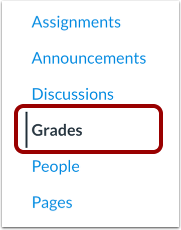
00:08: In Course Navigation, click the Grades link.
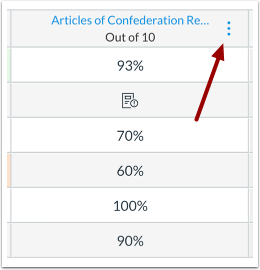
00:11: Hover the cursor over the assignment or assignment group column header and click the
00:15: Options icon.
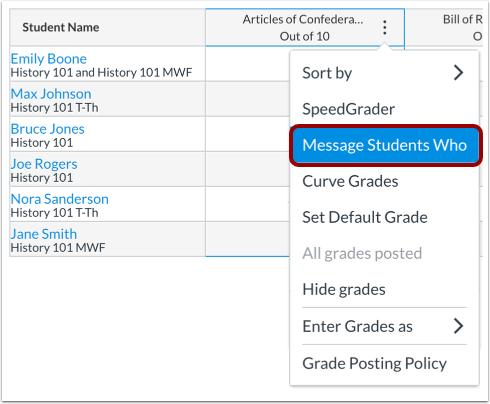
00:18: Click the Message Students Who link.
00:21: In the Compose Message window, you can select a category of students to message,
00:25: manage the recipients by role or individually,
00:29: enter a message title, and compose a message.
00:34: Choose a category of students to message in the For students who drop-down menu. By default,
00:40: the
00:40: Have not yet submitted message category is selected. To message students who have submitted,
00:45: click on the drop-down menu and select Have submitted, then click one of the
00:51: following radio buttons: All submissions message students who have any submissions,
00:56: graded submissions message students who have graded submissions, and not graded
01:02: submissions message students who have ungraded submissions.
01:07: submissions message students who have ungraded submissions
01:12: To message a different category of students, click the For students who drop-down menu,
01:16: then
01:17: select one of the other available categories for assignments: Have
01:21: not yet submitted message students who have not submitted the assignment, even
01:24: if they have been manually awarded a grade, with the option to skip excused students,
01:29: have not been graded message students
01:32: whose assignments have not yet been graded whether submitted or unsubmitted,
01:35: scored more than point value message students
01:39: who earned a grade above a selected cutoff, scored less than point value message
01:43: students who earned a grade below a selected cutoff, and reassigned message
01:48: students who have submitted an assignment and had it reassigned to them.
01:53: If you are messaging students who scored more than or less than a value or whose
01:57: total score is higher than or lower than a value, enter a number of points in the
02:02: Cutoff Value field.
02:04: To select or deselect users with a given role,
02:07: click the checkboxes in the Send Message To field.
02:11: To view, add, or remove specific users, click the Show all recipients link.
02:17: When you show all recipients, you can manage individual recipients included in a
02:22: message. To remove a user, click the Remove icon. To add a user, click the Add icon.
02:29: By default, the subject is a message based on your selections. To edit the subject,
02:35: enter a different subject in the Subject field.
02:40: Type a message to the students in the Message field.
02:43: To attach a file to the message, click the Attach button.
02:47: To create a media recording or upload a media file,
02:50: click the Media icon.
02:53: To send the message, click the Send button.
02:56: This guide covered how to send a message to students from the Gradebook.