Modules are used to organize course content by weeks, units, or whatever organizational structure works for your course. With modules, you are essentially creating a one-directional linear flow of what you would like your students to do. Once you create modules, you can add content items, assign the module, or add requirements.
Learn more about Modules.
Note: If the Course Home Page is set to modules, modules can be added and managed directly from the Course Home Page.
View the video transcript
00:07: How do I add a module?
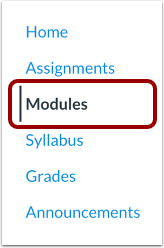
00:09: In Course Navigation, click the Modules link.
00:13: Click the Add Module button.
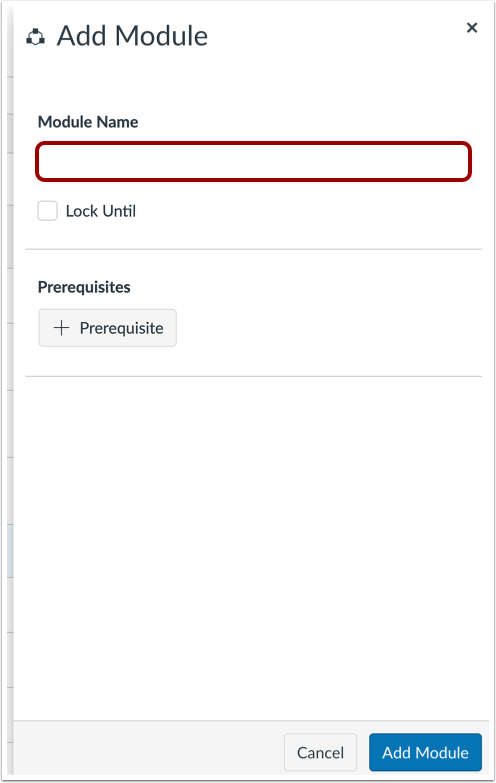
00:16: Type a name in the Module Name field.
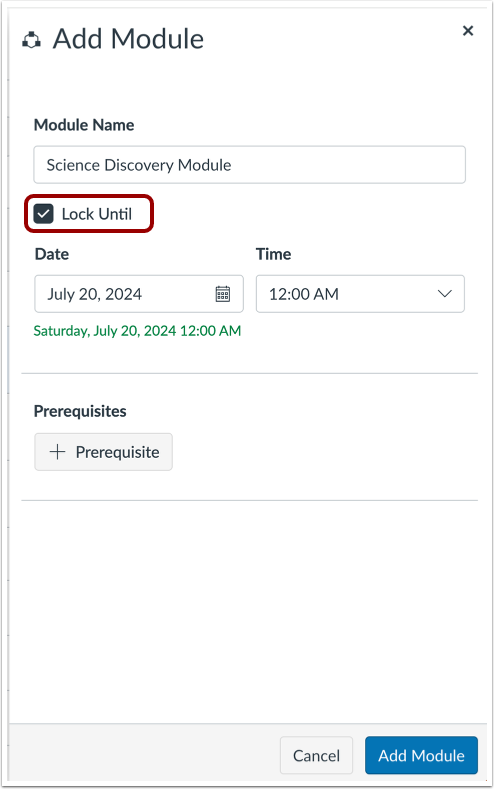
00:19: If you want to restrict the module until a specific date, you can lock the
00:24: module.
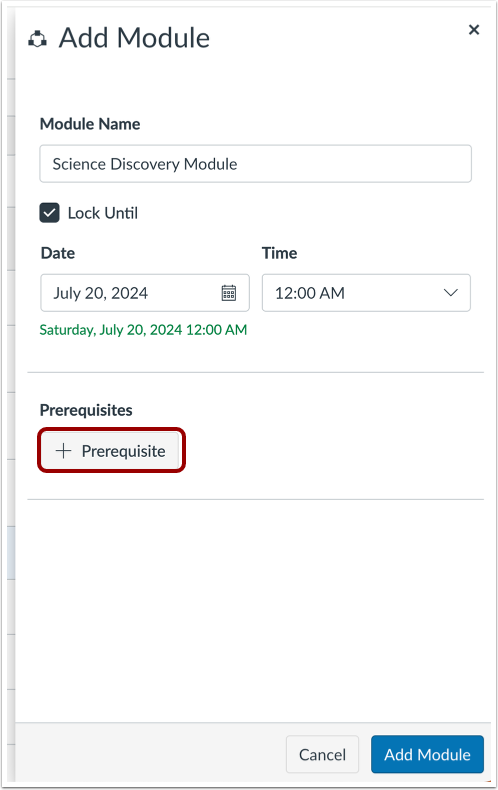
00:25: If you have added at least one module to your course, you can require a
00:29: prerequisite module. A prerequisite module means students must
00:33: complete the added modules before they can view the new module.
00:38: Click the Add Module button.
00:40: View your created module. To add items to
00:44: your module, click the Add icon or drag and drop to add files
00:48: to an empty module.
00:51: To add items to your module, click the Add icon.
00:55: Or drag and drop to add files to an empty module.
00:59: You can also edit the module, assign it, move it, duplicate it, delete it, send
01:04: it to another instructor, or copy it to another course.
01:08: This guide covered how to add a module.
Open Modules
In Course Navigation, click the Modules link.
Add Module
Click the Add Module button.
Add Module Name
Type a name in the Module Name field.
Lock Module Date
If you want to restrict the module until a specific date, you can lock the module.
Add Module Prerequisites
If you have added at least one module to your course, you can require a prerequisite module. A prerequisite module means students must complete the added modules before they can view the new module.
Add Module
Click the Add Module button.
View Module
View your created module.
To add items to your module, click the Add icon [1] or drag and drop to add files to an empty module [2].
You can also edit the module, assign it, move it, duplicate it, delete it, send it to another instructor, or copy it to another course.