00:07: How do I assign a graded discussion to a course group?
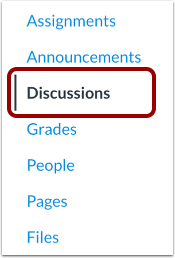
00:10: In Course Navigation, click the Discussions link.
00:14: To create a discussion, click the Add Discussion button.
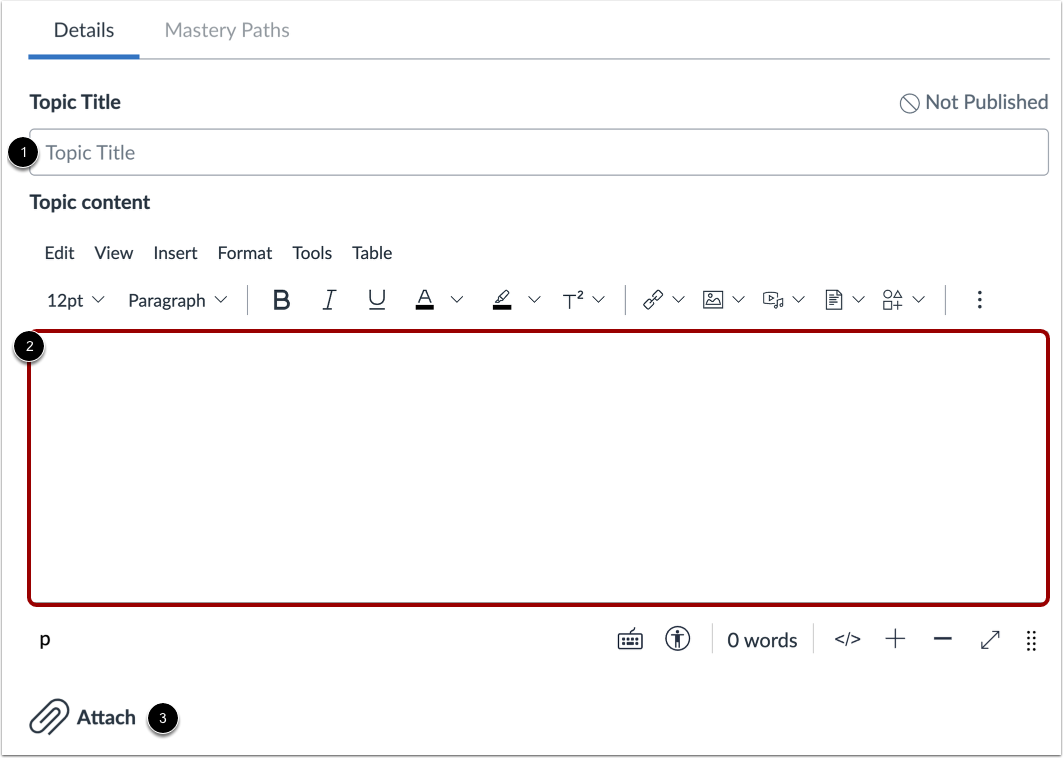
00:19: Enter a topic title and discussion details.
00:21: You can also attach files.
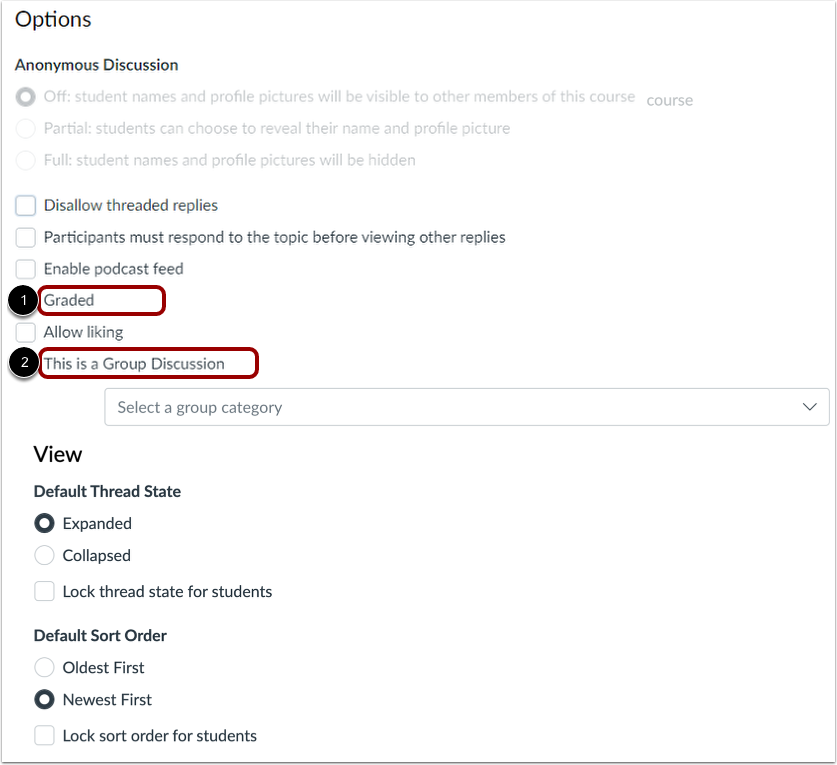
00:24: Click the Graded checkbox and the This is a Group Discussion checkbox.
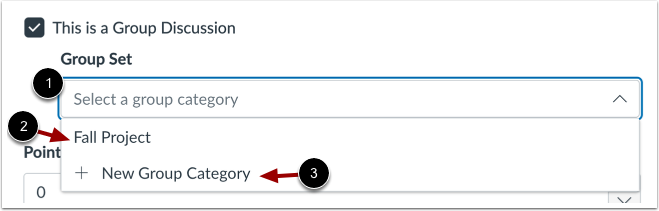
00:29: To select which groups will be assigned, click the Group Set drop-down menu. Select
00:34: a group name.
00:36: Or add a new group set by clicking the New Group Category link.
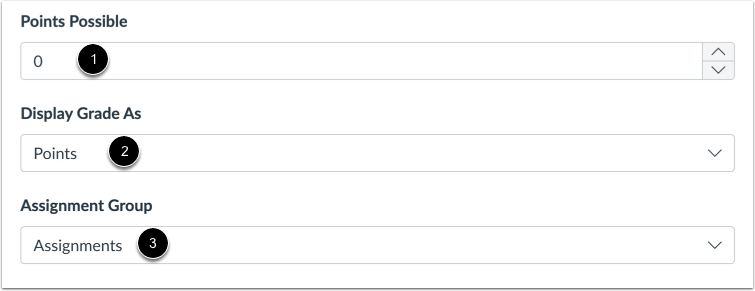
00:41: Enter the total number of points possible in the Points Possible field.
00:46: To select a grading type, click the Display Grade As drop-down menu.
00:50: Then select a grading type. You can display grades as points,
00:54: percentages, complete or incomplete, a letter grade, or
00:58: a GPA scale.
01:01: To choose an assignment group, click the Assignment Group drop-down menu. Then,
01:05: select a group.
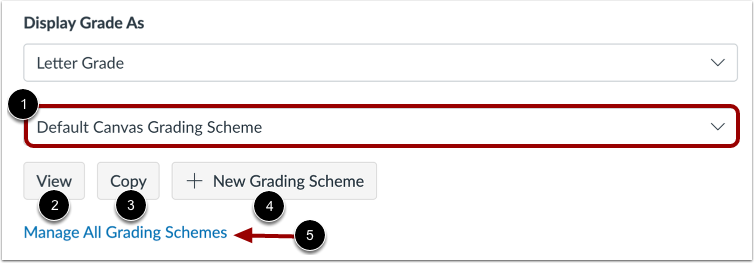
01:07: If you display grades as letter grades, the grading scheme defaults to the Default
01:11: Canvas Grading Scheme. To select another grading scheme, click the Grading
01:16: Scheme drop-down menu and select another scheme.
01:19: You can view or copy the current grading scheme.
01:22: You can also create a new grading scheme or manage all grading
01:26: schemes.
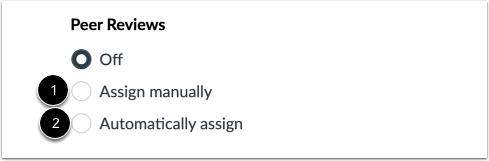
01:28: By default, peer reviews are not assigned.
01:31: To assign peer reviews manually, click the Assign manually radio button.
01:37: To assign peer reviews automatically, click the Automatically assign
01:41: radio button.
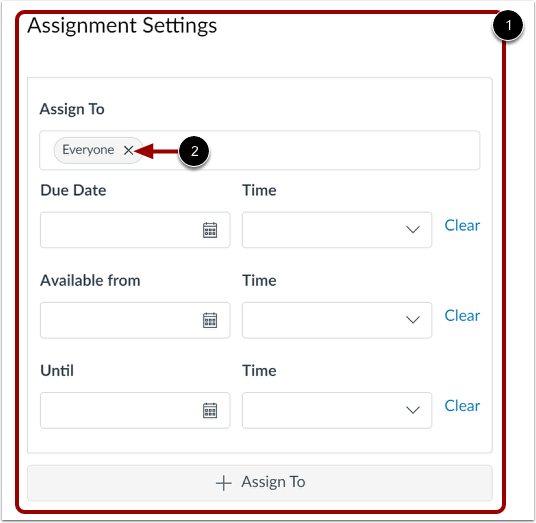
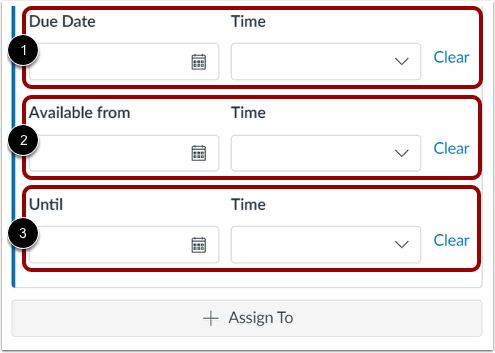
01:43: To manage assignees, the discussion due date, or availability dates, use
01:47: the Assignment Settings options. By default, Canvas
01:52: assigns your graded discussion to everyone in your course.
01:56: To assign to only certain students or differentiate due dates for groups,
02:00: remove Everyone by clicking the Remove icon.
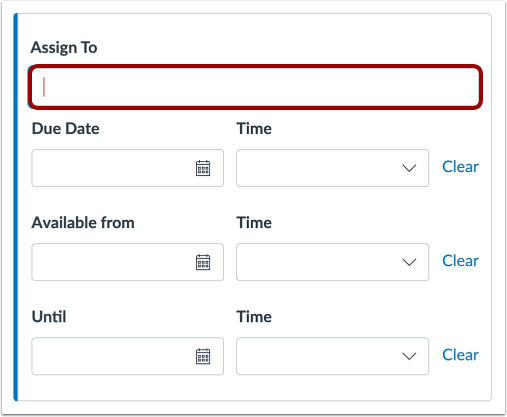
02:04: To add one or more individual groups, click the Assign To field and
02:08: select a group name.
02:10: Add the due date as well as the availability dates.
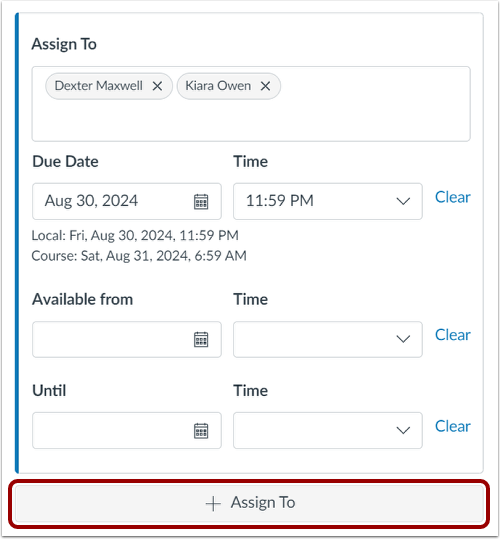
02:14: To add one or more students with a different due date and availability
02:18: dates, click the Assign To button.
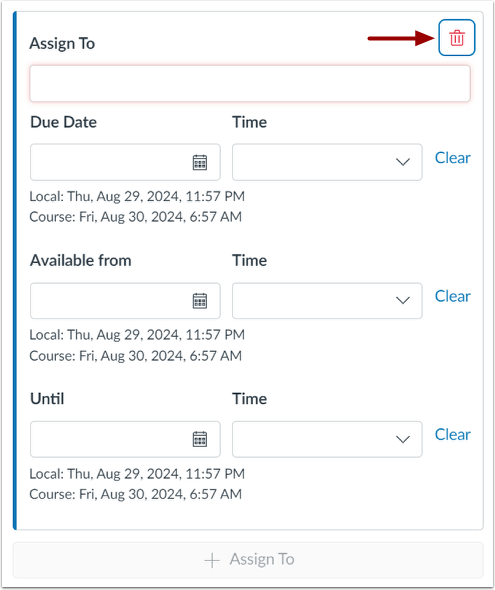
02:21: You can also delete assignments by clicking the Remove icon in the appropriate assignment
02:25: section.
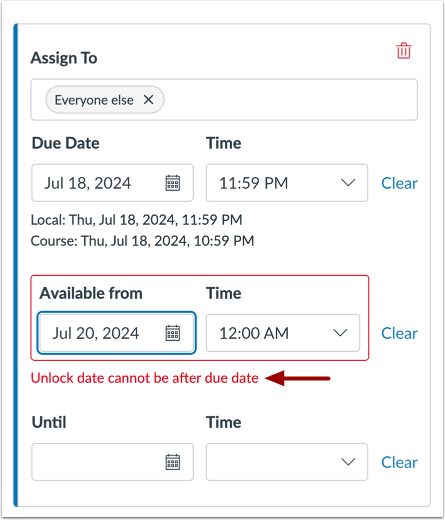
02:27: If you submit an invalid string of due dates, Canvas generates
02:31: an error notification. Invalid
02:34: entries include not unlocking the discussion before it is due, not placing
02:38: the due date inside the range of availability dates, or assigning a
02:42: date that is outside the course or term dates.
02:46: Correct the date and then update the discussion again.
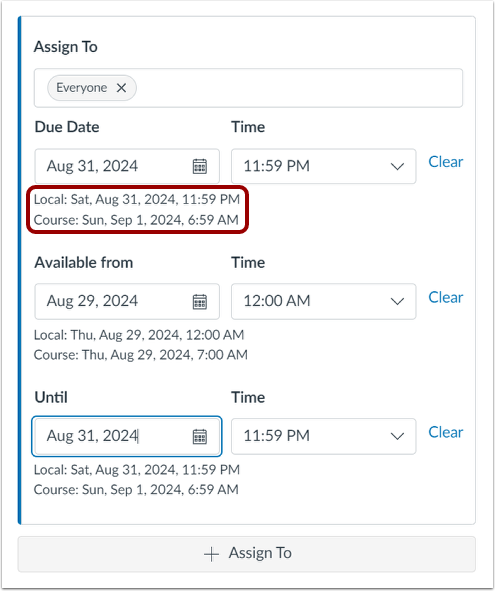
02:50: Canvas displays the time zone date and time
02:53: according to context. If you manage courses in a time zone other
02:57: than your local time zone and create or edit a due date for a graded discussion,
03:01: the course and local times are displayed for reference.
03:05: If you are ready to publish your discussion, click the save and publish button.
03:09: If you want to create a draft of your discussion and publish it later, click
03:13: the save button.
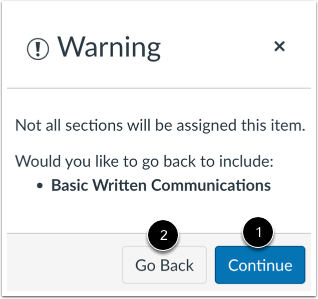
03:15: If you do not add course sections or students to the assignment, a
03:19: warning message displays. If you don't want to add any others to the assignment,
03:23: click the Continue button, or to go back and add additional sections
03:28: or students, click the Go Back button.
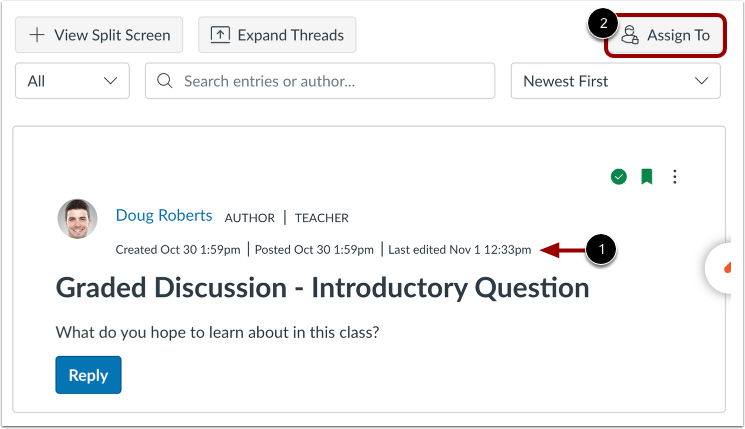
03:31: You can view dates the discussion was created, posted, or edited.
03:36: To view the assignment setting details, click the Assign To button.
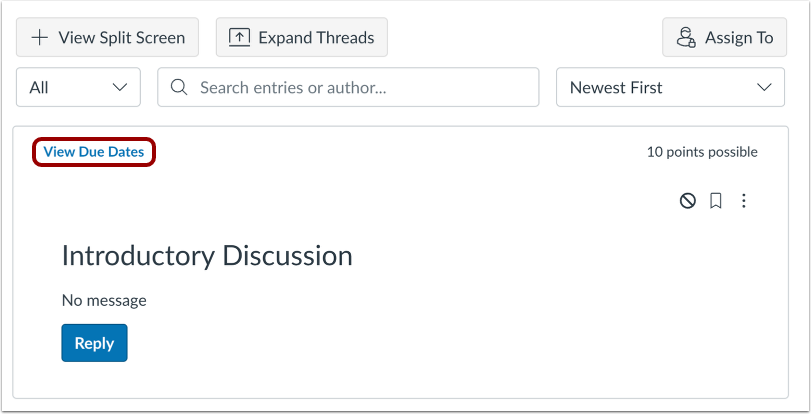
03:41: If there are multiple assignments, you can view users and due dates for the discussion
03:45: by clicking the View Due Dates link.
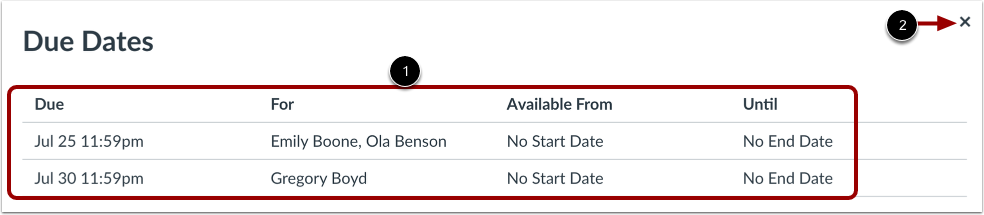
03:49: View the dates assigned to the graded discussion. To close the Due Dates window,
03:53: click the Close icon.
03:56: This guide covered how to assign a graded discussion to a course group.