00:07: How do I manage item banks in New Quizzes?
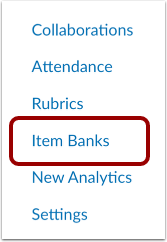
00:10: In Course Navigation, click the Item Banks link.
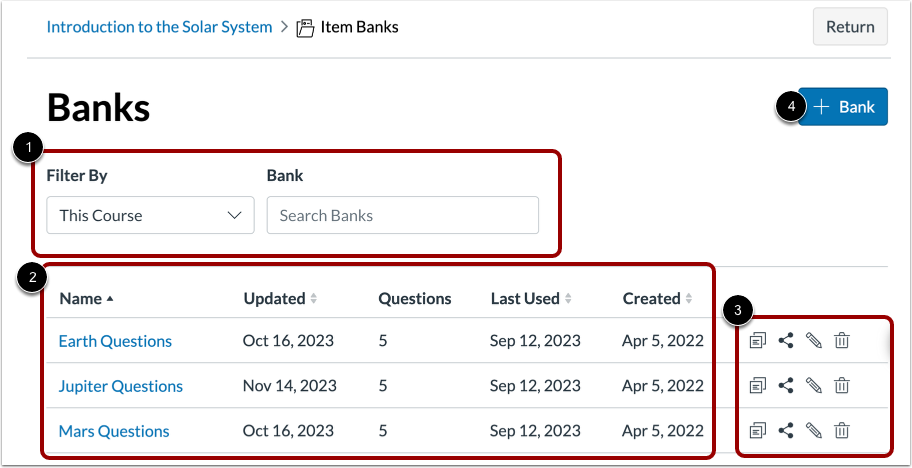
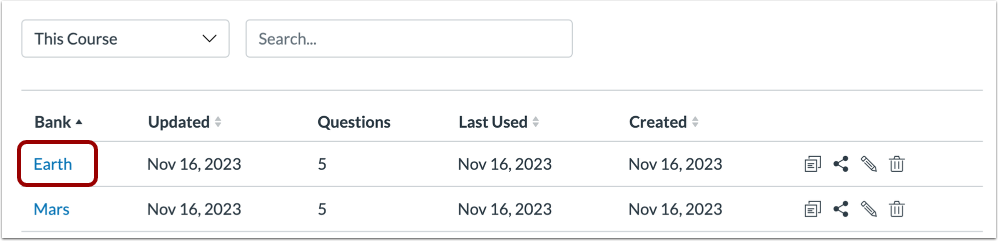
00:14: On the Banks page, you can filter or search the list of item banks.
00:18: You can also view the item bank details. To duplicate, share,
00:23: view currently shared details, edit, or delete a bank,
00:26: use the item bank management icons.
00:29: To create a new item bank, click the Add Bank button.
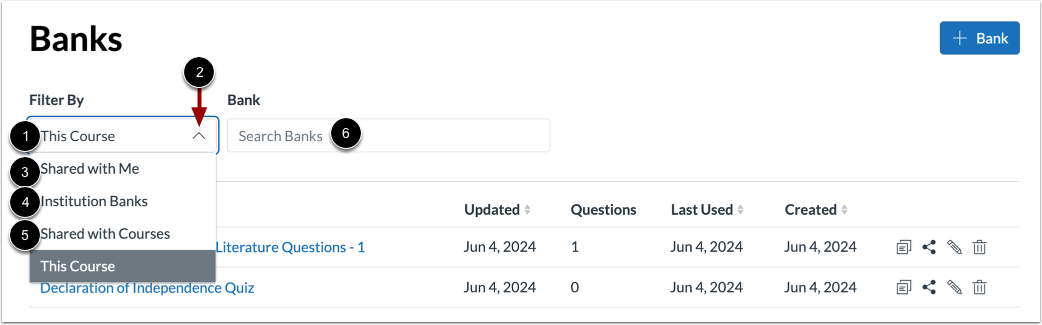
00:34: By default the item Banks page, displays the discourse filter, which displays
00:38: item Banks shared with the course to select another bank filter.
00:42: Click the filter by drop-down menu, then select one of the following filter
00:46: options, shared with me, all item Banks created by, or shared
00:50: with you, or the course. Institution Banks, item Banks shared by your
00:54: institution, shared with courses item Banks shared with any
00:58: courses in which you are enrolled.
01:01: To search for item banks, enter a search term in the Search Banks field.
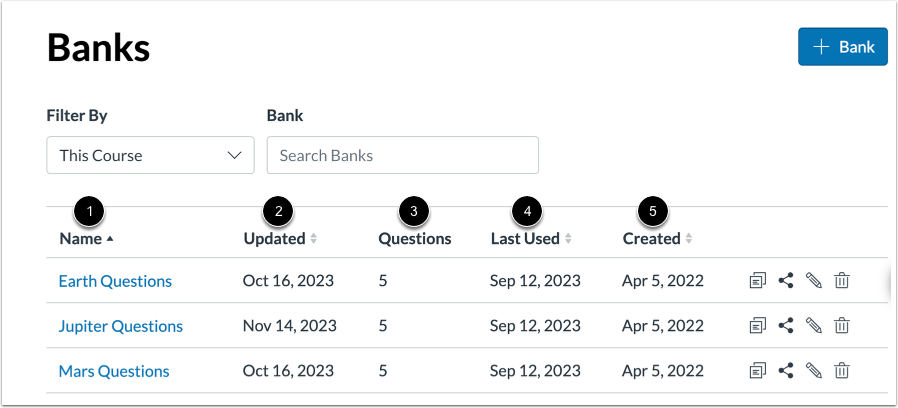
01:06: In the list of item Banks, you can view the item bank's name, the data was
01:10: last updated, the number of questions in it.
01:13: The date, it was last used and the date.
01:15: It was created.
01:16: To duplicate an item bank, click the Duplicate icon.
01:21: To share an item bank or to see where an item bank is currently shared to
01:25: click the share icon.
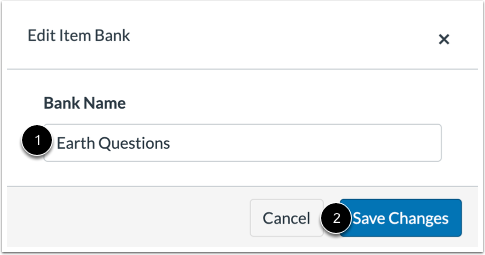
01:27: To edit an item bank, click the Edit icon.
01:31: To change the name of the item bank, enter the name in the Bank Name field. To
01:35: save the item bank name, click the Save Changes button.
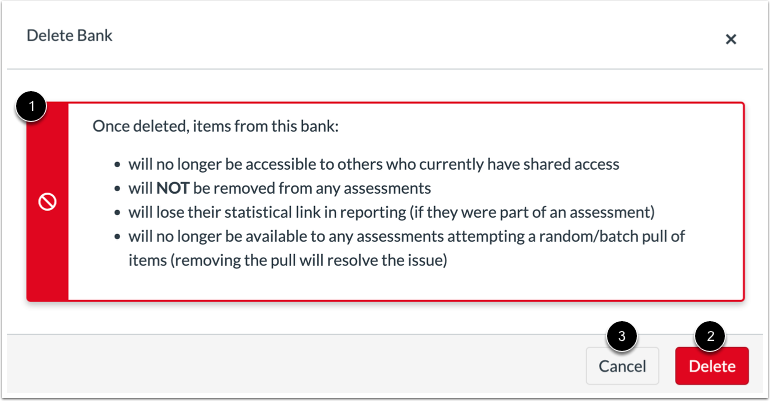
01:40: To delete an item bank, click Delete icon.
01:44: View the warning message for deleting item banks. To delete the item
01:48: bank, click the Delete button.
01:50: To keep the item bank, click the Cancel button.
01:54: To open an item bank, click the name of the item bank.
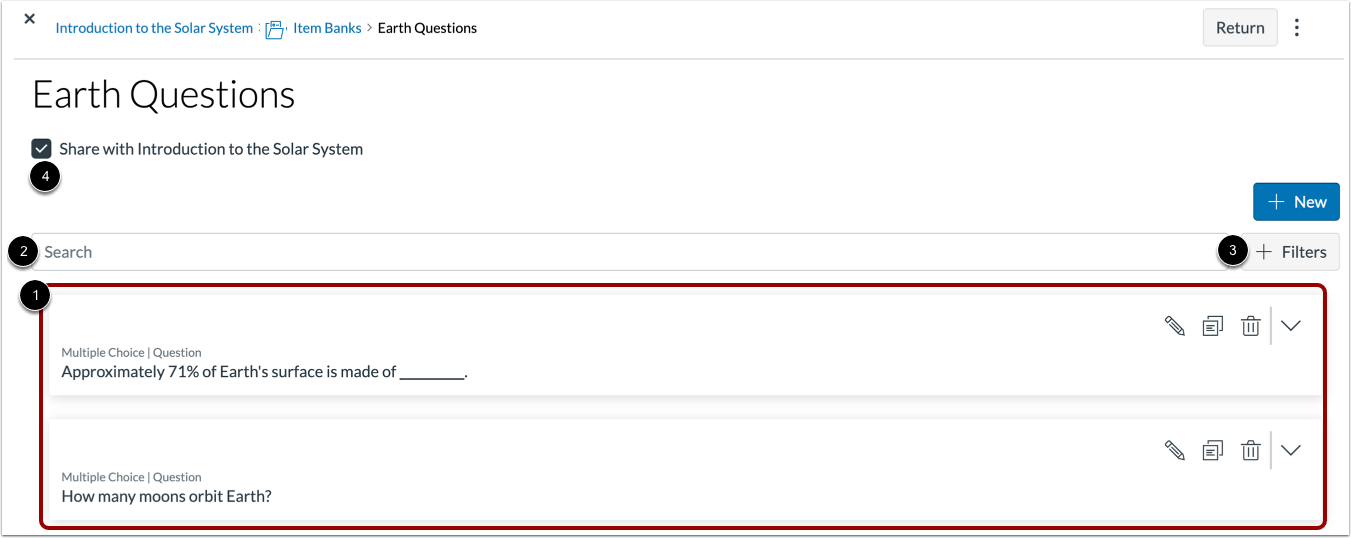
01:58: View the items in the item bank. To search for an item, enter
02:02: the search criteria in the Search field.
02:05: Search results will display items with matching results in question
02:09: titles, question stems, and answer choices.
02:13: To filter search results, click the Add Filters button.
02:17: To share an item bank with the current course, click the Share with [current course
02:21: name] checkbox. Deselect the checkbox to unshare the item bank.
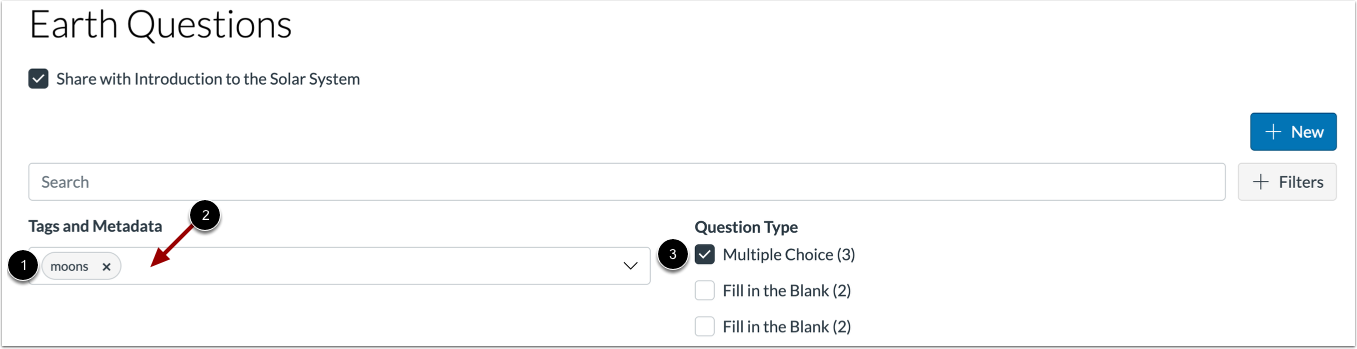
02:27: Search results can be filtered by tags or item type.
02:31: To filter results by tags, click the Tags and Metadata field
02:35: and select a tag [1]. Selected tags display in the Tags
02:39: and Metadata field [2]. Tags can be created when editing an
02:43: item bank item.
02:45: To filter results by item type, click the item type options
02:49: you want to view.
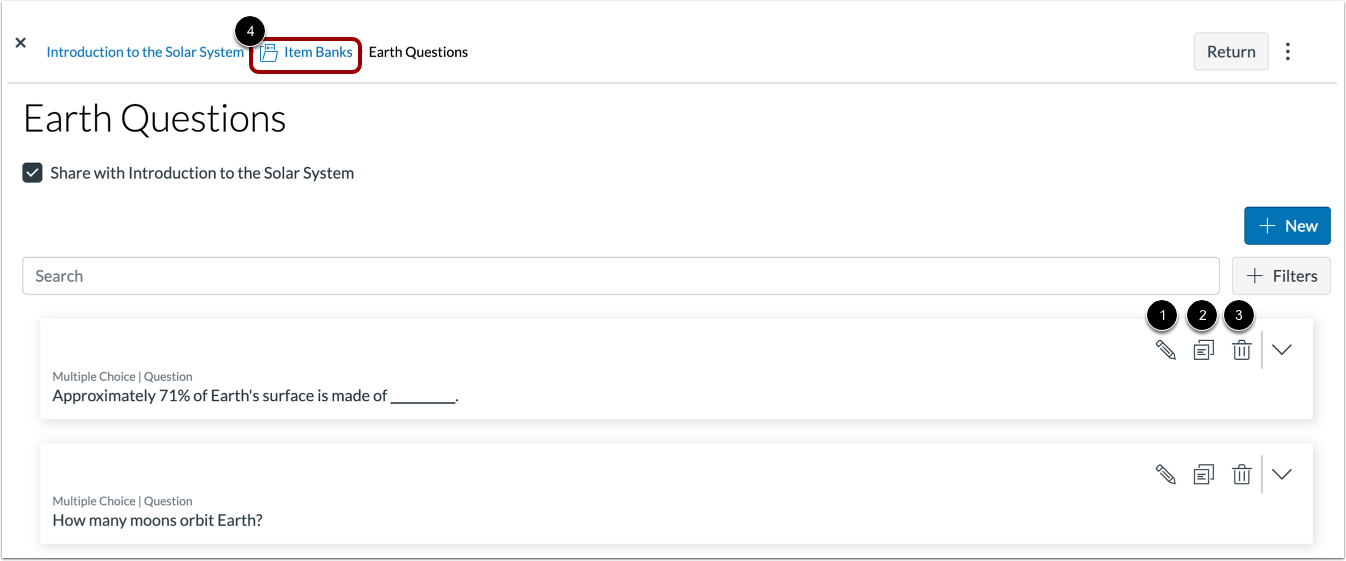
02:51: To edit an item bank item, click the Edit icon. To move
02:55: or copy an item to another item bank, click the Copy icon. To
02:59: delete an item, click the Delete icon.
03:02: To return to your item bank, click the Item Banks link.
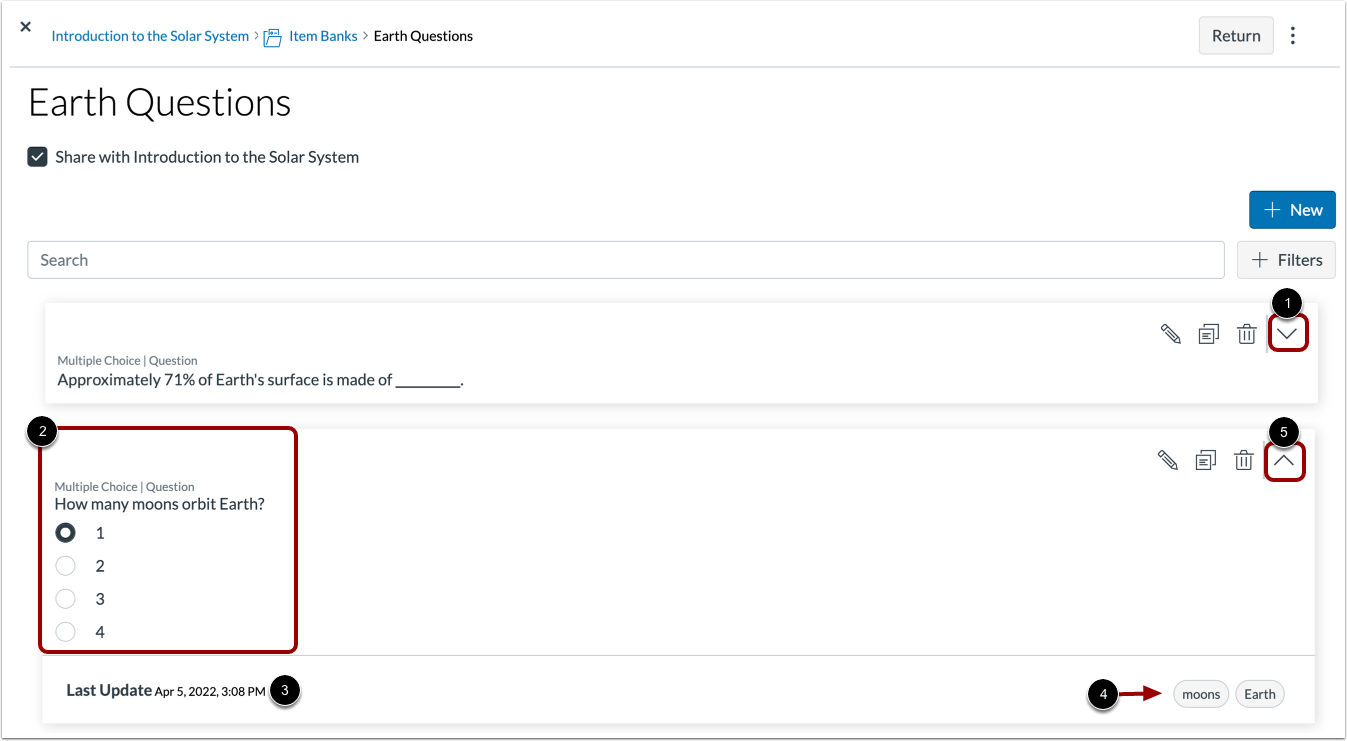
03:06: To view more details for an item, click the Open icon.
03:10: The details will include answer choices, the date and time.
03:14: The item was last updated. And any tags added to the item?
03:18: To close item details, click the Close icon.
03:22: This guide covered how to manage item banks in New Quizzes.