You can grade New Quizzes quizzes using SpeedGrader. Most quiz items are graded automatically after a student submits the quiz. However, essay and file upload questions must be graded manually.
This lesson describes how to access SpeedGrader from the Gradebook.
Notes:
- If the quiz does not display in the Gradebook and is worth zero points, the quiz's assignment details may be set to exclude the quiz from the Gradebook.
- You cannot grade New Quizzes quizzes in concluded courses.
- New Quizzes grades for students with concluded enrollments are not sent to the Canvas Gradebook.
- If you are using New Quizzes, learn how to grade one quiz question at a time.
- If anonymous grading is enabled, you do not see students' names while grading.
- Some New Quizzes question types support partial credit depending on question settings. For more details about scoring behavior, see the Grading and Moderation table.
View the video transcript
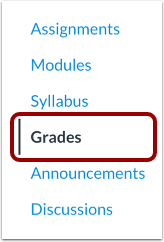
00:10: In Course Navigation, click the Grades link.
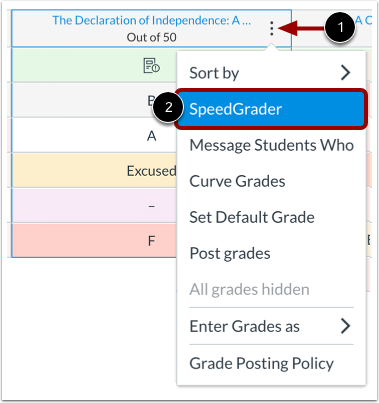
00:13: To open speedgrader, hover over the assignment column header and click the options
00:18: icon. Then click the speed grader link.
00:22: The quiz in speed grader. When grading quizzes, you can use the speed
00:26: grader, menu options. Change students change submissions and leave
00:30: assignment comments.
00:32: If any questions require manual grading, the Results page displays
00:36: a warning message that lists the questions to review. Essay and
00:40: file upload questions must be graded manually.
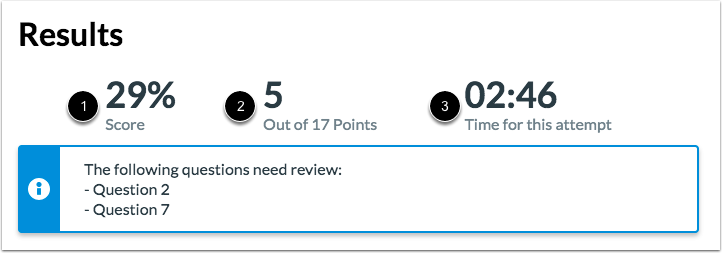
00:44: Quiz results include the percentage score points score and time to complete
00:48: attempt.
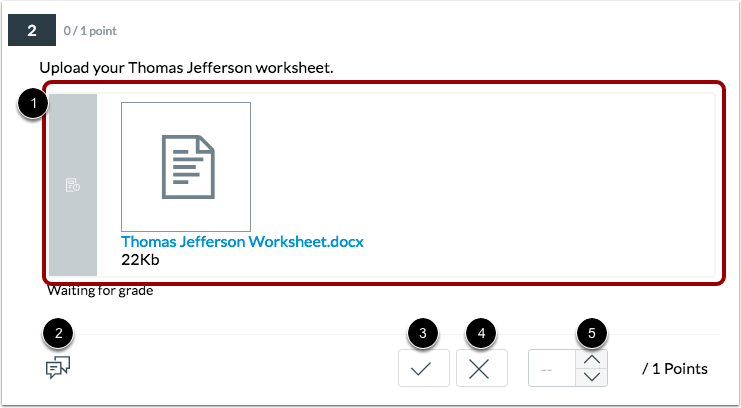
00:50: Items the require manual grading display a gray border.
00:54: To leave additional comments on the item, click the Comment icon.
00:59: To give a student full points for an answer.
01:01: Click the check mark button to give a student no points for an answer.
01:05: Click the x button.
01:07: You can also use the Arrow buttons to increase or decrease the score.
01:13: You can also regrade quiz items that have already been graded.
01:17: In the Fudge Points field at the bottom of the window, enter the number of points you
01:22: want to add to the overall quiz score.
01:24: You can also enter negative points. When you are ready to change
01:28: the student's quiz score, click the Update button.
Open Grades
In Course Navigation, click the Grades link.
Open SpeedGrader
To open SpeedGrader, hover over the assignment column header and click the Options icon [1]. Then click the SpeedGrader link [2].
View SpeedGrader
View the quiz in SpeedGrader [1]. When grading quizzes, you can use the SpeedGrader menu options [2], change students [3], change submissions [4], and leave assignment comments [5].
View Questions That Need Review
If any questions require manual grading, the Results page displays a warning message that lists the questions to review. Essay and file upload questions must be graded manually.
View Results
Quiz results include the percentage score [1], point score [2], and time to complete attempt [3].
Grade Item
Items the require manual grading display a gray border [1].
To leave additional comments on the item, click the Comment icon [2]. To give a student full points for an answer, click the Checkmark button [3]. To give a student no points for an answer, click the X button [4]. You can also use the Arrow buttons to increase or decrease the score [5].
Regrade Item
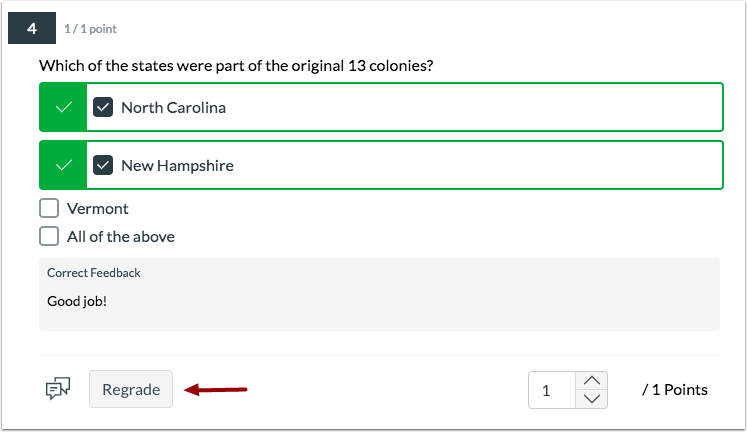
You can also regrade quiz items that have already been graded.
Assign Fudge Points
In the Fudge Points field at the bottom of the window, enter the number of points you want to add to the overall quiz score [1]. You can also enter negative points.
When you are ready to change the student's quiz score, click the Update button [2].