In the Gradebook, you can select an automatic or manual grade posting policy for an individual assignment. Posting policies determine grade visibility for students. You should select an assignment posting policy before entering grades.
If you select an automatic posting policy, students can see assignment grades as soon as they are entered in the gradebook. Anonymous and moderated assignments cannot be set to post grades automatically.
If you select a manual posting policy, assignment grades remain hidden from student view by default until you post grades for the assignment. If you select a manual course posting policy after assignment grades have already been entered, the policy will not apply retroactively and any posted grades will remain visible. You can hide posted grades from the assignment's Options menu. Additionally, when assignment grades are hidden, students cannot see their assignment grade, instructor comments, or grade change notifications. However, instructors can post comments to students before grades are entered.
You can also set a grade posting policy for a course. Assignment-level posting policies override course-level policies for that assignment. Learn more about using posting policies in your course and view the interactive Student Grade Visibility Flowchart.
Notes:
- If you make changes to an assignment with hidden grades, the total score as you see it (in both the Gradebook and the student Grades page) will be affected. However, students will not see any changes when they view their Grades page. Once you post the assignment grades, the total grade in the student's view will update accordingly.
- Grades for anonymous or moderated assignments must be manually posted. Moderated assignments grades cannot be unhidden until final grades have been posted.
- Students can see peer review comments when assignment grades are hidden. However, students can only see instructor comments if the instructor posts grades or submission comments.
- If you post grades for an assignment with varied due dates, all students will receive score results at the same time.
- Viewing the Total Column in the Gradebook may be restricted when multiple grading periods are enabled.
- In Classic Quizzes, students will not be able to see their quiz responses in Quizzes while quiz grades are hidden.
- In New Quizzes, enabling a posting policy will not affect a student's ability to access their quiz scores. Student visibility of New Quizzes scores must be managed from the quiz settings menu.
Open Gradebook
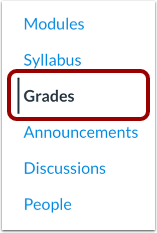
In Course Navigation, click the Grades link.
Open Assignment Menu
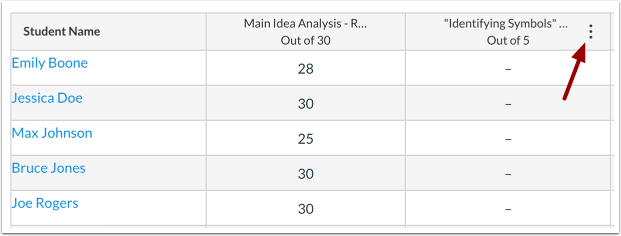
Hover over the assignment column header and click the Options icon.
Open Posting Policy
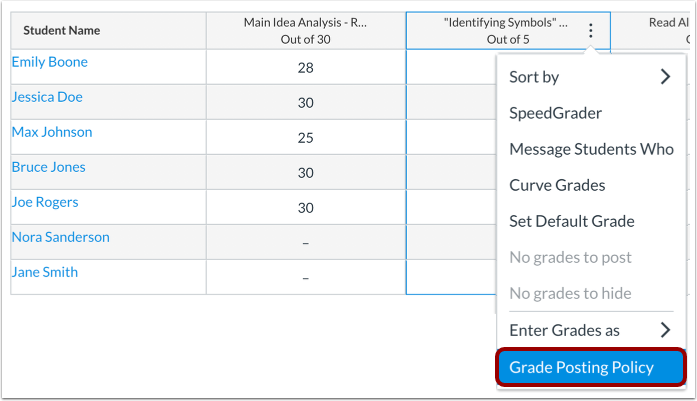
Click the Grade Posting Policy link.
Post Grades Automatically
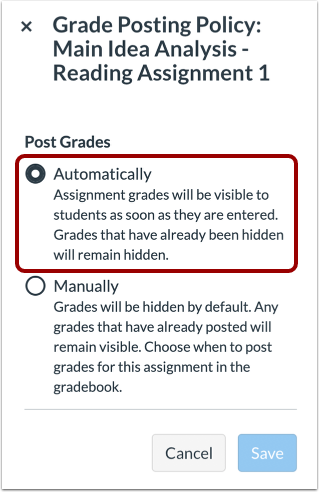
To post grades automatically, select the Automatically option. When the Automatically option is selected, students can view assignment grades as soon as they are entered.
Notes:
- Anonymous and moderated assignments cannot be set to post grades automatically.
- If you select the Automatically Post Grades option after you have already hidden grades, previously hidden grades will remain hidden.
Post Grades Manually
To post grades manually, select the Manually option [1]. When the Manually option is selected, grades are hidden by default and must be posted to be viewed by students. To schedule grades posting, click the Schedule Release Dates checkbox [2]. Choose whether to release Grades and Comments Together or on Separate Schedules [3], and set the Release Date [4] and Time [5].
Update Policy
To apply changes to the grade posting policy, click the Save button.
View Gradebook
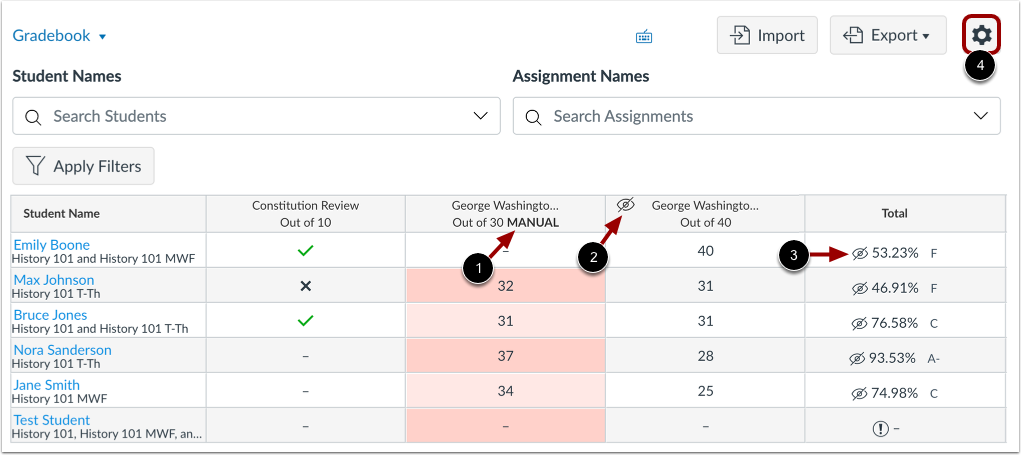
When a manual posting policy has been applied to an assignment, the assignment header displays the Manual label [1]. This label indicates that a manual posting policy is currently in place and future grades are hidden from student view.
Once a submission has been graded, the assignment header displays the Visibility icon [2]. This indicates that there are grades within the assignment that must be posted before they can be viewed by students.
When grades are hidden from student view, the Total column also displays the Visibility icon [3]. This indicates that the total grade in the Gradebook differs from the total grade viewed by the student.
To manage the default posting policy for a course, click the Settings icon [4].