00:07: How do I copy a module item to another course?
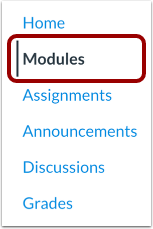
00:11: In Course Navigation, click the Modules link.
00:14: Locate the module item you wish to copy and click the Options icon. Select
00:19: the Copy To... option.
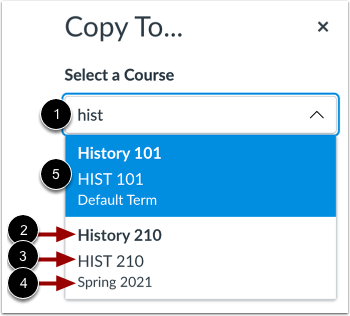
00:22: Enter the course code, SIS ID or course name in the Select
00:26: a Course field.
00:28: Enter the course code s. I e.
00:30: S, i d or course name in the select.
00:32: A course field. Search results are sorted by term
00:36: with the default term first followed, by most recent term start
00:40: date results for each term are sorted alphabetically and display.
00:44: The course name course, code and term name.
00:48: Select the course into which you want to copy the module item.
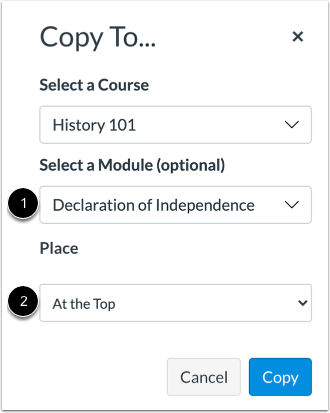
00:53: You can copy the module item into a specific module and location within
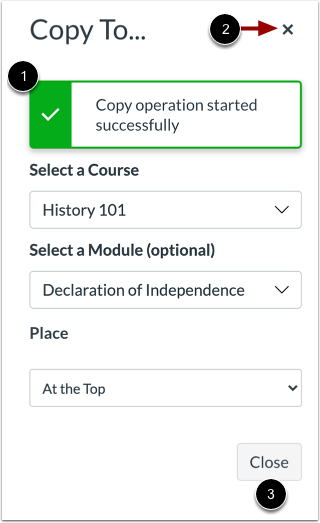
00:57: a course. Click or type a module name in the Select
01:02: a Module field. Then select the module for the copied module item.
01:07: To select a location within the module,
01:09: click the Place drop-down menu. You can select to copy the module
01:13: item to the top of the module, before or after a specific module item,
01:17: or at the bottom of a module.
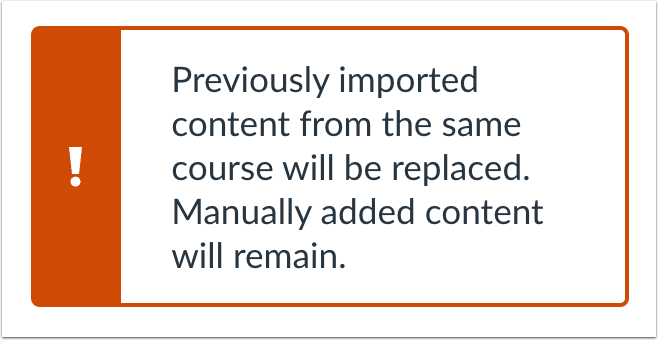
01:20: When copying content, a message displays explaining that previously imported
01:24: content from the same course will be replaced while manually added
01:28: content will remain.
01:31: Click the Copy button.
01:33: Canvas displays a notification when the module item copies successfully.
01:38: When finished, click the Close icon or the Close button.
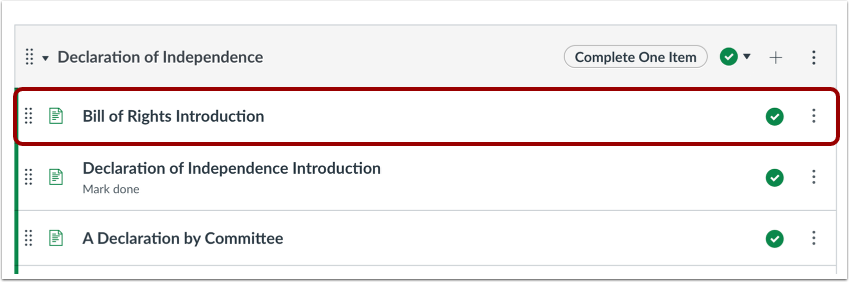
01:43: The copied module item displays on the Modules Index Page for the course
01:47: into which it copied.
01:49: This guide covered how to copy a module item to another course.