If you forgot to add something to your announcement, you can easily edit and add more information.
Notes:
- You can either save the edited announcement without notifying users or send a notification to users.
- Your course must be published for students to receive announcement notifications. Students do not receive new announcement notifications for announcements imported from another Canvas course.
- Announcements appear in chronological order based on their original post date. Once published, an announcements position cannot be changed, even if it is edited.
- In Canvas, profile photos appear on announcements to indicate who posted them. You cannot change the "U" icon on announcements that were imported or copied from another course. The "U" appears because the user information does not copy over. To display a different photo, you would need to create a new announcement by copying and pasting the content into a fresh post.
View the video transcript
00:07: How do I edit an announcement in a course?
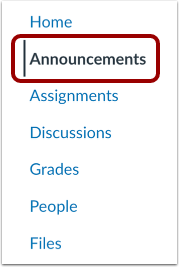
00:10: In course, navigation, click the announcements link
00:14: Click the name of the announcement.
00:17: Click the options icon.
00:19: And click the edit link.
00:22: Edit the necessary announcement fields.
00:25: Click the save button.
00:27: If you want to save your edits without notifying students, click the save
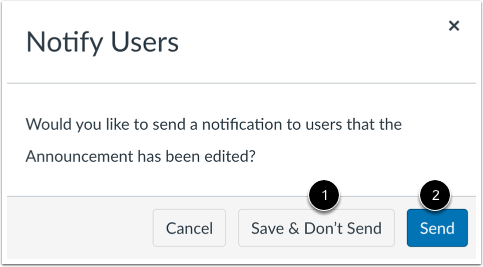
00:31: and don't send button.
00:34: If you want to notify your students about the change, click the send button,
00:39: View, the updated announcement.
00:42: This guide covered. How to edit an announcement in a course.
Open Announcements
In Course Navigation, click the Announcements link.
Open Announcement
Click the name of the announcement.
Edit Announcement
Click the Options icon [1], and click the Edit link [2].
Edit Announcement Details
Edit the necessary announcement fields.
Click the Save button.
Notify Users
If you want to save your edits without notifying students, click the Save and Don't Send button.
If you want to notify your students about the change, click the Send button.
View Updated Announcement
View the updated announcement.