00:07: How do I create a Numeric question in New Quizzes?
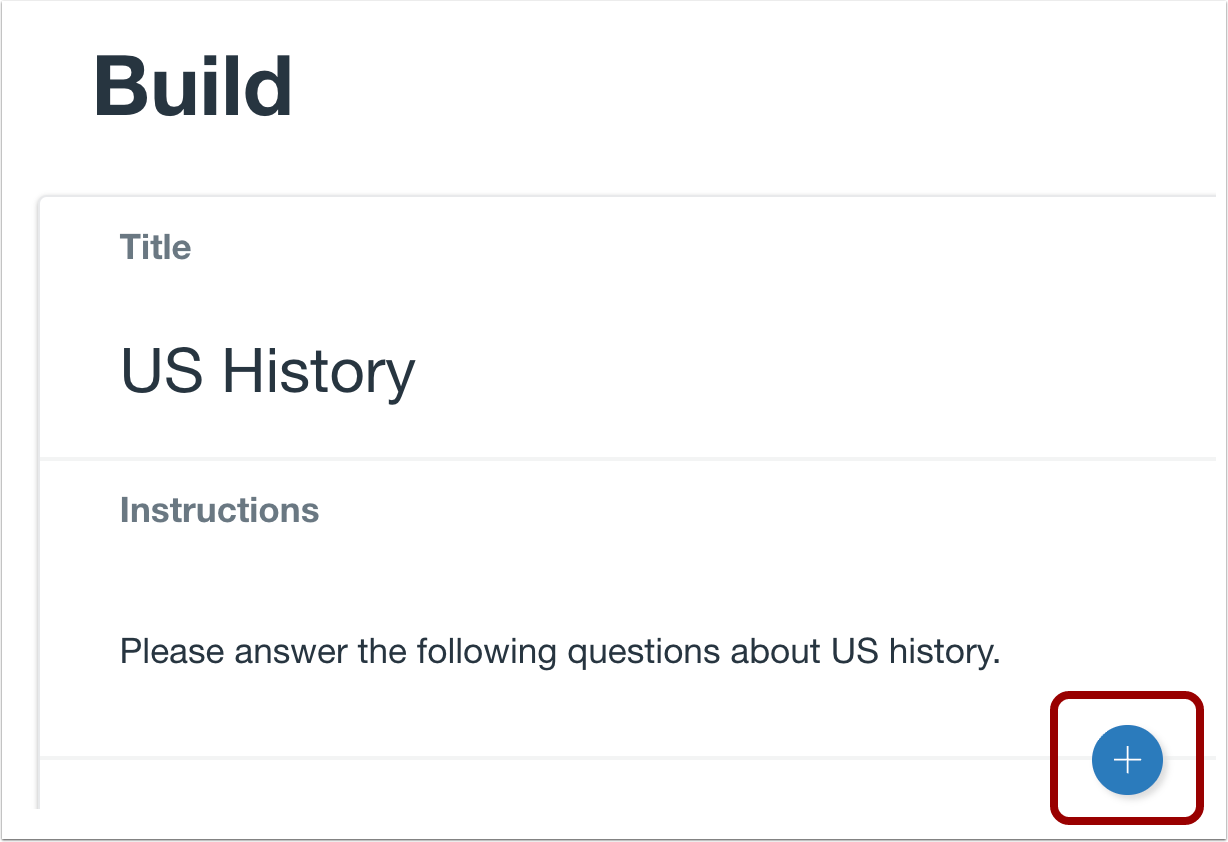
00:11: To create a question, click the Add button anywhere in the quiz.
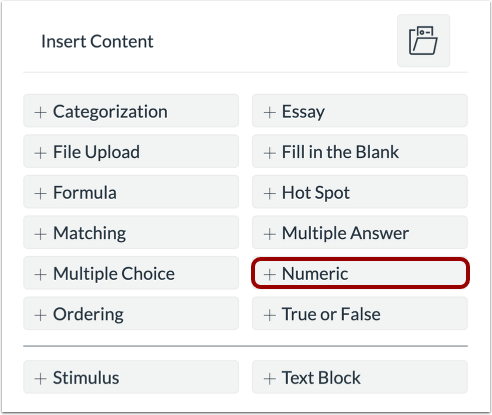
00:15: Click the Add Numeric button.
00:18: In the Question Title field, add a question title. Question titles
00:23: are optional and are not visible to students.
00:26: In the Question Stem field, add the question stem. The question stem contains
00:31: the question and, if necessary, additional instructions and information.
00:35: You can use the Rich Content Editor or the HTML view
00:39: to format and add content to your question stem.
00:43: To select a requirement for the answer.
00:45: Select an option from the requirement drop-down menu, you can
00:49: select exact response margin of error within a range or precise
00:54: response.
00:55: To add additional answers, click the Add Possible Answer link.
01:00: To add an exact response answer select the exact response option.
01:05: Enter an answer by typing the answer in the answer field or using
01:09: the arrows exact response answers can be added in scientific notation.
01:13: For example, accepted format 1.234 10-5,
01:19: Students responses will be marked correct if they match the answer.
01:22: Exactly.
01:24: To add a margin of error answer, select the margin of error option.
01:27: Enter the answer in the answer field then add the margin
01:32: in the margin field and select the margin type in the margin type drop-down
01:36: menu, you can select percentage or absolute margin type
01:40: margin of error Fields, do not accept entries written in scientific
01:44: notation. Student answers will be marked.
01:48: Correct? If they fall within the margin above or below the answer.
01:53: To add an answer that must fall within a specific range.
01:57: Select the within a range option, then select the
02:01: range start and range end for the answer range.
02:04: Inputs can be in scientific notation, for example, accepted format
02:08: 1.234 and signed carat.
02:10: 5 student responses will be marked, correct? If they are greater
02:14: than or equal to the range start and less than or equal to the range end.
02:19: To add an answer with a precise requirement,
02:22: select the Precise Response option. Then select the answer,
02:26: precision value, and precision type. The options for precision
02:30: type are significant digits and decimal places. Precise response
02:34: fields do not accept entries written in scientific notation.
02:39: Student responses will be marked as correct if they match the answer to the given
02:43: number of significant digits or decimal places.
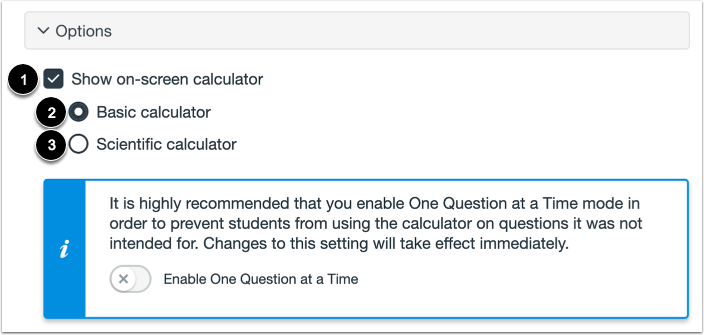
02:47: To allow students to use an on-screen calculator for this question.
02:51: Click the show on screen calculator, checkbox.
02:53: If you select this option, you can choose either a basic calculator or scientific
02:58: calculator. The basic calculator displays numbers and basic
03:02: math functions, such as add subtract multiply divide, the
03:06: scientific calculator, displays more options for advanced calculations.
03:12: To align the question to an outcome, click anywhere in the Align to Outcomes
03:16: section.
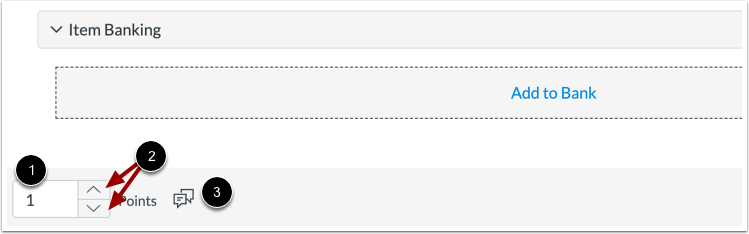
03:18: To add the question to an item bank,
03:20: click the Add to Bank link.
03:23: To customize the point value for the question, type the point value in the Points
03:27: field or use the arrows to increase or decrease the point value.
03:32: To leave feedback for students, click the Feedback icon
03:37: To save the question, click the Done button.
03:40: This guide covered how to create a Numeric question in New Quizzes.