If you cannot find a rubric you want to use in your course, you can create a new rubric. Once you create a rubric, the rubric is saved in your course for future use. You can add the rubric to an assignment and use the rubric for grading and adding comments. You can manage created rubrics in the Manage Rubrics page.
This lesson shows how to create a rubric in the Manage Rubrics page. You can also create a rubric directly when adding a rubric to an assignment, and the process is the same.
Rubric criteria can include a point range or an individual point value.
Notes:
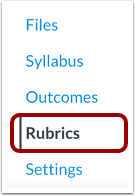
Open Rubrics
In Course Navigation, click the Rubrics link.
Add Rubric
Click the Add Rubric button.
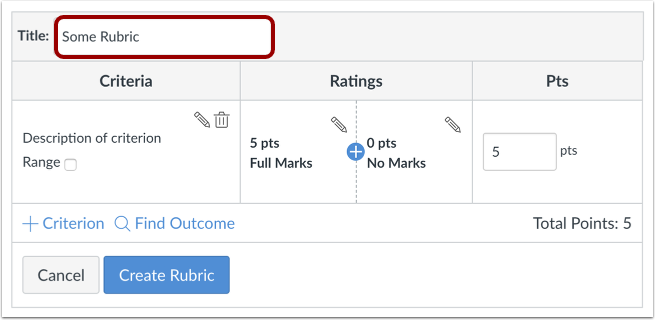
Add Title
In the Title field, add a title for the rubric. This title identifies the rubric so it can be easily associated with an assignment, graded discussion, or quiz.
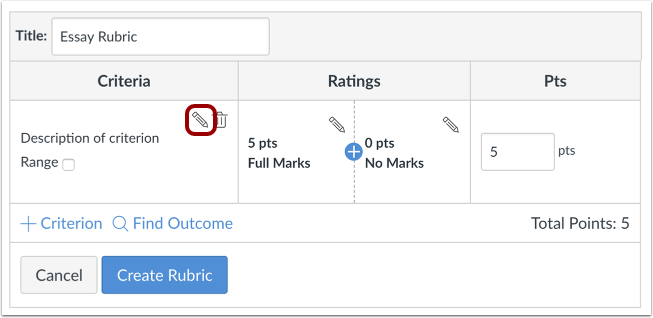
Edit Criterion Description
The rubric includes one default criterion entry. To edit the criterion description, click the Edit icon.
Note: Currently criterion cannot be reordered after they are added to a rubric. If you want to display criterion in a specific order, make sure you create them in the order that you prefer.
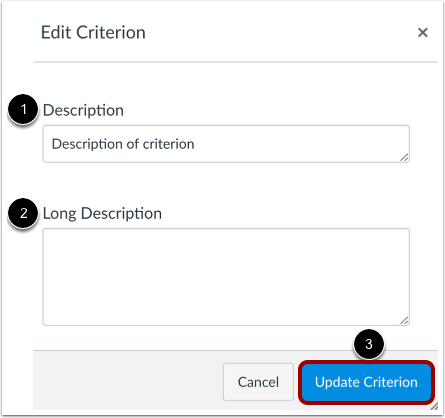
Enter Descriptions
Enter a short description for the criterion in the Description field [1]. To add a longer description to the criterion, enter a longer description [2]. The longer description provides students more information about the criterion. Click the Update Criterion button[3].
Select Range
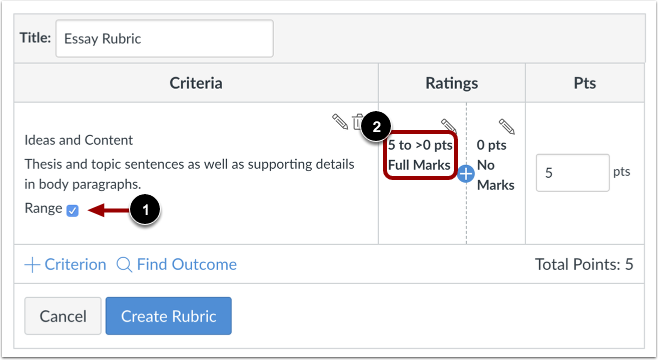
By default, rubric ratings are created as individual point values. If you want to create a point range instead, click the Range checkbox [1]. Ranges allow you to assign a rating for a range of point options instead of just one point value.
When enabled, the first rating (full marks) shows the total point value in a range format [2]. Each rating displays a maximum and minimum point value. For each rating, the maximum value is assigned as the point value.
Except for the range value display, criterion ranges function the same way as individual point ratings. For instance, a range that includes a maximum of five points and a minimum of three points is assigned the full point value of five points.
Edit Total Point Value
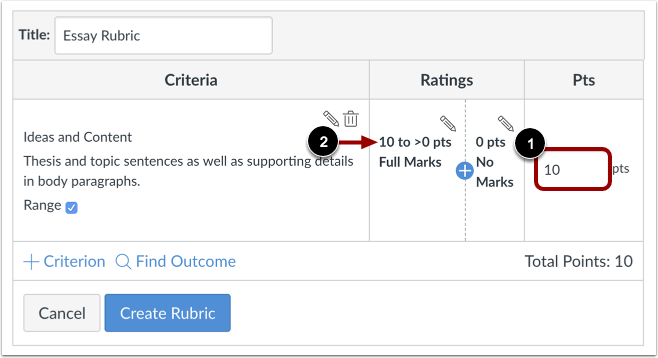
Rubric ratings default to 5 points, awarding 5 points for full rubric marks and 0 points for no rubric marks.
If you want to adjust the total point value of the criterion, enter the number of points in the Points field [1]. The first rating (full marks) updates to the new total point value and any incremental ratings adjust appropriately [2].
Add Ratings
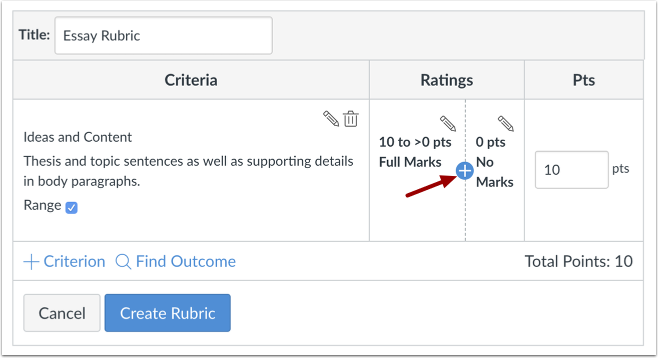
To add a new rating for the criterion, click the Add icon.
Update Rating
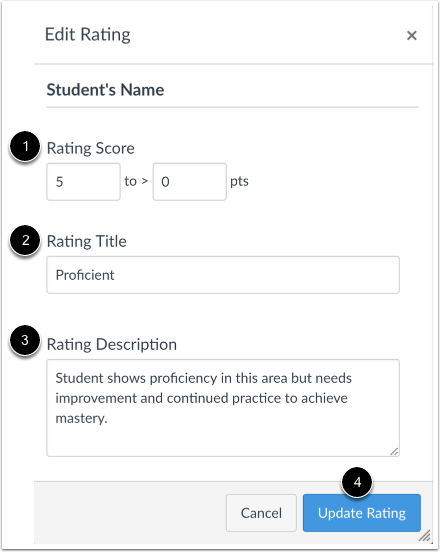
In the Edit Rating window, complete the rating criterion description. By default, the Rating Score field displays the point value between the two existing ranges [1]. To change the point value for the rating score, enter the new point value in the Rating Score field. Points can be whole (1, 5, 10) or decimal (0.3, 0.5, 2.75) numbers. However, if you are using a range, point values should be whole numbers.
In the Rating Title field [2], enter a title for the rating.
In the Rating Description field [3], enter a description for the rating.
Click the Update Rating button [4].
Manage Criterion
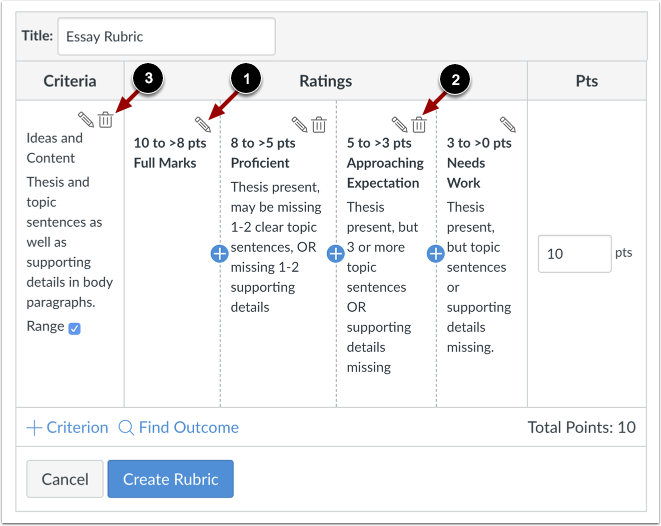
To edit a rating, click the Edit icon [1]. Editing a specific rating value affects the full point value for the criterion. If you adjust the point value of a rating, the value of all ratings will adjust and create the updated point value for the criterion.
To delete a rating, click the rating's Delete icon [2]. Note that you cannot delete the first and last rating for the criterion.
To delete the entire criterion, click thecriterion Delete icon [3].
Add Criterion
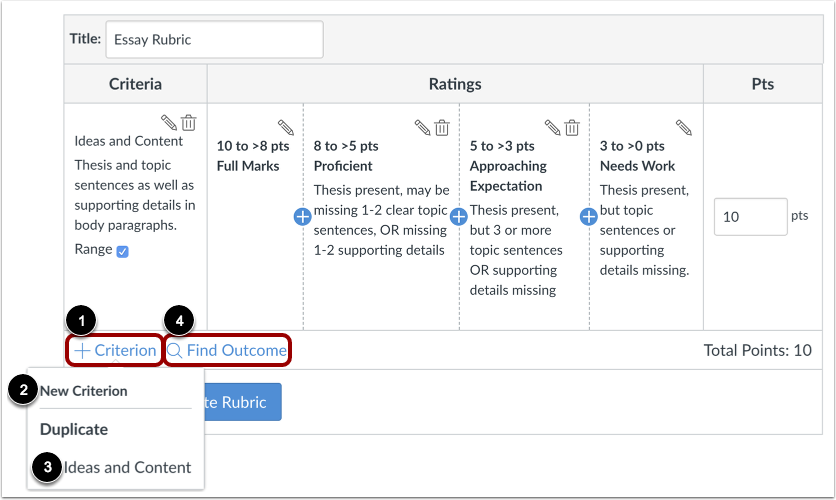
To add another criterion, click the Add Criterion link [1]. To create a new criterion, click the New Criterion option [2]. To duplicate an existing criterion, click the name of the criterion you want to duplicate [3].
To find an outcome to align with the rubric, click the Find Outcome link [4].
Note: Outcomes cannot be edited directly in a rubric.
Create Rubric
Click the Create Rubric button.
View Rubric
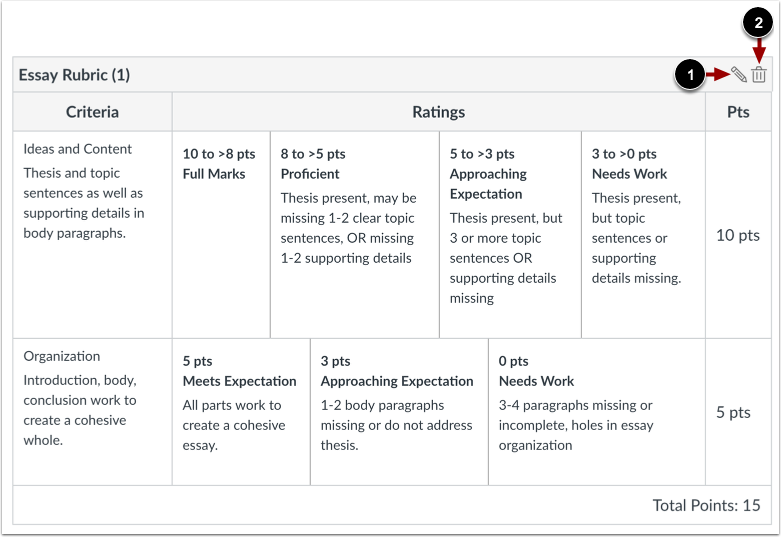
View the new rubric.
To edit the rubric, click the Edit icon [1]. To delete the rubric, click the Delete icon [2].
Note: Deleting a rubric will completely remove the rubric from the available rubrics listed in any of your courses. Deleting a rubric cannot be undone.