You can move students within groups. However, changes should be made before assigning a group to an assignment.
If a student is added to or removed from a group after receiving submissions, the submissions and grades may not align correctly. If a student is added to a group after the group submission, any re-submissions will overwrite the original submission; all previous grades will remain but the Gradebook will show the assignment was resubmitted since last graded. If you want to move a group member with a graded submission, you may want to clone the group set instead.
Note: In group assignments, all students should be assigned to groups before the assignment is published. Grades and submissions may be affected for students who were not in a group at the time of assignment submission but who were later added to a group.
View the video transcript
00:07: How do I move a student into a different group?
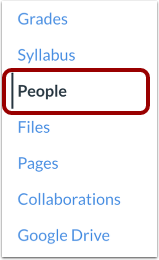
00:10: In Course Navigation, click the People link.
00:14: Click the name of the group set.
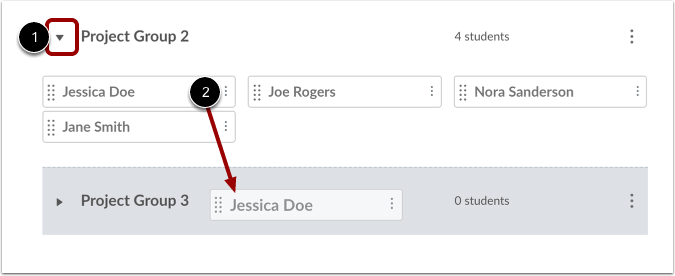
00:17: Expand the group where you want to move the student. Click the student's name
00:21: and drag it to another group.
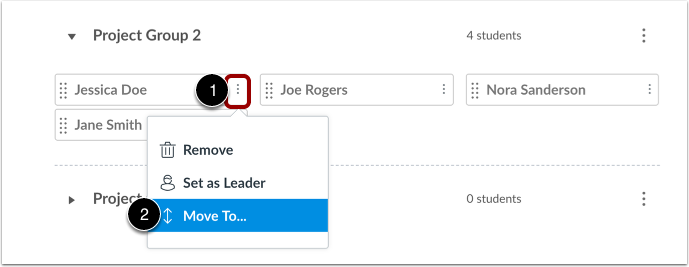
00:24: You can also click the student named options menu and select the move
00:28: to link.
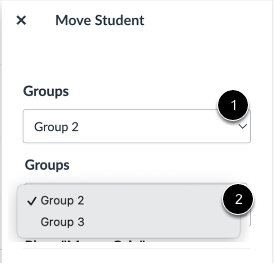
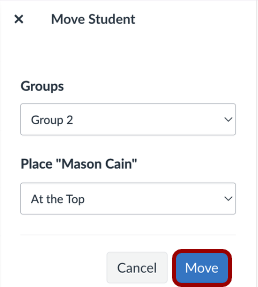
00:30: In the move student, sidebar click the group drop down menu, select
00:34: the group where you want to move the student.
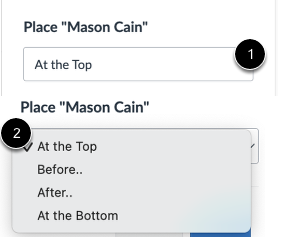
00:37: Next, click the placement. Drop down menu, select the desired
00:42: placement options such as at the top after before, or at
00:46: the bottom.
00:47: Click the Move button.
00:50: Verify the student has been moved to a different group.
00:54: This guide covered how t move a student into a different group.
Open People
In Course Navigation, click the People link.
Open Group Set
Click the name of the group set.
Move Student via Drag and Drop
Expand the group where you want to move the student [1]. Click the student's name and drag it to another group [2].
Move Student via Move To Option
You can also click the student name Options menu [1] and select the Move To... link [2].
Move Student
In the Move Student sidebar, click the Group drop-down menu [1]. Select the group where you want to move the student [2].
Next, click the Placement drop-down menu [2]. Select the desired placement option (e.g., At the top, After.., Before.., or At the bottom).
Click the Move button.
View Groups
Verify the student has been moved to a different group.