This guide applies only to institutions that have enabled the IgniteAI Insights for Discussions feature. If your user interface differs from what is shown, the feature is not enabled at your institution.
In Discussions, the Discussion Insights Dashboard uses an AI-powered tool to help educators quickly evaluate the relevance and quality of student replies.
Notes:
- Students cannot access Discussion Insights or see evaluations of their replies.
- AI-generated relevancy scores and evaluation notes cannot be edited or overridden; they are intended to support instructors in grading.
- Results are available only within the Discussion Insights interface. However, if the Platform Usability Updates for SpeedGrader feature option is enabled, results are also visible in SpeedGrader.
- Grading still occurs in SpeedGrader; Discussion Insights does not impact grades.
- Rubrics are not considered in evaluations.
View the video transcript
00:07: How do I use IgniteAI Insights for Discussions?
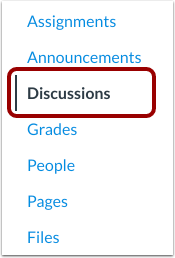
00:11: In Course Navigation, click the Discussions link.
00:15: Click the discussion name.
00:17: In the discussion, click the Go to Insights button.
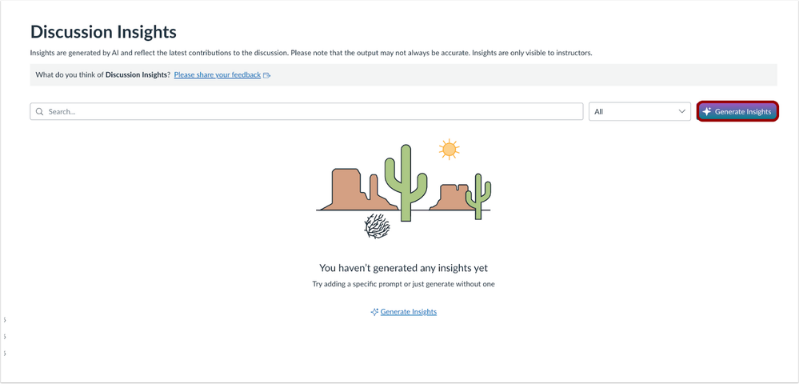
00:21: In the Discussion Insights Dashboard, click the Generate Insights button to review the latest student responses.
00:27: After Insights are generated, instructors can search specific students and filter by relevance.
00:34: In the dashboard, instructors can view the relevance to the topic, the student name, Evaluation Notes, the time the response was posted and have additional actions they can take.
00:45: Instructors can take the following actions for each result: View the reply in the Insights Dashboard.
00:51: View the response in SpeedGrader.
00:55: View the reply in context.
00:57: This guide covered how to use IgniteAI Insights for Discussions.
Open Discussions
In Course Navigation, click the Discussions link.
Open Discussion
Click the discussion name.
View Go to Insights
In the discussion, click the Go to Insights button.
View Generate Insights
To review the latest student responses, in the Discussion Insights Dashboard, click the Generate Insights button.
View the Discussion Insights Dashboard Results
After Insights are generated, instructors can search specific students [1] and filter by relevance [2]. In the dashboard, instructors can view the relevance to the topic [3], the student name [4], Evaluation Notes [5], the time the response was posted [6] and have additional actions they can take [7].
Instructors can take the following actions for each result:
- view the reply in the Insights Dashboard
- view the response in SpeedGrader
- view the reply in context