00:07: How do I add requirements to a module?
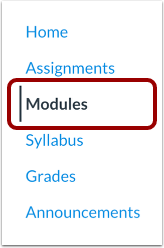
00:10: In Course Navigation, click the Modules link.
00:14: Locate the name of the module and click the Options icon.
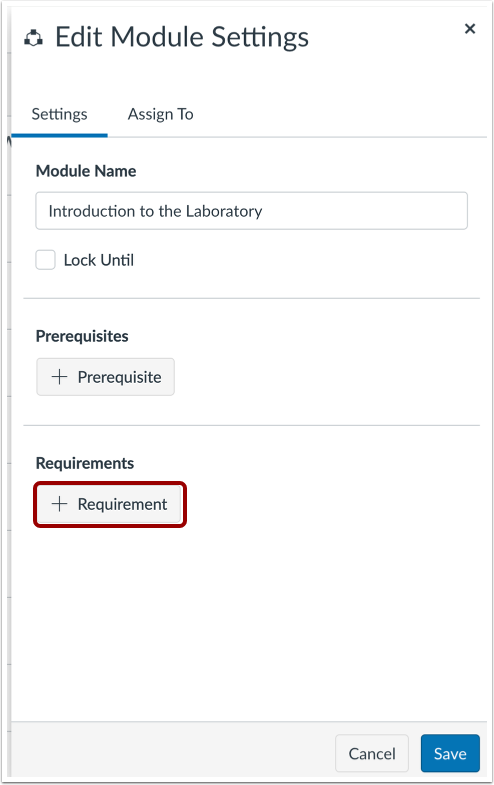
00:17: Select the Edit link.
00:20: Click the Add Requirement button.
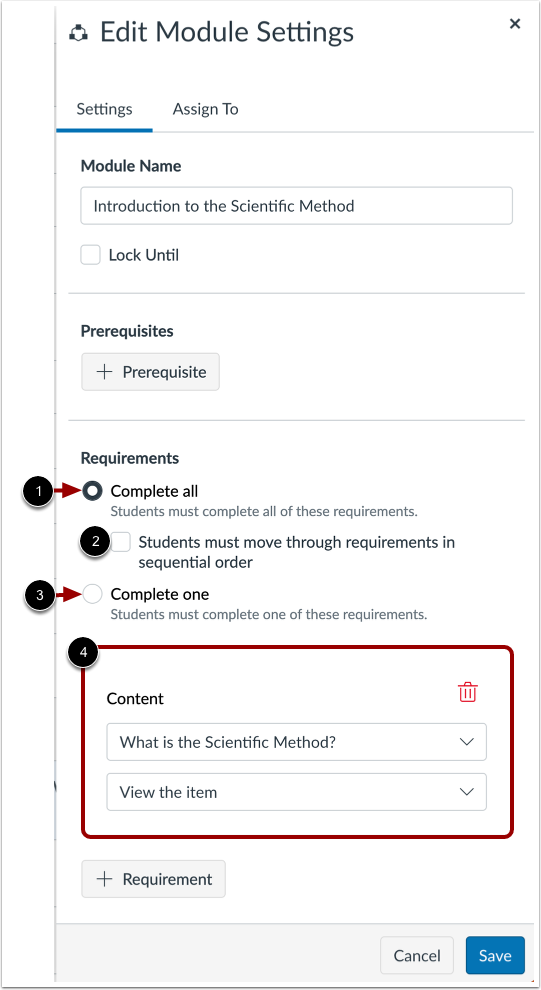
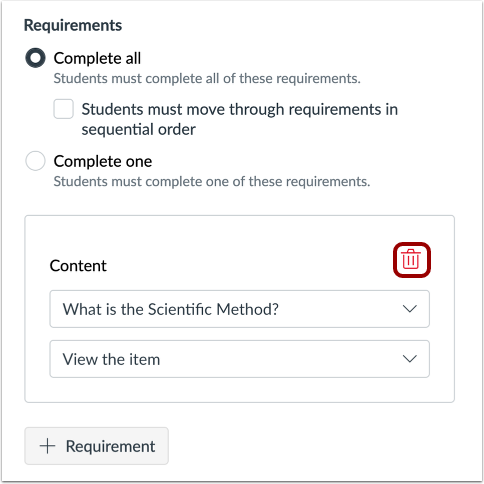
00:23: To require students to complete all requirements listed on the Edit Module
00:27: Requirements page, click the Complete all radio button.
00:31: To require students to complete all requirements
00:34: in sequential order, click the Students must move through requirements
00:38: in sequential order checkbox.
00:41: To require students to complete any one of the requirements listed in the Content
00:45: section, click the Complete one radio button.
00:49: The requirement setting selected applies to the listed required items.
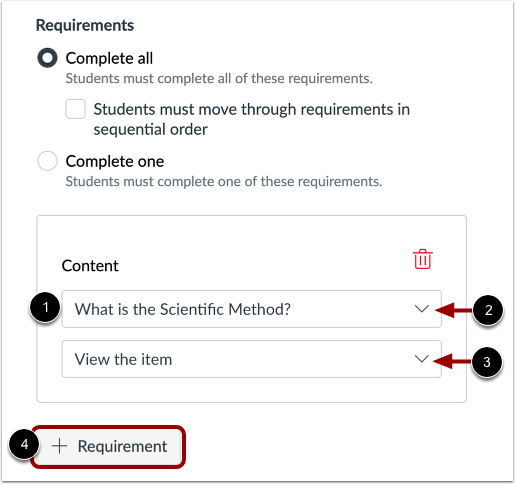
00:55: By default, the first item in the module is listed as a required item.
01:00: To select a different module item, click the item drop-down menu.
01:05: To manage how the selected item must be completed,
01:08: click the completion requirement drop-down menu.
01:12: Depending on the module item type, you can select one of the following options:
01:17: The View the item option requires students to view the item.
01:22: The Mark has done option requires students to Mark the assignment or page as
01:26: done before, they can progress to the next item.
01:28: This option, also synchronizes with the student listview dashboard
01:33: and completes the item for the student. However, this behavior is
01:37: only supported. When the item with this requirement is located in one module,
01:41: adding the same item within multiple modules is not supported.
01:46: The Contribute to the page option require students to post a reply to
01:50: a non-graded discussion or contribute content to a page. Make sure
01:54: students are allowed to edit pages in the course.
01:58: The Submit the assignment option requires students to submit an assignment,
02:02: post a reply to a graded discussion, or submit a quiz.
02:06: Canvas does not allow you to manually
02:08: enter a grade to fulfill this requirement;
02:10: a submission must be made by the student.
02:14: The Score at least option requires students to meet a minimum submission score.
02:18: With this option, an additional field appears where you can enter the minimum
02:23: score that students must earn. This option is available for all graded
02:27: assignment types, and the grade must be posted in order for the student to progress to
02:31: the next module.
02:33: To add additional required items,
02:35: click the Add requirement button.
02:38: To remove all requirements from a module,
02:41: click the Delete icon.
02:43: To save requirements, click the Save button.
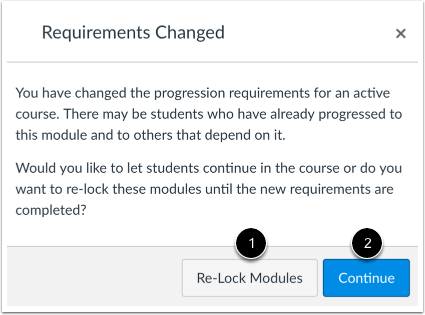
02:47: If you change module requirements, that students have already fulfilled.
02:50: Can this will ask if you want to let students progress through the course or relock,
02:55: the modules and require students to complete the requirements again,
02:59: To re-lock the modules, click the Re-Lock Modules button.
03:04: To allow students to continue without any changes, click the Continue
03:08: button.
03:10: View the module requirement type and the required items for the module.
03:15: This guide covered how to add requirements to a module.