This guide applies only to institutions that have enabled the IgniteAI Translations for Discussions & Announcements feature. If your user interface differs from what is shown, the feature is not enabled at your institution.
This feature currently supports the following languages:
- Catalan
- Chinese (Simplified)
- Dutch
- English
- French
- German
- Portuguese (Brazil)
- Russian
- Spanish
- Swedish
Note: This is a course level feature option that may need to be enabled within your specific course prior to use.
View the video transcript
00:07: How do I translate a discussion using IgniteAI Translations as an instructor?
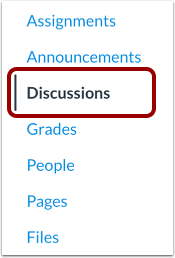
00:12: In Course Navigation, click the Discussions link.
00:16: Click the name of the discussion.
00:19: To translate content, click the Enable Translation button.
00:23: In the Translate to drop-down menu, select your preferred language.
00:27: To translate the discussion to your preferred language, click the Translate button.
00:32: To remove the translation, click the Reset button.
00:36: The translated information displays below the original text.
00:41: Once a language is selected, the discussion topic and replies display in the original language and the translated language.
00:48: To disable translation, click the Disable Translation button.
00:52: If you want to disable translation but keep the translated text, click the Close and Keep Translations button.
01:00: To disable translation and remove the translated text, click the Close and Remove Translations button.
01:07: This guide covered how to translate a discussion using IgniteAI Translations as an Instructor.
Open Discussions
In Course Navigation, click the Discussions link.
View Discussion
Click the name of the discussion.
Enable Translation
To translate content, click the Enable Translation button.
Select Language
In the Translate to drop-down menu, select your preferred language.
View Translation Options and Translations
To translate the discussion to your preferred language, click the Translate button [1]. To remove the translation, click the Reset button [2]. The translated information displays below the original text [3].
View Translated Discussion Replies
Once a language is selected, the discussion topic and replies display in the original language and the translated language.
Disable Translation
To disable translation, click the Disable Translation button.
If you want to disable translation but keep the translated text, click the Close and Keep Translations button [1].
To disable translation and remove the translated text, click the Close and Remove Translations button [2].