As an instructor, you can publish or unpublish quizzes in a course. Unpublished content is invisible to students, and graded quizzes are excluded from grade calculations.
Note: If you use Modules in your course and add a Quiz to a Module, please be aware that the state of the Module overrides the state of all module items. You may want to consider leaving Quizzes unpublished until you are ready to publish the entire Module. For more information please see the Modules Draft State lesson.
00:07: How do I publish or unpublish a quiz as an instructor?
00:11: As an instructor, you can publish or unpublish quizzes in a course.
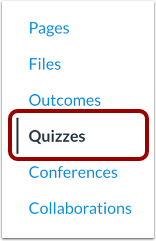
00:16: In Course Navigation, click the Quizzes link.
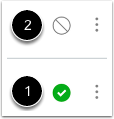
00:20: On the Quizzes Index page, you can view the status of each quiz. Green
00:24: icons indicate the quiz is published. Gray icons
00:28: indicate unpublished quizzes.
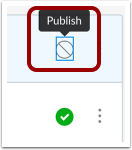
00:31: To publish a quiz, click the unpublished icon.
00:35: The hover text will confirm that you want to publish the quiz.
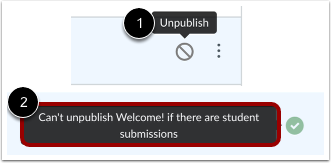
00:39: To unpublish a quiz, hover over the published icon. The hover
00:43: text will confirm you want to unpublish the quiz.
00:45: Note that quizzes with student submissions cannot be unpublished, and
00:50: the hover text will notify you accordingly.
00:53: Within individual quizzes, the quiz status is shown next to the quiz
00:57: options.
00:58: To publish a quiz, click the Publish button.
01:01: The button will change from gray to green.
01:05: To unpublish a quiz, hover over the published button and view its status. Click the button to confirm.
01:13: Quizzes with student submissions cannot be unpublished. Students cannot see any of the actions involved with published status, such as published and unpublished icons and setting icons.
01:25: Students will only see published quizzes, which are posted in gray text.
01:30: This guide covered how to publish or unpublish a quiz as an instructor.
Open Quizzes
In Course Navigation, click the Quizzes link.
View Status of All Quizzes
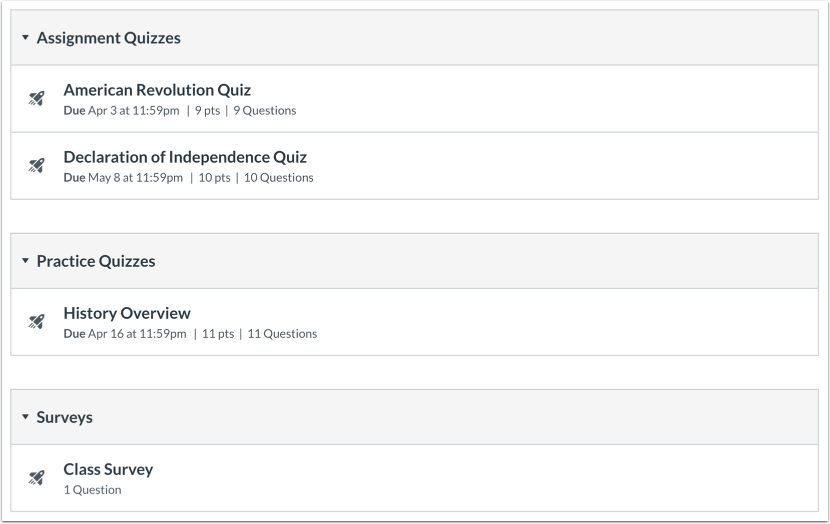
On the Quizzes Index page, you can view the status of each quiz. Green icons indicate the quiz is published [1]. Gray icons indicate unpublished quizzes [2]. You can change the status of a Quiz by toggling the published and unpublished icons.
Publish a Quiz
To publish a quiz, click the unpublished icon. The hover text will confirm you want to publish the quiz.
Unpublish a Quiz
To unpublish a quiz, hover over the published icon and view its status. If the quiz can be unpublished, the hover text will confirm you want to unpublish the quiz [1]. Click the icon to confirm.
Quizzes with student submissions cannot be unpublished, and the hover text will notify you accordingly [2].
View Status within an Individual Quiz
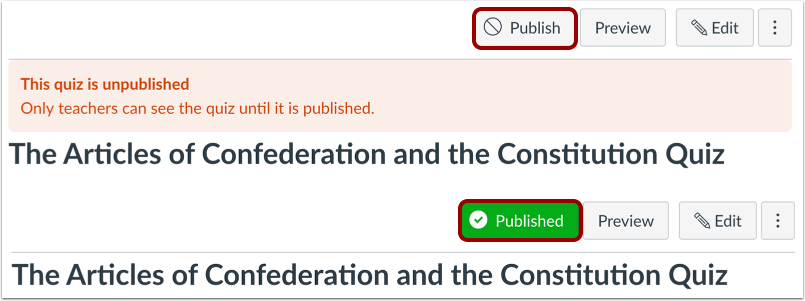
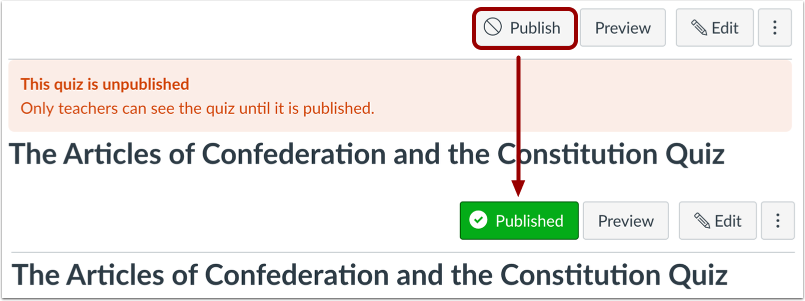
Within individual quizzes, the quiz status is shown next to the quiz options.
Publish a Quiz
To publish a quiz, click the Publish button. The button will change from gray to green.
Unpublish a Quiz
To unpublish a quiz, hover over the published button and view its status. If the quiz can be unpublished, the hover text will confirm you want to unpublish the quiz, and the button will change from gray to red. Click the button to confirm.
Quizzes with student submissions cannot be unpublished.
Quizzes Student View
Students cannot see any of the actions involved with published status, such as published and unpublished icons and setting icons. Students will only see published quizzes, which are posted in gray text.