Sometimes you want to rename a page name. This lesson will show you the steps of how to rename a page name.
00:07: How do I change the name of a page in a course?
00:10: In Course Navigation, click the Pages link.
00:14: Pages is designed to open to the front page for the course, if there is a front page
00:18: selected. To select a page from the Pages Index, click the View
00:22: All Pages button.
00:24: Click the name of the page you want to edit.
00:27: Click the Edit button.
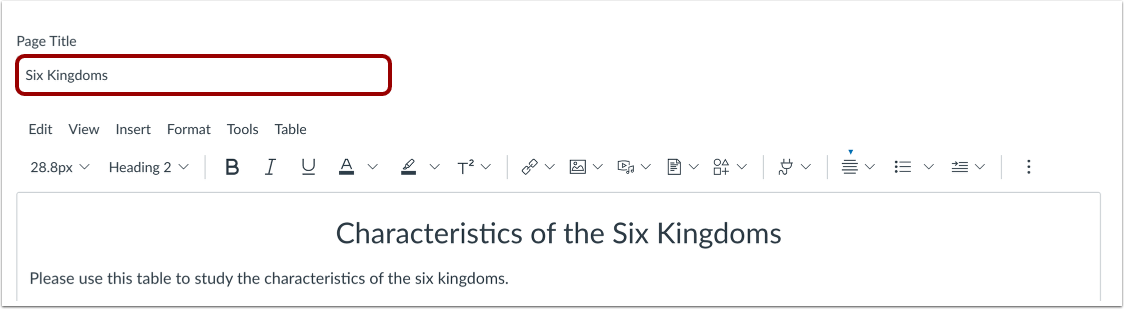
00:29: Edit the title of the page.
00:32: Click the Save button.
00:34: View the new page name at the top of the page.
00:37: This guide covered how to change the name of a page in a course.
Open Pages
In Course Navigation, click the Pages link.
View Pages
Pages is designed to open to the front page for the course, if there is a front page selected. To select a page from the Pages Index, click the View All Pages button.
Open Page
Click the name of the page you want to edit.
Edit Page
Click the Edit button.
Rename Page
Edit the title of the page.
Save Page
Click the Save button.
View Page
View the new page name at the top of the page.