00:07: How do I create a Formula question in New Quizzes?
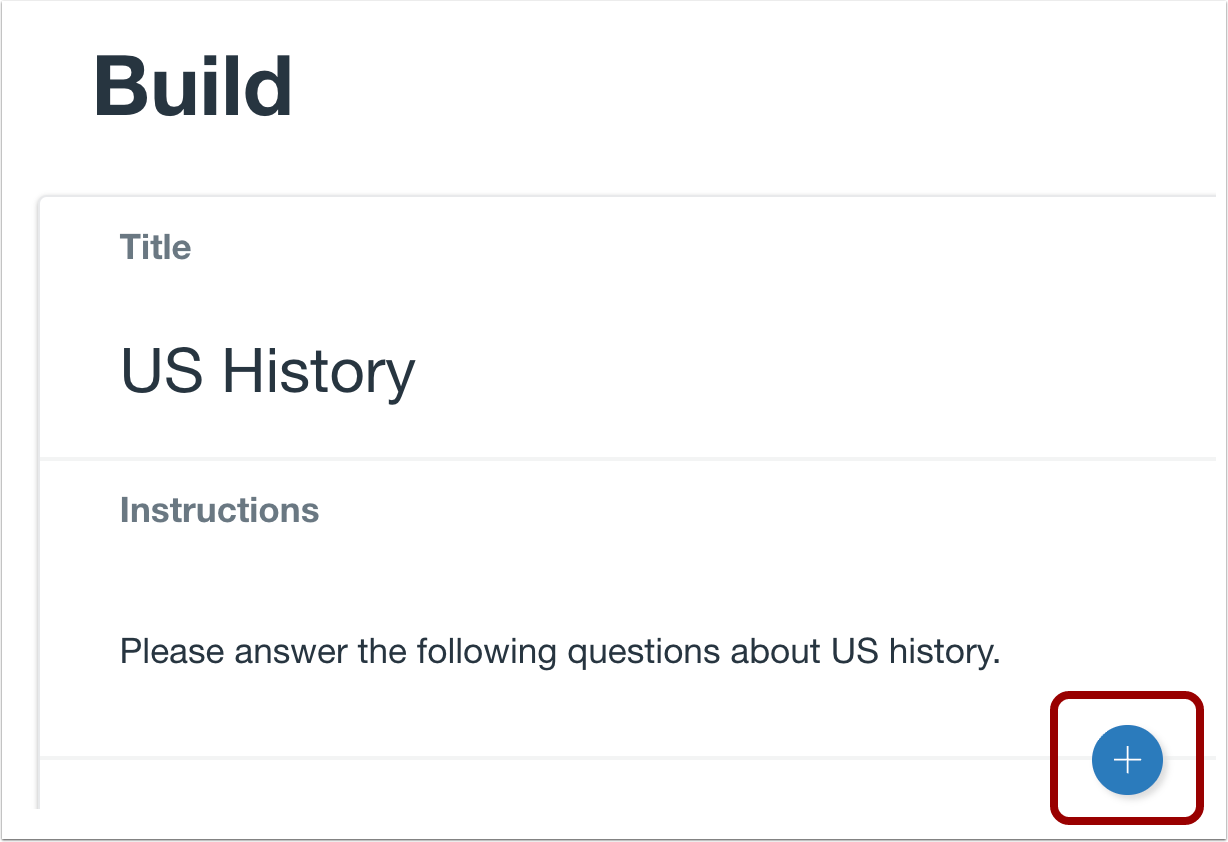
00:11: To create a question, click the Add button anywhere in the quiz.
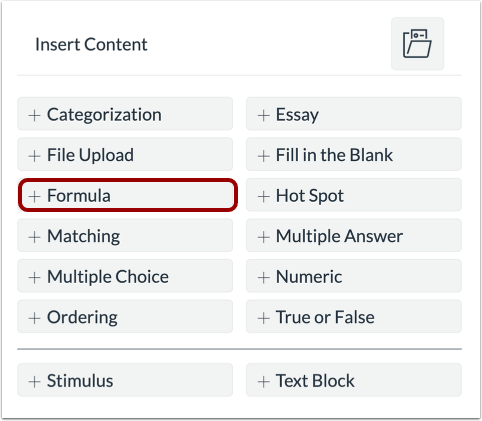
00:16: Click the Add Formula button.
00:18: In the question title field, add a question title, question titles are
00:22: optional and are not visible to students.
00:26: In the Question Stem field , add the question
00:29: stem. The question stem contains the
00:31: question and, if necessary, additional instructions and information.
00:36: You can use the Rich Content Editor or the HTML view to
00:40: format and add content to your question stem. Identify variables in
00:44: your question by surrounding variable names by backticks.
00:48: (e.g., a variable name of x can be identified by typing
00:52: `x`.)
00:53: After typing the question with the variable, parameters to define the formula
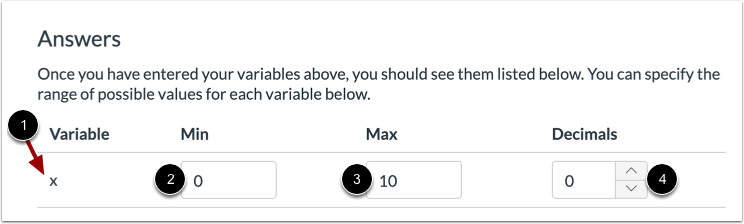
00:57: will display. Set the variable answers for the formula. Specify
01:02: the minimum and maximum values for the variable. Select decimal
01:06: places in by using the increase or decrease arrows.
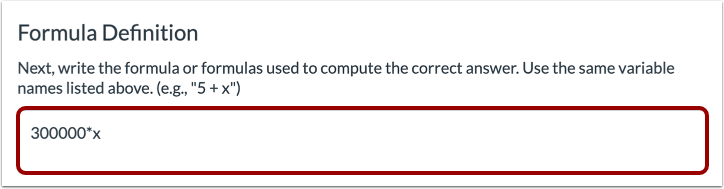
01:11: Type the formula definition in the formula field.
01:13: Make sure the formula does not contain any brackets or equal signs.
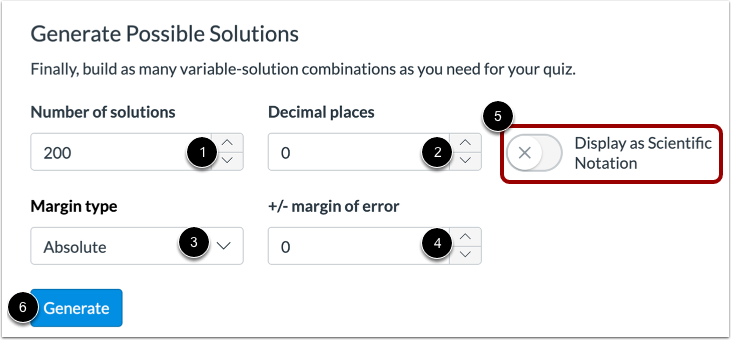
01:19: Specify the number of possible solutions you want to generate in the Number
01:23: of solutions field. Then select the number of decimal places required
01:27: in the Decimal places field.
01:30: In the margin type field, select the absolute or percent margin type.
01:34: Enter the margin of error for the students answer in the plus, or minus
01:38: margin of error field. Responses are based on relative error.
01:42: In addition to Absolute error, margins of error can be created as
01:46: a percentage, or as a point value up to three decimal places,
01:51: To display solutions in scientific
01:53: notation, click the Display as Scientific Notation button.
01:58: To view possible solutions, click the Generate button.
02:02: Possible solutions will process according to the number of value combinations.
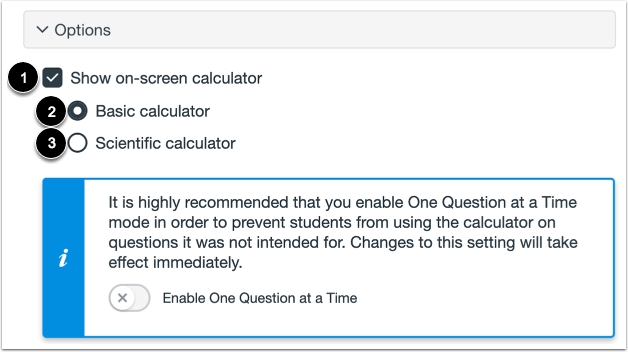
02:08: To allow students to use an on-screen calculator for this question.
02:11: Click the show on screen calculator, checkbox?
02:15: If you select this option, you can enable a basic calculator or scientific
02:19: calculator. The basic calculator displays numbers and basic
02:24: math functions (add, subtract, multiply, divide). The
02:28: scientific calculator displays more options for advanced calculations.
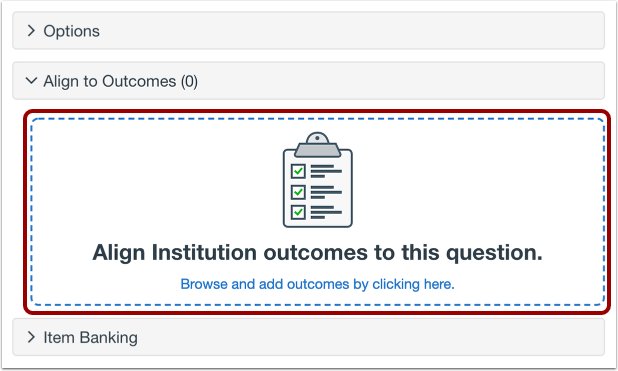
02:34: To align the question to an outcome, click anywhere in the Align to Outcomes
02:38: section.
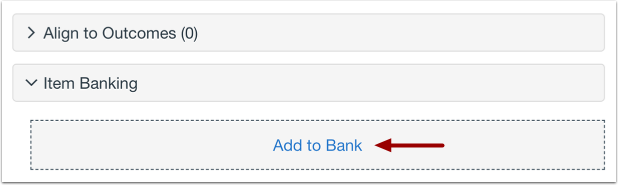
02:40: If you want to save a question to use in other quizzes, you can add it to an item
02:44: bank. To add the question to an item bank,
02:48: click the Add to Bank link.
02:50: To customize the point value for the question, type the point value in the Points field
02:55: or use the arrows to increase or decrease the point value.
02:59: To leave feedback for students, click the Feedback icon.
03:03: To save the question, click the Done button.
03:07: This guide covered how to create a Formula question in New Quizzes.