00:07: How do I manage quiz results in New Quizzes?
00:10: To hide the quiz results from students, find the quiz you want to open.
00:15: To open the Build page, click the Options icon and then click the Build link.
00:20: To create a new quiz, click the Add Quiz button.
00:24: Click the Settings tab.
00:27: If students have already submitted the quiz, a warning message will appear on the
00:31: Delivery Settings page.
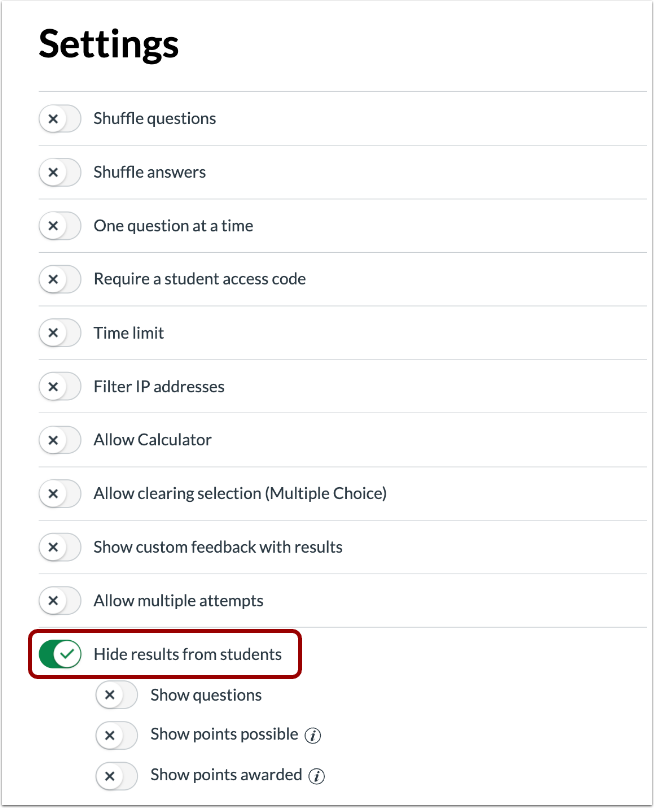
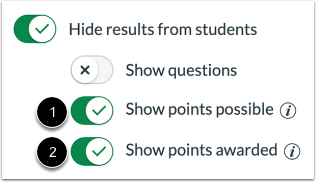
00:33: To hide quiz results from students, click the Hide results from students button.
00:37: When this option is enabled, instructors can manage what is displayed
00:42: to students in their quiz results page.
00:44: This includes answer choices, feedback, and scores.
00:49: When the Hide results from students option is enabled, you can select quiz items
00:53: that display to students. To display an item in student results, click
00:57: the button for the item. Any items that are not selected remain
01:01: hidden.
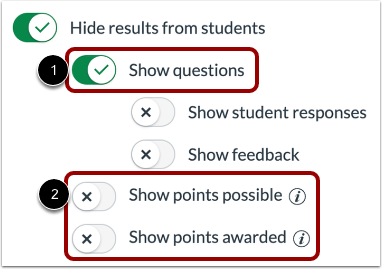
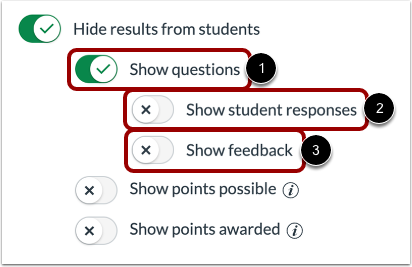
01:03: To display quiz items and questions in the quiz results page, click the
01:07: Show questions button. When this option is enabled, you can also display
01:12: student responses and feedback.
01:15: To display student responses in the quiz results page, click the Show student
01:19: responses toggle on.
01:22: To display feedback in the quiz results page, click the Show feedback toggle
01:26: on.
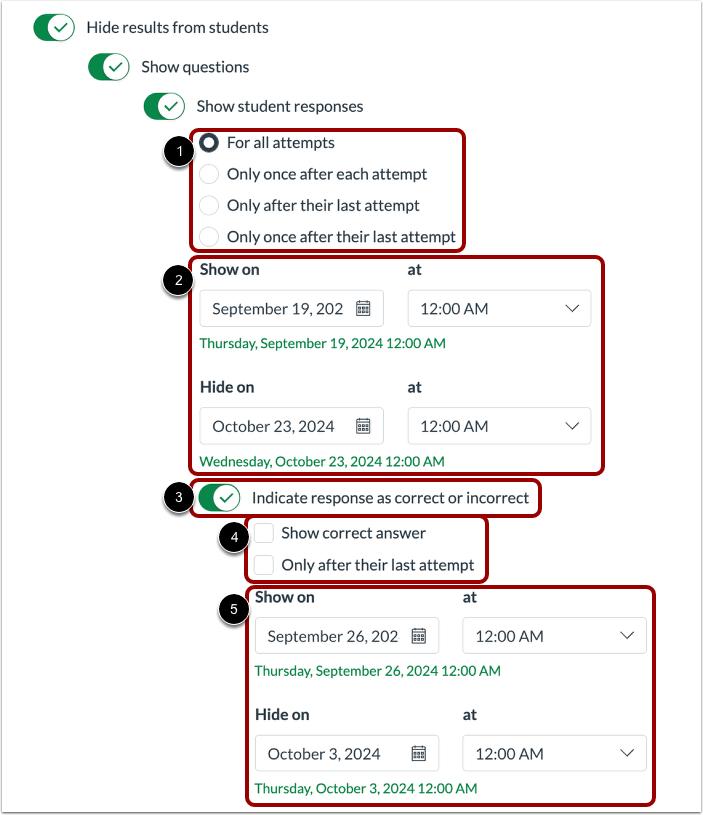
01:27: When the Show student responses option is enabled,
01:30: you can choose whether to show the responses for all attempts, only once
01:34: after each attempt, only after their last attempt, or only once
01:38: after their last attempt. You can select the date when it will be visible to students.
01:43: To display to students if their response was correct or incorrect, click the
01:48: Indicate response as correct or incorrect button.
01:51: When this option is enabled, you can show the correct answer after
01:55: each attempt or only after their last attempt.
01:57: You can also select the date when it will be visible to students.
02:02: To display the points possible for the overall quiz and individual questions
02:06: in the quiz results page, click the Show points possible button.
02:11: To display the points awarded for the overall quiz and individual questions
02:15: in the quiz results page, click the Show points awarded button.
02:20: This guide covered how to manage quiz results in New Quizzes.