00:07: How do I find an existing outcome to add to a course in Improved Outcomes Management?
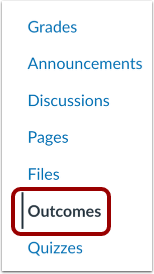
00:12: In Course Navigation, click the Outcomes link.
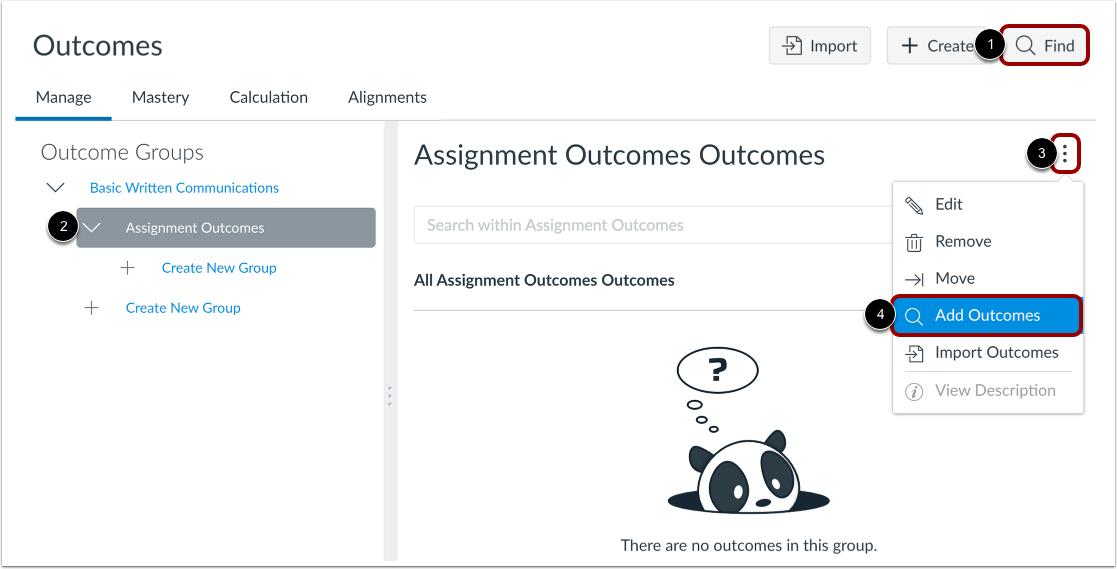
00:16: To find and add an Outcome at the root level course outcome group, click
00:20: the Find button. To find and add an Outcome in
00:25: a specific outcomes group, select an outcome group. In the outcome
00:29: group, click the Options icon, then select the Add Outcomes
00:33: option.
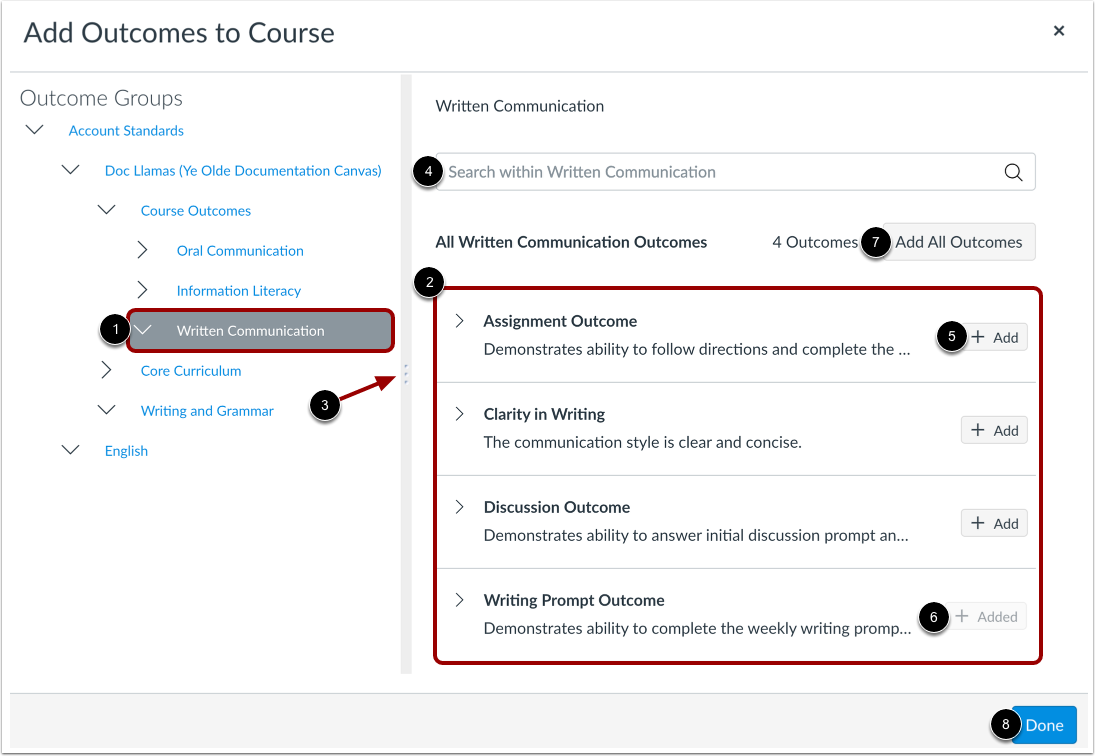
00:34: Click the name of an outcome group. View the outcome for the outcome group.
00:38: You can adjust the size of the Outcome Group and Outcome windows by clicking
00:42: and dragging the divider bar. To locate a specific outcome,
00:46: you can enter the outcome name in the Search field. When you have located
00:50: an outcome, click the Add button for that outcome.
00:53: When an outcome has been added, the outcome displays an Added label.
00:57: To add all outcomes in a group,
00:59: click the Add All Outcomes button. To return to your course Outcomes
01:03: page, click the Done button. Take note that if an outcome or
01:08: learning standard is not available to you, please contact your Canvas Administrator.
01:13: If you attempt to add more than 50 outcomes to your course, a
01:17: warning displays with a recommendation to only add outcomes that are relevant to your course.
01:23: To return to the Find page and select fewer outcomes,
01:26: click the Cancel button. To import all the selected outcomes,
01:30: click the Import Anyway button.
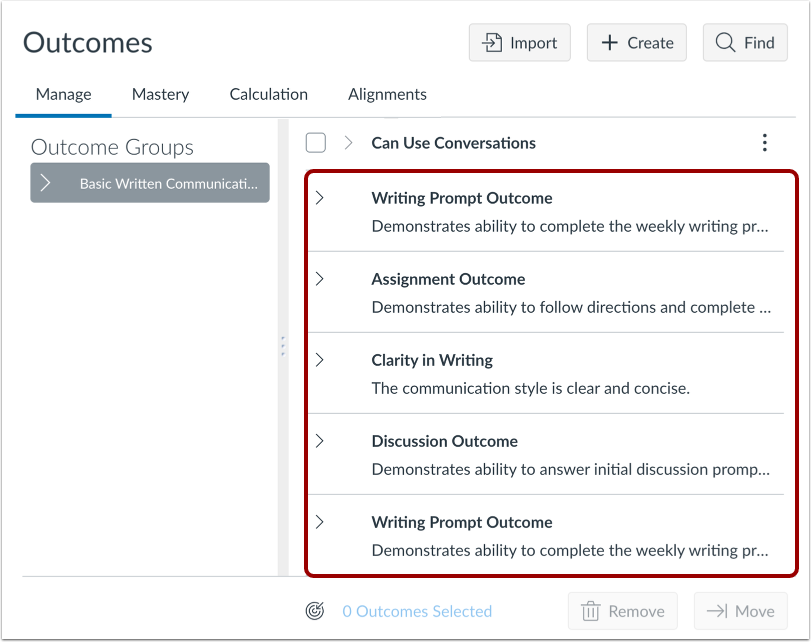
01:33: View the imported outcomes. Outcomes are imported to either the
01:37: main course outcome level or the selected outcome group.
01:41: This guide covered how to find an existing outcome to add to a course in
01:45: Improved Outcomes Management.