This lesson applies to users at institutions that have enabled the Canvas for Elementary user interface.
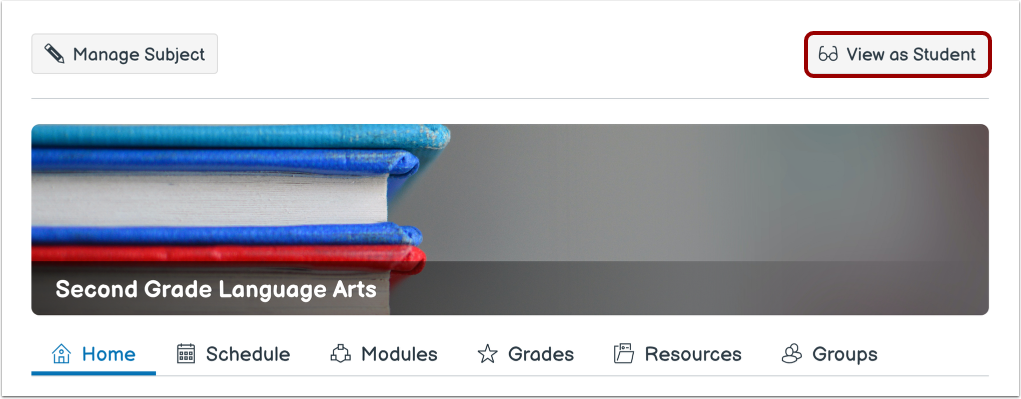
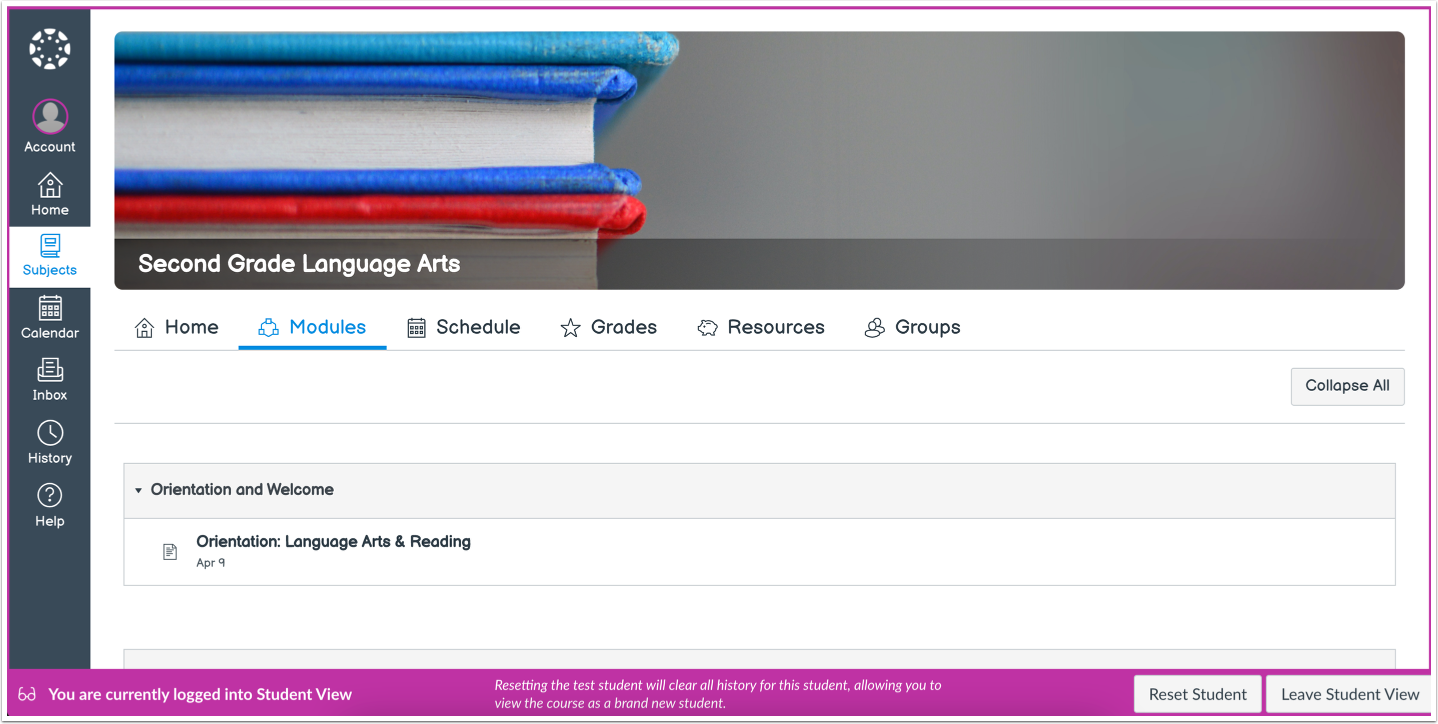
This lesson shows you how to view a subject as a test student using Student View in Canvas for Elementary. If your course appears differently than this lesson, follow the guide on how to view a course as a test student using Student View in Classic Canvas.
You can view a subject the same way that your students do through Student View. Enabling Student View creates a Test Student in your course. You can also activate Student View in your subject Settings.
Use Student View to view the course, post and reply to discussions, submit assignments, view grades, pages, quizzes, the schedule, and resources.
You can reset Test Student data at any time; however, Test Student activity that involves interactions with other students cannot be removed, such as discussion replies. Test Student data that involves interactions with other students are retained even if the test student is removed from enrollments.
Attendance, Conferences, Collaborations, differentiated assignments, external apps, groups, Inbox peer reviews, and profiles do not work for the Test Student. You will see only what you, as the instructor, allow your students to see.
Notes:
- Each Canvas subject has a separate Test Student account. Whenever you move to a new subject you will need to enable Student View for that subject.
- Submissions and scores for the Test Student do not affect course analytics.
- You can only view the subject layout as it is seen by your students. You cannot view student-specific information, such as conversations between students.
- Student View should not be used to test MasteryPaths in the beta or test environment.
- Once you activate Student View, the Test Student is shown at the end of the Gradebook and SpeedGrader and is automatically added to every section in your course. If you want to remove the test student completely, you must remove the test student from your section enrollments.
- New Quizzes assessments should be previewed in New Quizzes and not taken as the test student. Test Student attempts cannot be reset and will affect analysis reports.