00:07: How do I restrict student access to a course before or after the course dates?
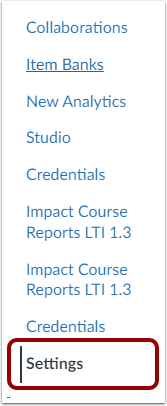
00:12: In Course Navigation, click the Settings link.
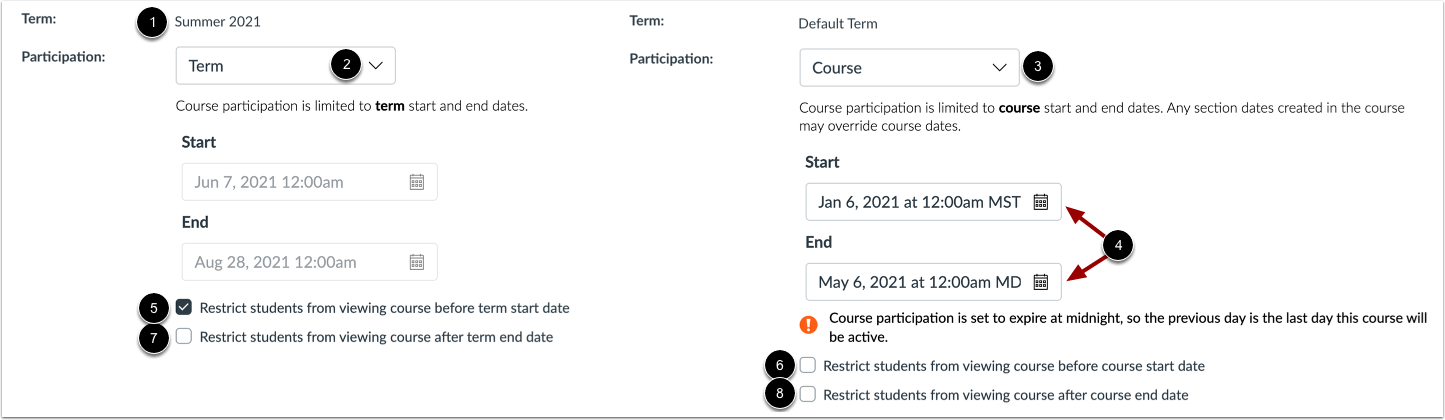
00:16: Courses may be assigned to the Default Term or a specific term. By
00:20: default, students will be able to participate in the course within the term dates.
00:24: However, your course may allow students to participate within course
00:29: dates and have set course start and end dates. By default, student
00:33: access checkboxes are not selected,
00:35: meaning students can view courses before and after term or
00:39: set course dates. To retain this default for the course, do
00:43: not select any checkboxes. To restrict students from viewing a link to the
00:47: course before the term start date, click the Restrict students from viewing course
00:52: before term start date checkbox. To restrict students from viewing a link
00:56: to the course before the set course start date, click the Restrict students from viewing
01:00: course before course start date checkbox.
01:02: If the course start date is blank, students can access the course before
01:06: the term start date. To restrict students from accessing the course
01:11: after the term end date, click the Restrict students from viewing course after
01:15: term end date checkbox. To restrict students from accessing the course
01:19: after the set course end date, click the Restrict students from viewing course
01:23: after course end date checkbox. If the course end date is blank,
01:27: students can access the course after the term end date. Take note
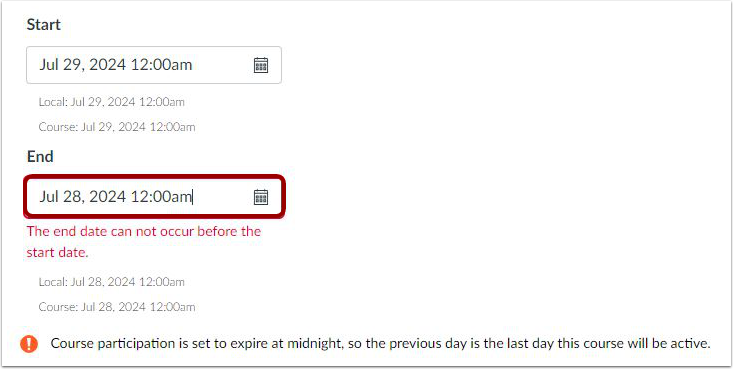
01:31: that if the selected date for the End date occurs before the Start date, a
01:35: warning message displays.
01:38: If your admin has locked one or more settings, locked settings are grayed out and cannot
01:42: be changed. If your admin has not locked one or more settings, you can
01:46: change the settings for your course as necessary.
01:48: If any settings are already selected, the selection indicates the
01:52: default for the entire institution.
01:55: Click the Update Course Details button.
01:59: This guide covered how to restrict student access to a course before or
02:03: after the course dates