If enabled by your institution, you can use Course Pacing to define a pace in which students must complete course tasks. This allows students with different start dates to have the same time frame in which they must complete course tasks.
Notes:
- The Course Pacing feature preview is in active development. To provide direct feedback about this feature, please post in the Course Pacing user group.
- Course Pacing must be enabled in the course settings.
- If the Course Pacing feature preview is not available in your course, the feature has not been enabled by your institution.
- A Course Pace has to be created before you can manage individual students.
00:07: How do I manage Course Pacing for a Student?
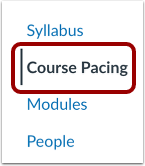
00:10: In Course Navigation, click the Course Pacing link.
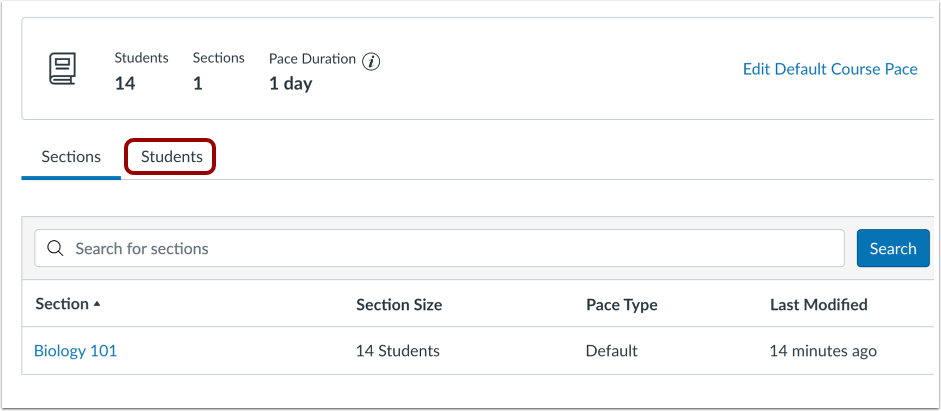
00:15: To manage a students course pacing, click the Students link.
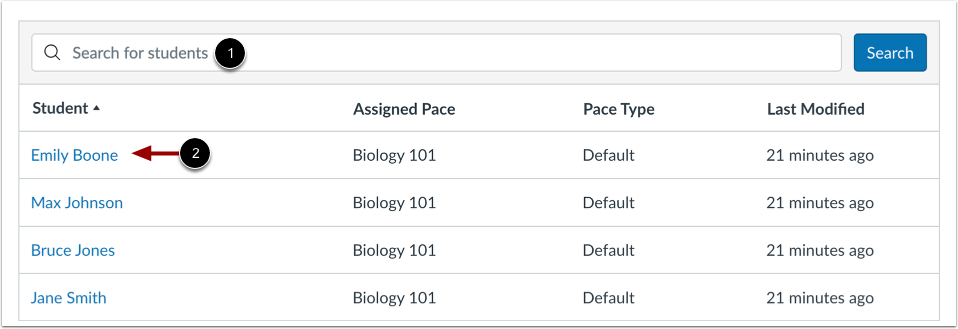
00:19: You can select a student using the Search for students search field or click
00:23: the student's name.
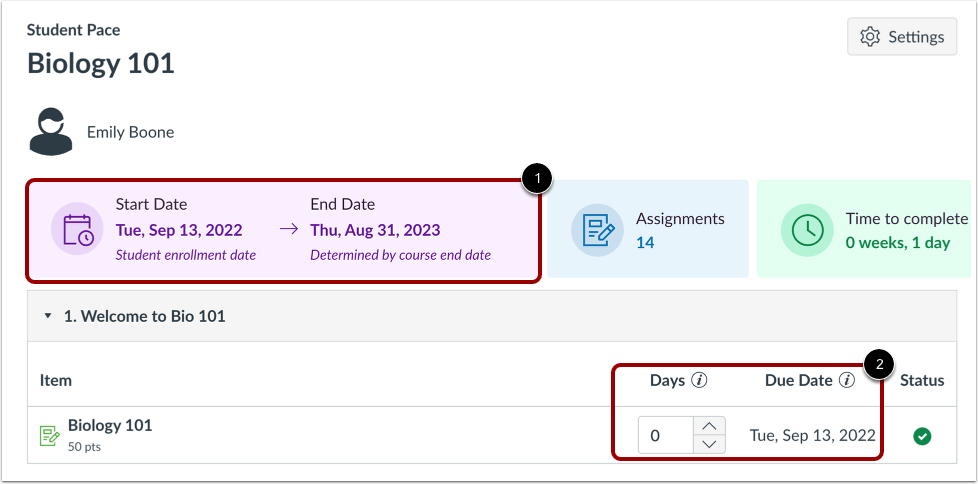
00:25: The student's end date is based on your determined course end date.
00:30: The student's assigned due dates display based on their enrollment date and the course
00:35: pace.
00:36: To save your changes, click the Create Pace button.
00:40: This guide covered how to manage Course Pacing for a student.
Open Course Pacing
In Course Navigation, click the Course Pacing link.
View Course Pacing
To manage a students course pacing, click the Students link.
Select Student
You can select a student using the Search for students search field [1] or click the student's name [2].
Manage Student Pacing
The student's end date is based on your determined course end date [1].
The student's assigned due dates display based on their enrollment date and the course pace [2].
Publish Course Pace
To save your changes, click the Create Pace button.