As an instructor, you can share individual discussions in your course with other instructors at your institution. You can also copy an individual discussion into another course. When you share a discussion, any assets within that discussion (images, files, etc.) will be included in the shared file.
Notes:
- To share course content, you must have the Course Content - add / edit / delete permission enabled.
- Shared content does not count against course or user quotas.
- You can use the Send To option to send course content to yourself.
View the video transcript
00:07: How do I send a discussion to another instructor?
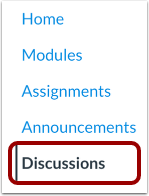
00:11: In Course Navigation, click the Discussions link.
00:15: Locate the discussion you wish to send, then click the discussion Options icon.
00:19: Select the Send To... option.
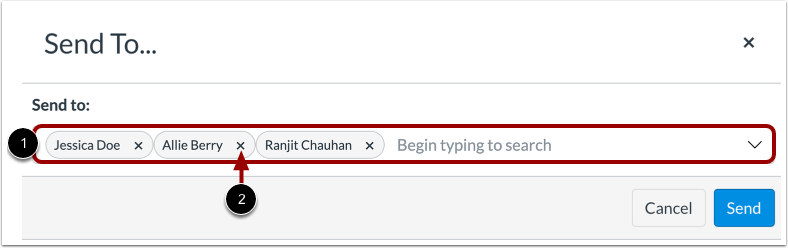
00:22: To send your assignment to another instructor, click or type in the Send to
00:26: field. Then click the name of the instructor to receive your assignment.
00:31: You can view all selected recipients in the Send to field. To remove
00:35: a recipient, click the Remove icon.
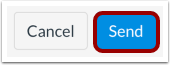
00:39: Click the Send button.
00:41: Canvas displays a notification when content sends successfully.
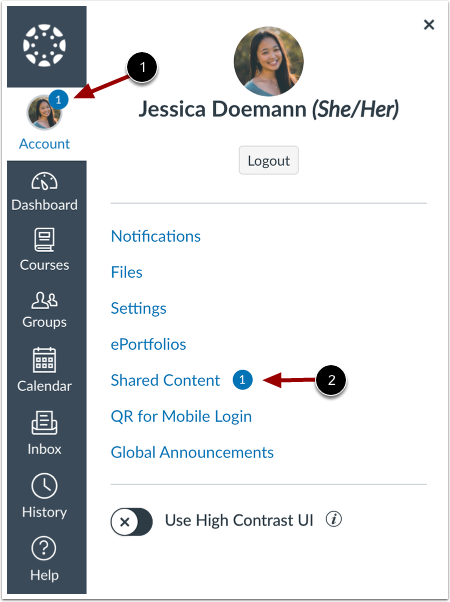
00:46: When an instructor receives shared content, an indicator displays on
00:51: the user's Account icon and in the Shared Content link.
00:55: This guide covered how to send a discussion to another discussion.
Open Discussions
In Course Navigation, click the Discussions link.
Open Discussion Options
Locate the discussion you wish to send, then click the discussion Options icon [1]. Select the Send To... option [2].
Select Recipient
To send your assignment to another instructor, click the Send to field [1]. Start typing the instructor's name, then select their name from the search results.
Note: You can send the assignment to multiple instructors at one time.
View Recipients
You can view all selected recipients in the Send to field [1].To remove a recipient, click the Remove icon [2].
Note: To share the discussion to yourself, add your name to the Send to field.
Send Discussion
Click the Send button.
View Sent Notification
Canvas displays a notification when content sends successfully.
View Shared Content
When an instructor receives shared content, an indicator displays on the user's Account icon [1] and in the Shared Content link [2].