00:07: How do I create a conference in a course?
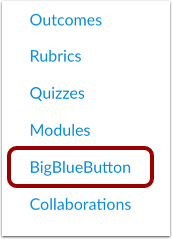
00:10: In Course Navigation, click the link for your web conferencing tool. The
00:14: link name reflects the conferencing tool used by your institution.
00:19: Click the Add Conference button.
00:22: To create a new conference type, a name for the conference in the name field.
00:27: You can set a time limit on how long invited members are able to join the conference.
00:32: Enter the number of minutes in the duration in minutes field.
00:35: The time limit begins, when the presenter starts the conference, once
00:39: the duration has expired new, participants are unable to join and
00:44: the conference continues until the last person leaves the conference room
00:48: or the conference organiser. Concludes the conference You
00:53: can enable recording options for this conference select the enable recording
00:57: for this conference checkbox. To set a time limit for
01:01: the conference, you can create a long-running conference by selecting the no
01:05: time limit checkbox, this option removes, the time limit in the duration
01:10: field. To add a waiting room to your conference, select
01:14: the enable waiting room checkbox.
01:17: If you want to add it to, your course, calendar for students to see select
01:21: the add to calendar checkbox. To create a description
01:26: of your conference type. A description in the description field.
01:30: To select specific sections, groups, or members of your course,
01:34: deselect the Invite All Course Members checkbox. To
01:38: invite one or more course sections, click the checkboxes for the sections.
01:43: To invite one or more groups, click the checkboxes for the groups. To
01:47: invite one or more individual members, click the checkboxes for the members.
01:52: You can add any user in your course to your conference.
01:55: However, once a user has been invited, the user cannot
01:59: be removed from the conference. By default, all
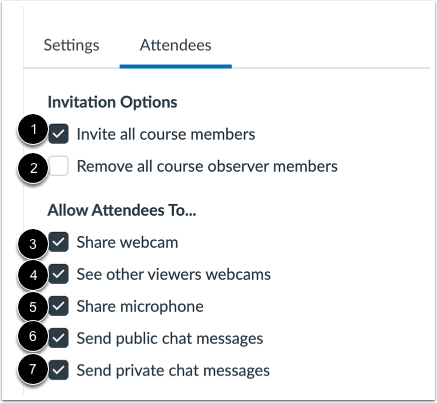
02:04: members in the course will be invited to the conference. To remove all
02:08: course observers from the conference invitation, select the Remove
02:12: All Course Observer Members checkbox.
02:14: When this checkbox is selected all course members except observers
02:18: are invited to the conference. You can manage the following
02:22: attendee settings: Share webcam: allows
02:27: attendees to share their webcam. See other viewers
02:31: webcams: allows attendees to see others viewers webcams.
02:36: Share microphone: allows attendees to share their microphone.
02:40: Send public chat messages: allows attendees to send public chat messages.
02:46: Send private chat messages: allows attendees to send private chat
02:50: messages.
02:52: To save the conference settings, click the Create button.
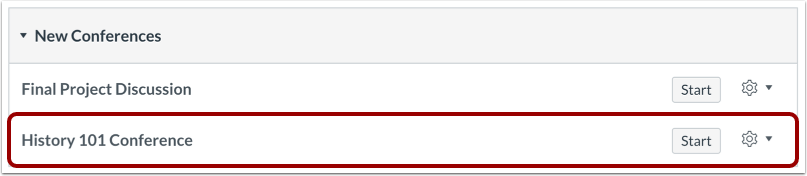
02:55: View your created conference.
02:58: This guide covered how to create a conference in a course.