00:07: How do I use grading schemes in a course?
00:10: Grading schemes are built based on points and percentage ranges,
00:14: and each percentage range is assigned a name value.
00:17: You can create any type of grading scheme by editing the name and percentage
00:21: range for each item. When enabling a grading scheme for a course, the
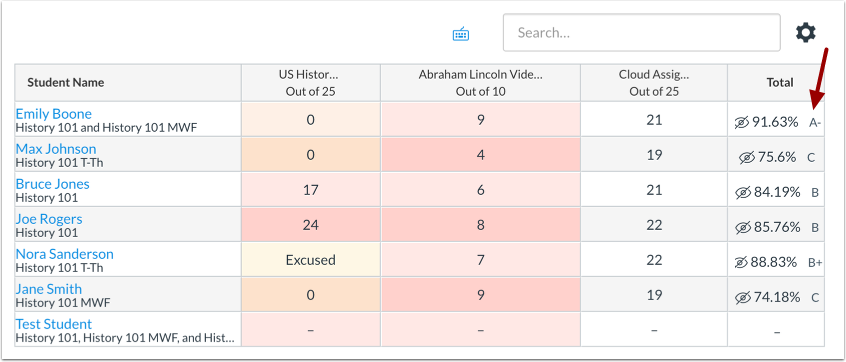
00:25: grading scheme is applied to the students' final grades
00:28: in addition to the overall percentage. Take
00:32: note that, grading schemes only support two decimal places.
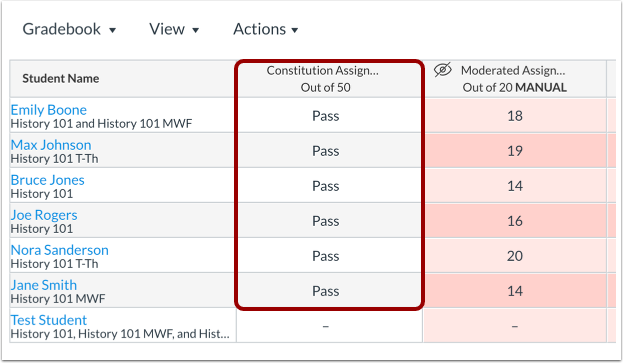
00:37: The only scores allowed in the Gradebook are those defined in the grading scheme.
00:43: Gradebook entries that are not specifically defined in the grading scheme revert
00:47: back to the icon showing that the submission needs to be graded. Depending on
00:51: an assignment's display grade, some Gradebook entries cannot convert to
00:55: a grading scheme.
00:57: Letter Grades is the most traditional type of grading scheme and is the default
01:01: format for new grading schemes.
01:03: Only supported scores are allowed in the Gradebook,
01:06: so if you build a letter grade scheme with name values for only A, B,
01:10: and C, you cannot enter a score that converts to an A minus or B+.
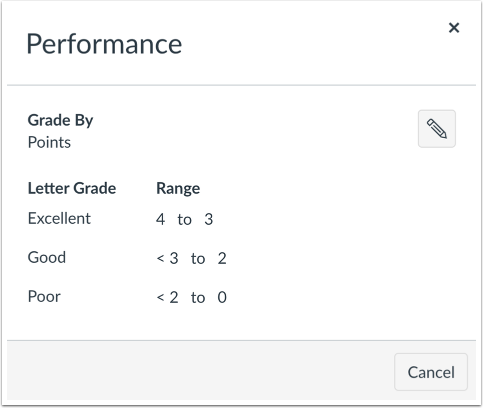
01:16: Performance grading schemes are based on a standard of individual performance.
01:20: Only supported scores are allowed in the Gradebook,
01:23: so if you build a performance scheme with the name values of only
01:27: Excellent and Poor, you cannot enter a score of Good.
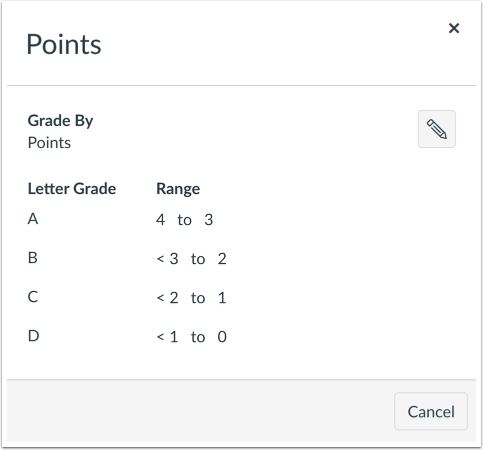
01:32: Points grading schemes are based on a set of points in a range.
01:35: When the course grading scheme is point-based, Assignment Group totals
01:39: and Final Score display a tooltip of raw earned points and total
01:43: points. In the gradebook cell, points
01:46: display scaled points as fractions.
01:49: Take note that when the Final Grade Override feature option is enabled for an institution
01:54: and a course is using a point-based grading
01:56: scheme, instructors can override the grade with a letter grade only.
02:01: When enabling a grading scheme for a course, the grading scheme is applied
02:05: to the students' final grades in addition to the overall percentage. Learn
02:09: how to enable a course grading scheme.
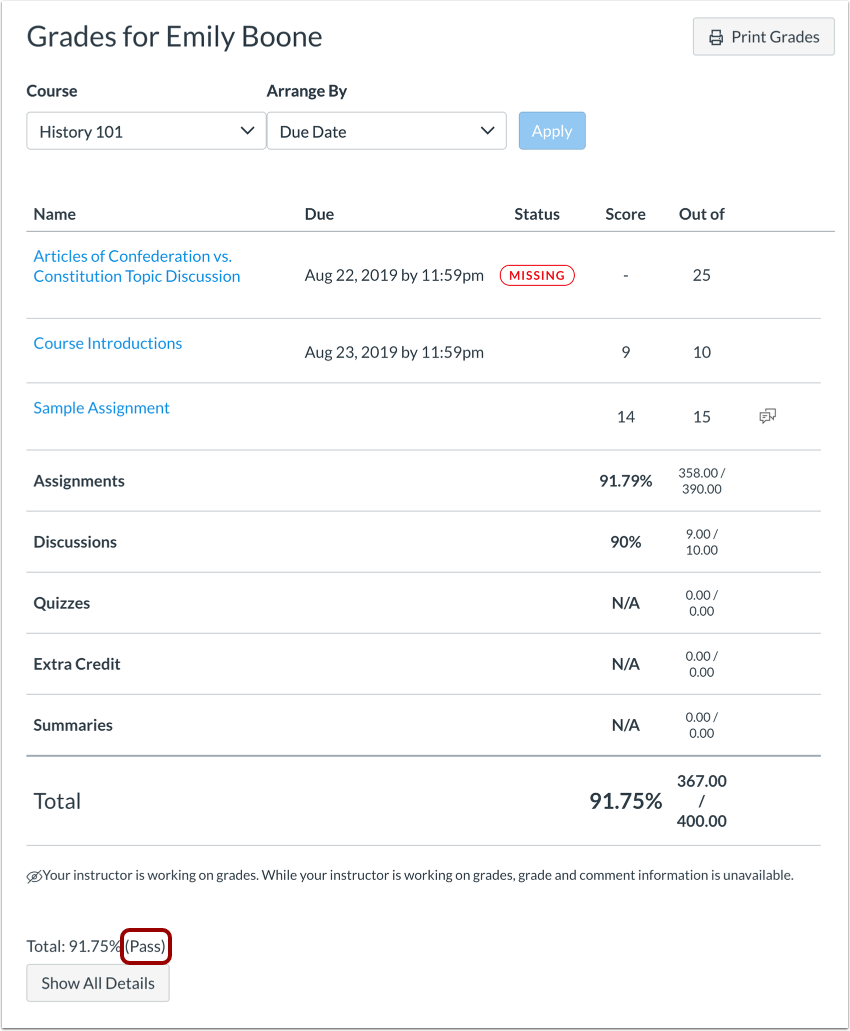
02:12: Students can view the results of the grading scheme on their Grades page.
02:17: Grading schemes can be applied specifically to individual assignments.
02:20: Each assignment includes a field that allows you to choose how the grade
02:24: is displayed in the Gradebook and in the student Grades page. Learn how
02:28: to enable an assignment grading scheme. For Letter Grade
02:32: Schemes, you can input scores in the Gradebook depending on the assignment display type:
02:38: For any assignment type, you can enter grades as points or a
02:42: percentage. For instance, if an assignment is worth 10 points and the student
02:46: earns 9, you can input 9 or 90% (which displays the
02:50: grade defined in the percentage range). When an assignment
02:54: grade display is specifically set to Letter
02:56: Grade, you can also input a letter grade directly, such as an A
03:01: minus. For Performance schemes, you can input scores in the Gradebook by points,
03:05: percentage, or performance value. For instance, if an assignment is
03:09: worth 10 points and the student earns 9, you can input 9 or
03:14: 90% (which displays the performance defined in the percentage range).
03:17: You can also input a performance value directly. Take
03:22: note that grading schemes do not apply to Assignment Group columns in the Gradebook.
03:27: In the Grades page, students can see their grades displayed with both the points
03:31: earned and the grading scheme equivalent.
03:35: This guide covered how to use grading schemes in a course.