You can add an LTI 1.3 document processing tool to file upload or text entry assignments. Once enabled, student submissions are sent to the selected tool for analysis, such as originality or writing review. Resulting reports are available to instructors in SpeedGrader and to students on the assignment or grades page, with clear indicators highlighting items that may require review.
Notes:
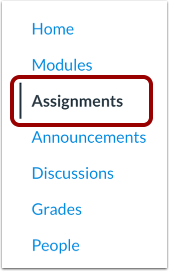
Open Assignments
In Course Navigation, click the Assignments link.
Add Assignment
Click the Add Assignment button.
Add Assignment Name
In the Assignment Name field, enter a name for your assignment.
Add Document Processing App
When the Document Processor feature option is enabled, assignments with text entry or file upload submission types display an Add Document Processing App button.
Select the desired tool.
Add a Document Processing App
Depending on the tool, you may have the option to configure document processing settings. To save settings, click the Save button.
Edit Option
After saving and publishing the tool, you can modify the tool options [1] or remove the tool [2].
Save and Publish
If you are ready to publish your assignment, click the Save & Publish button [1]. If you want to create a draft of your assignment and publish it later, click the Save button [2].
View Assignment
In SpeedGrader, you can view the tool report once a student has submitted the assignment.
Note: Report generation may take some time, and the report may not be available immediately after submission.
View Review
When you allow access, students can view their report on the Grades page.
View Report
Click the View Report button.
View Assignment Detail Page
Students can also access their report in the Assignment Details page.