00:05: How do I assign a quiz to everyone, individual students, differentiation tags, or
00:10: sections?
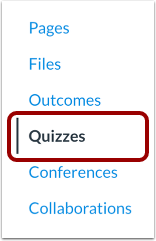
00:12: In Course Navigation,
00:13: click the Quizzes link.
00:16: Click the Add Quiz button.
00:18: If your course has New Quizzes enabled, you must select a quiz engine.
00:23: To create a quiz
00:24: using New Quizzes,
00:25: click the New Quizzes option.
00:28: To create a classic quiz, click the Classic Quizzes option.
00:32: Then click the Submit button.
00:35: On the Details tab, add quiz details.
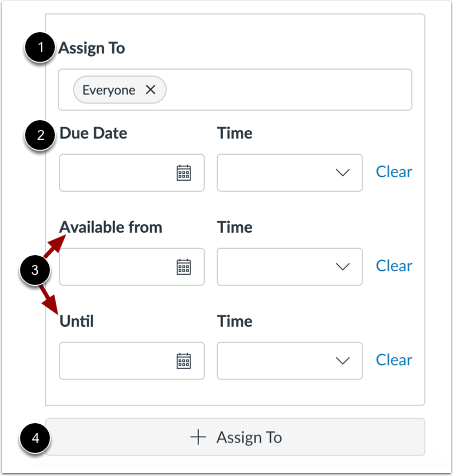
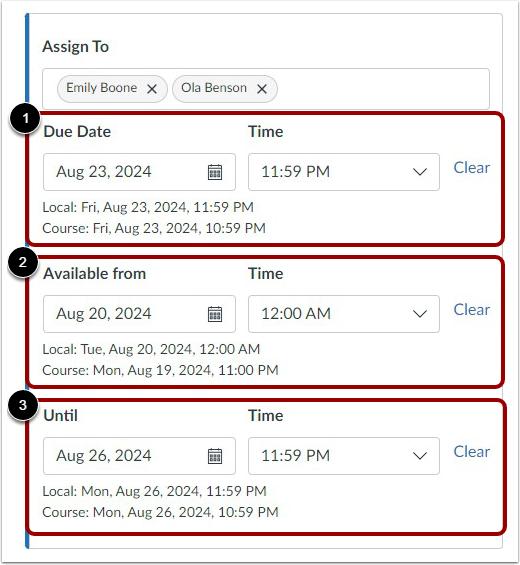
00:39: In the Assign Access section, you can manage assignees, the due date, and
00:43: availability dates.
00:44: You can also add additional assignment details.
00:48: By default, quizzes are assigned to everyone in the course.
00:52: However, you can differentiate the assignments. To assign a quiz to an individual
00:57: student, section, or Mastery Path,
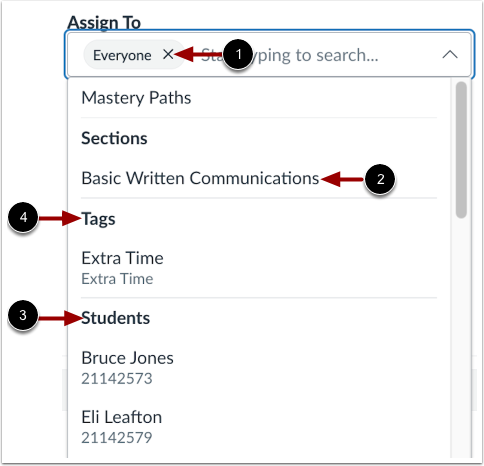
00:59: remove Everyone by clicking the Remove icon.
01:03: To change the assignees, click the Assign To field. Then, select one or more
01:09: assignees. You can assign to a course section, or an individual student.
01:13: If enabled by your institution, you can assign a quiz to students with
01:17: differentiation tags.
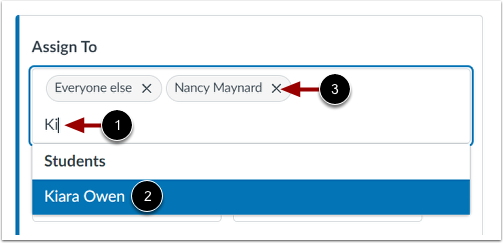
01:19: To find a student or section more easily, enter a few letters of the name and select
01:24: the name from a filtered list.
01:27: To remove an assignee, click the assignee Remove icon.
01:31: In the date fields, add your preferred dates. For Due Date, set the date and time that
01:36: the quiz is due.
01:37: The due date is already populated if you created an assignment shell, but you can
01:42: change it if necessary. For Available from, set the date and time
01:46: when the quiz becomes unlocked and available.
01:49: And for Until, set the date and time when the quiz becomes locked and no longer
01:53: available.
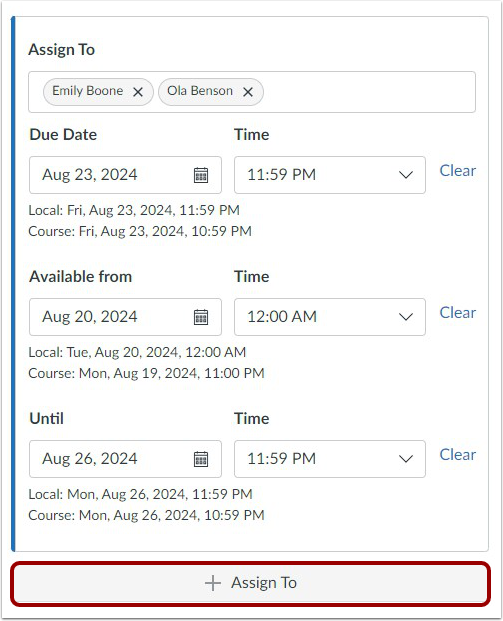
01:55: To add another student or section with a different due date and availability dates,
01:59: click the Add Assign To button.
02:02: Then enter a new set of assignees, due dates, and availability dates.
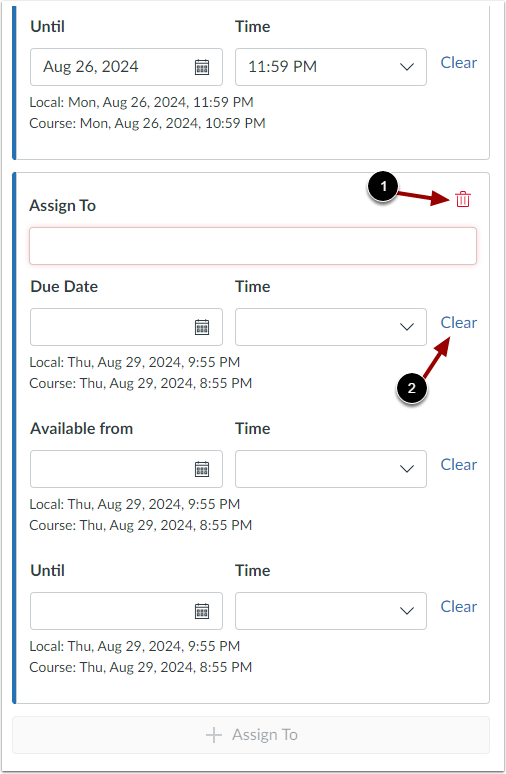
02:08: You can delete entire assignments by clicking the Remove icon in the appropriate
02:12: assignment section.
02:14: To remove the dates and times in the Due Date, Available from, or Until fields,
02:19: click the Clear link.
02:22: If you enter invalid dates, Canvas displays error messages.
02:25: Invalid entries include setting the Available from date after the Until date,
02:30: setting the Until date before the due date, or assigning
02:34: a date that is outside the course or term dates. Correct the dates as needed.
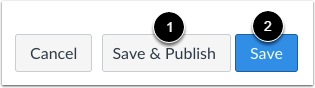
02:40: If you are ready to publish the quiz, click the Save & Publish button. If you want
02:45: to create a draft of your quiz and publish it later, click the Save button.
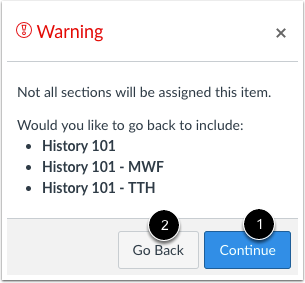
02:50: If you do not add all students through course sections or individual assignments, a
02:55: warning message displays. If you don't want to add any others to the assignment,
02:58: click the Continue button.
03:01: Alternatively, to go back and add additional section or students,
03:04: click the Go Back button.
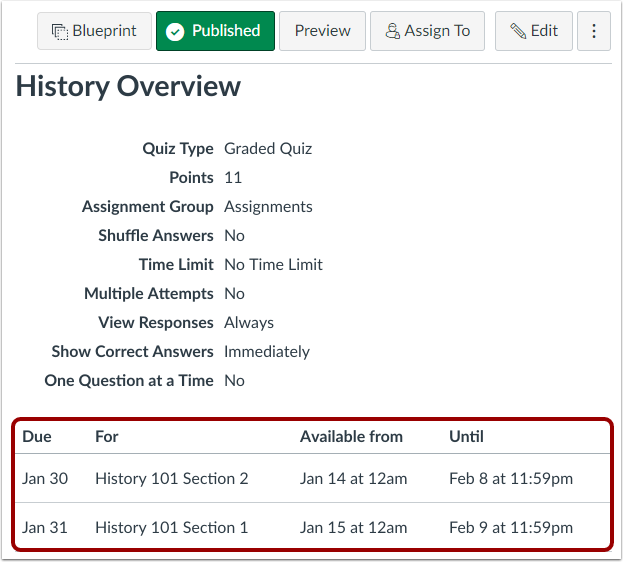
03:07: View the dates and users assigned to the quiz.
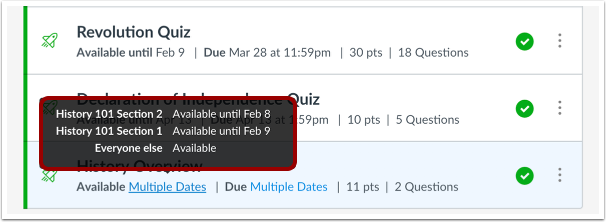
03:11: On the Quizzes Index Page,
03:12: the quiz shows there are multiple users and dates assigned to the quiz. Hover over
03:18: the text to view date availability.
03:21: This guide covered how to assign a quiz to everyone, individual students,
03:25: differentiation tags, or sections.