00:07: How do I view reports for a quiz in New Quizzes?
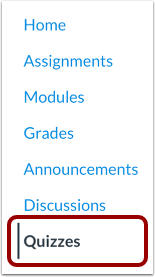
00:11: In Course Navigation, click the Quizzes link.
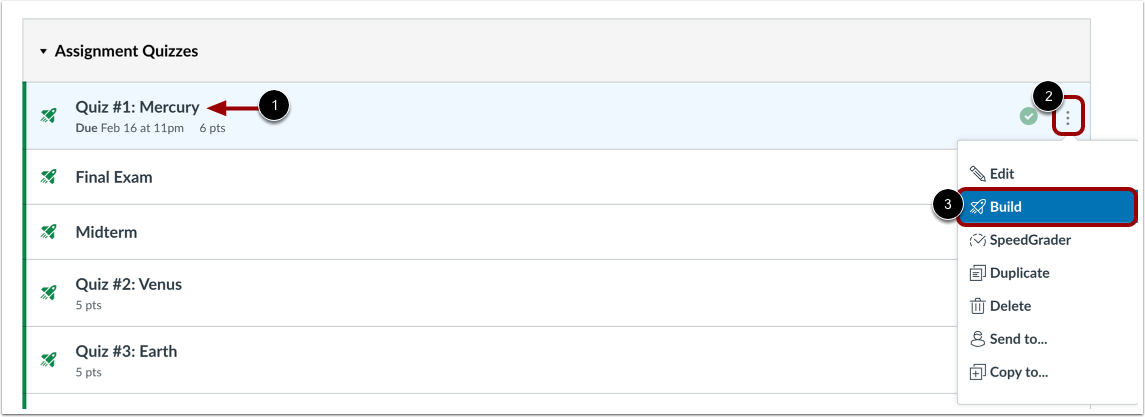
00:14: To view reports for a quiz, find the quiz.
00:17: You want to open, click the options icon and then click the build
00:21: Link.
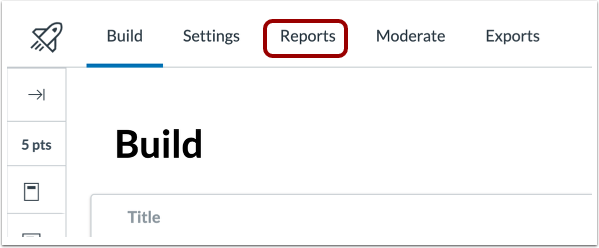
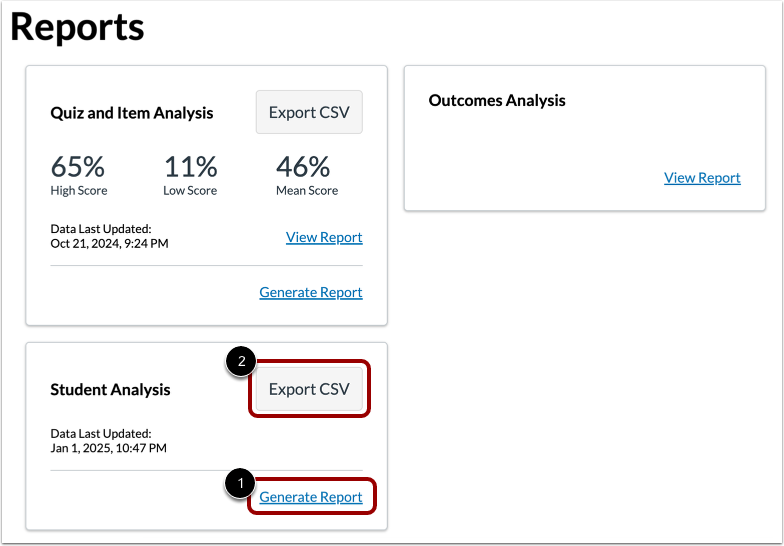
00:22: Click the Reports tab.
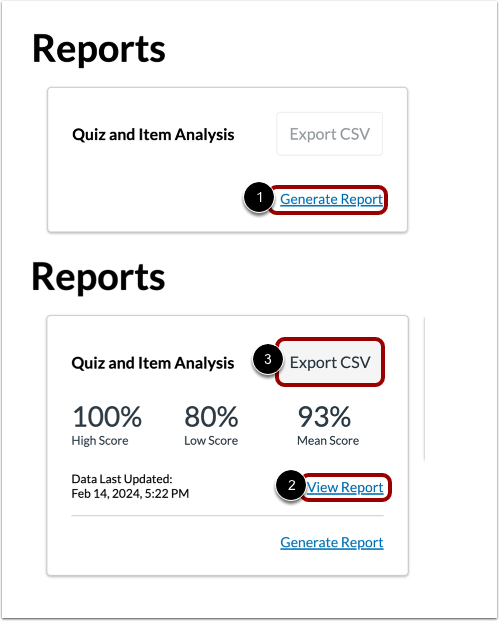
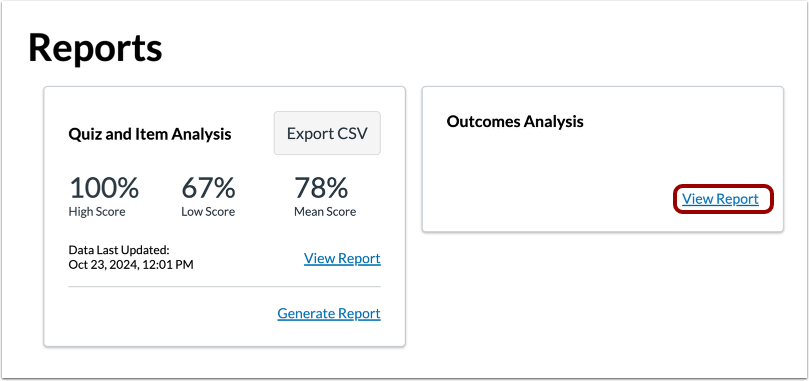
00:24: To generate the improved Quiz and Item Analysis report for the quiz,
00:28: click the Generate Report link.
00:31: To open the generated report, click the View Report link.
00:36: To download the Quiz and Item Analysis report as a CSV file, click
00:40: the Export CSV button.
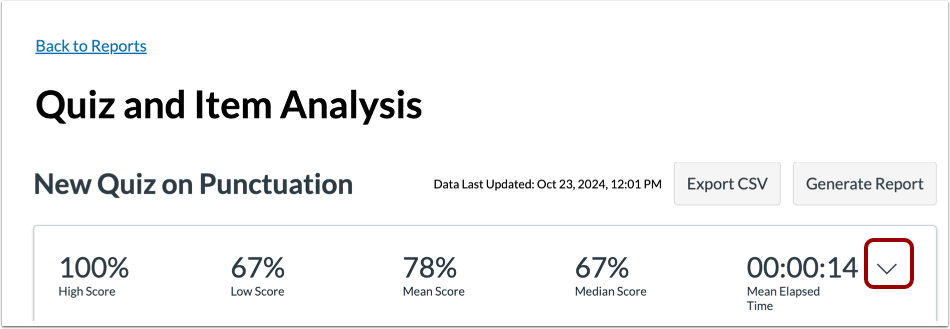
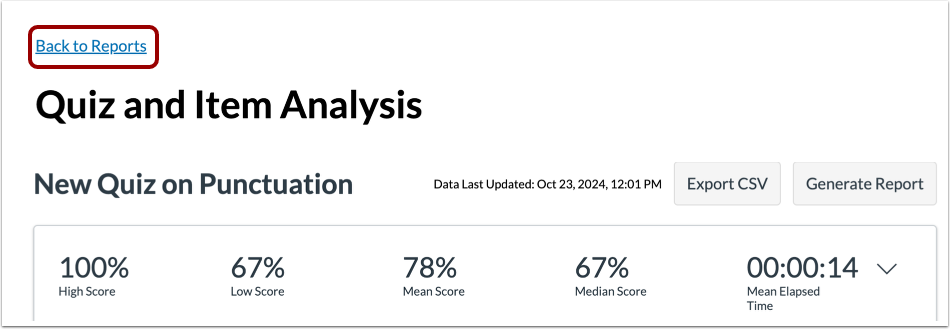
00:43: The Quiz and Item Analysis report includes two sections: Quiz Analysis and
00:47: Item Analysis. The Quiz Analysis includes statistics for overall
00:51: quiz scores. To view all Quiz Analysis details, click the Expand
00:56: icon.
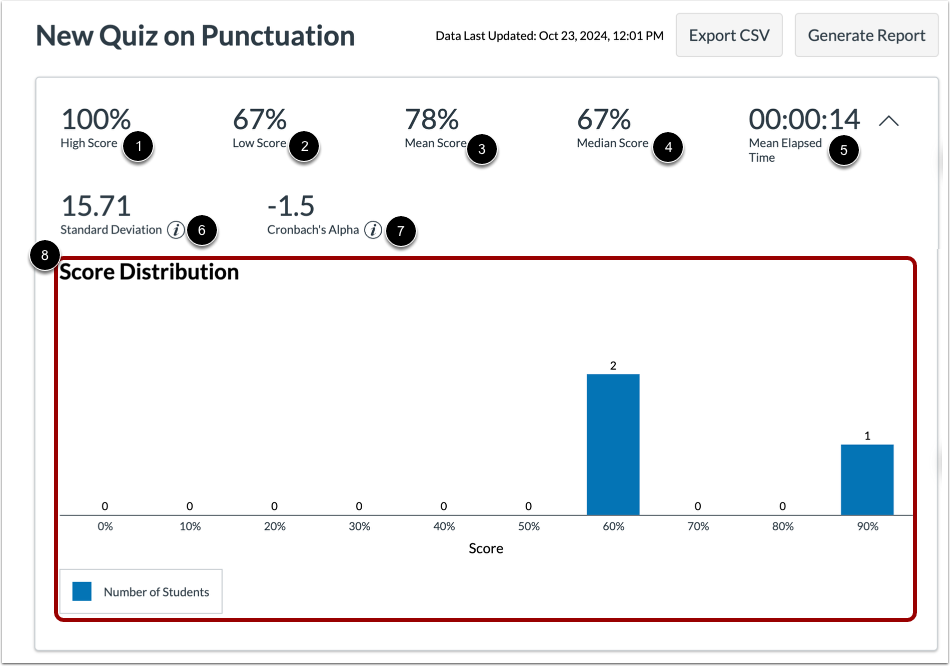
00:57: The following statistics are available: High Score: displays highest percentage
01:02: score. Low Score: displays lowest percentage
01:05: score. Mean Score: displays average percentage score. Median
01:10: Score: displays median percentage score. Mean Elapsed Time displays
01:14: average time to complete the quiz. Standard Deviation: represents
01:18: the amount of variation from the mean score in percentage. Cronbach’s Alpha:
01:23: is an internal consistency measure that estimates
01:26: the reliability of a quiz. Score Distribution Chart: represents the
01:30: distribution of earned scores for the quiz
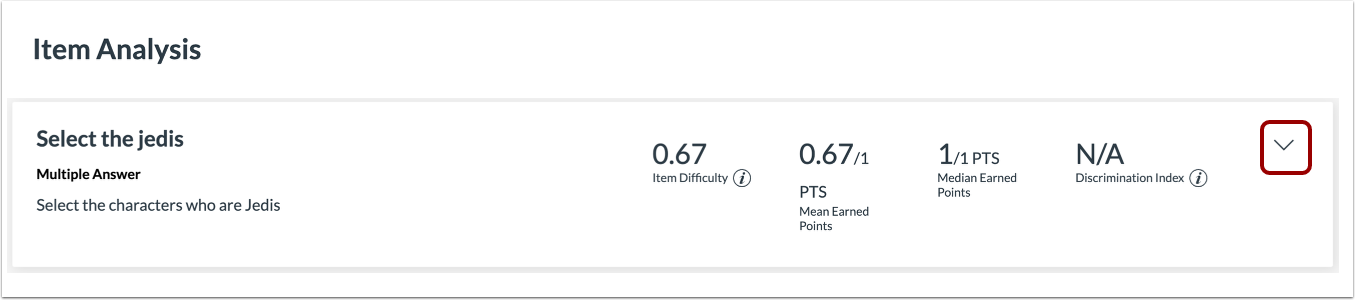
01:33: The Item Analysis includes statistics for items in a quiz and their correlation
01:38: to the overall quiz score. To view Item Analysis details,
01:42: click the Expand icon.
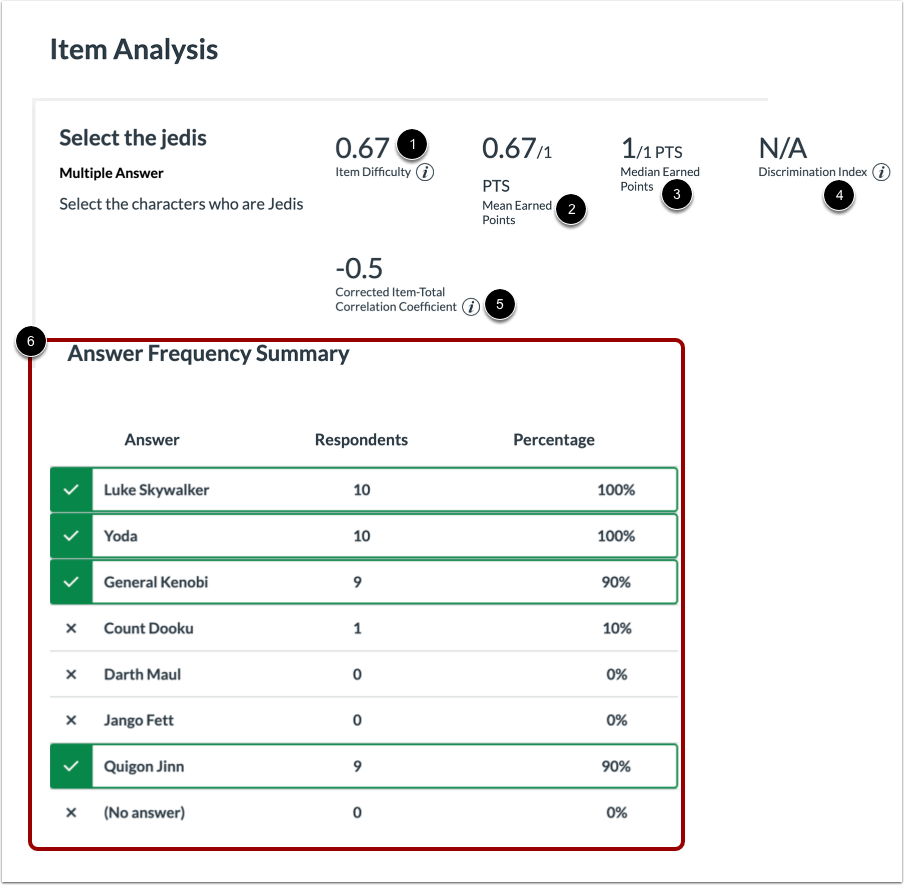
01:45: The following statistics are available item difficulty measures the proportion
01:49: of students. Who answered the question correctly, mean earned points displays
01:53: average points score out of the maximum possible points.
01:56: Median, earned points displays mean Point score out of
02:00: the maximum possible points, discrimination index assesses,
02:04: the ability of an item to differentiate between the highest scoring and lowest scoring
02:09: students corrected item, total correlation coefficient
02:13: measures the correlation between a given item and the total score
02:17: answer frequency, summary chart displays the number and percentage
02:21: of students who selected each answer choice,
02:25: To return to the Reports page, click the Back to Reports link.
02:29: To open the Outcomes Analysis, click the View Report link.
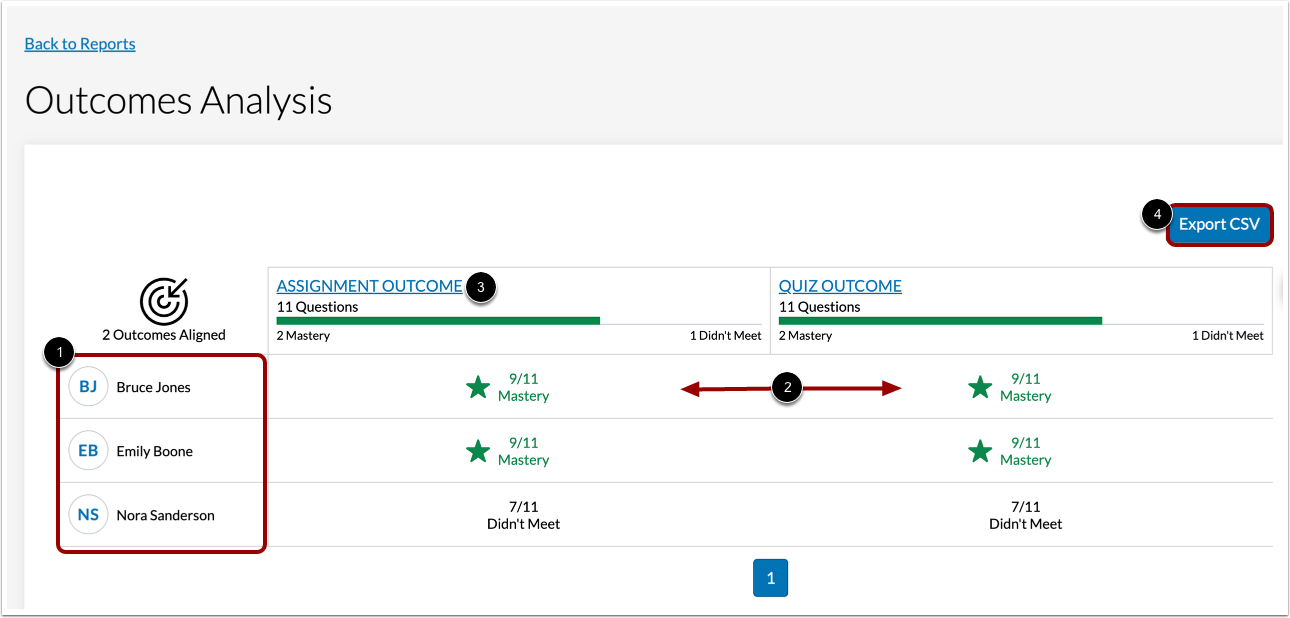
02:34: The Outcomes Analysis includes each student who has completed a quiz and
02:38: their mastery results for each outcome.
02:41: To view more details for an outcome, click the name of the outcome.
02:46: To download the CSV file of the Outcomes Analysis
02:49: report, click the Export CSV button
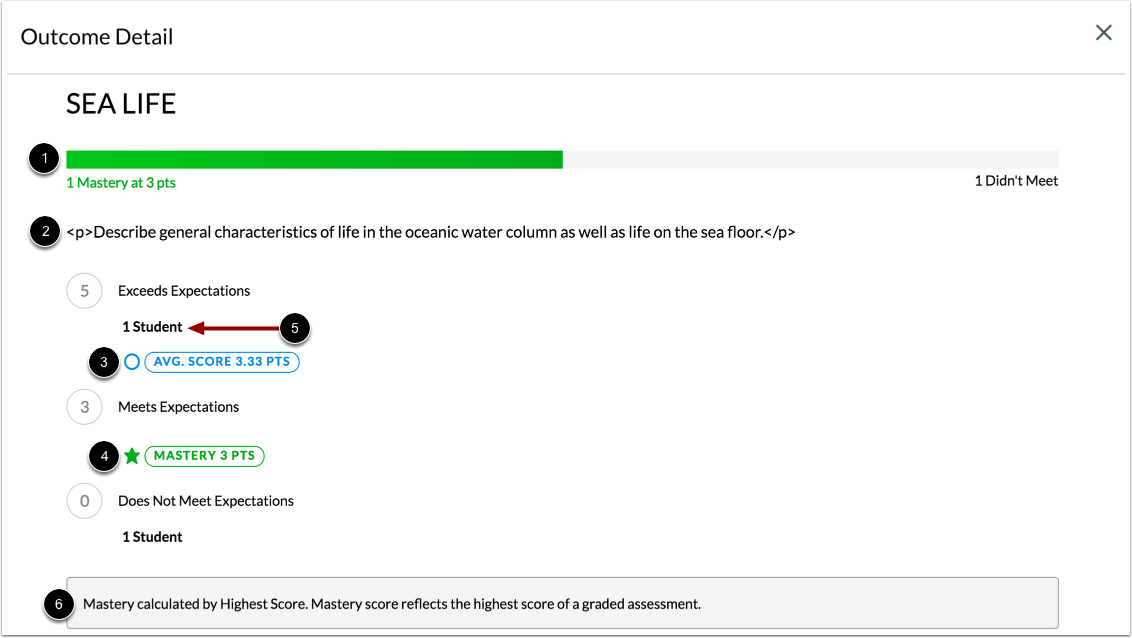
02:53: The Outcome Detail page contains performance information for a specific outcome,
02:58: including number of students who reached mastery, description, average score,
03:02: and score required to earn mastery.
03:05: You can also view the number of students who score within each criteria level
03:10: and how mastery is calculated.
03:13: To generate a Student Analysis report, click the Generate Report link, then
03:17: click the Export CSV button.
03:20: The report includes sis ID when permission is enabled section
03:25: sis ID. When permission is enabled time elapse
03:29: submission attempts item type Student Response points
03:33: earned number of correct. Number of incorrect.
03:36: No response. Overall score status.
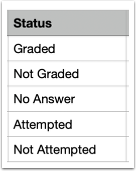
03:40: The status column includes the following item State values.
03:43: Graded, the student answered the question either correctly or incorrectly
03:48: not graded. The question as a waiting grading applies
03:52: only to essay or file upload questions.
03:54: Not attempted. The question was not included in the students quiz.
03:58: No answer. The student did not answer the question but it was part
04:02: of the quiz. Not supported. The question type is not say A's
04:07: Ace. Not say missing important data from the modal.
04:11: This guide covered how to view reports for a quiz in New Quizzes.