Extra credit is currently not a default option in Canvas. However, you can give students extra credit using a variety of options.
Notes:
- If you are weighing your assignment groups, please pay attention to how weighted groups can affect the Gradebook if assignments are worth zero points.
- If you have drop rules set in an assignment group, adding extra points may affect your students' scores.
View the video transcript
00:07: How do I give extra credit in a course?
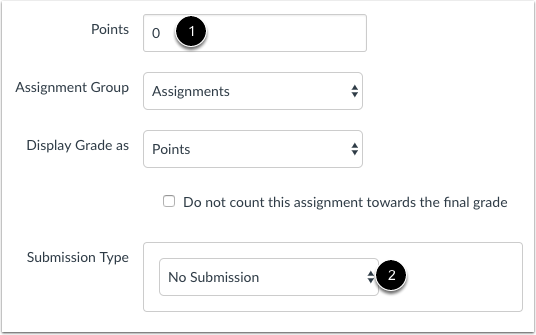
00:10: Create a new assignment with 0 points possible.
00:14: Then select any submission type. Assignments set to the no submission
00:18: type work well for classroom activities, such as in-class discussions
00:22: or presentations. After students complete an online submission or complete
00:26: and submit work offline, you can add and adjust points in the Gradebook.
00:32: Add extra points to an Assignment you've already created.
00:35: Manually enter the extra points in the Gradebook.
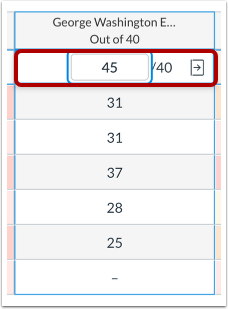
00:37: For example, this assignment is worth 40 points.
00:41: Adding 5 extra points will bring the assignment total for this student
00:45: to 45 points. The added points will increase total points
00:49: calculated in the Gradebook's final grade.
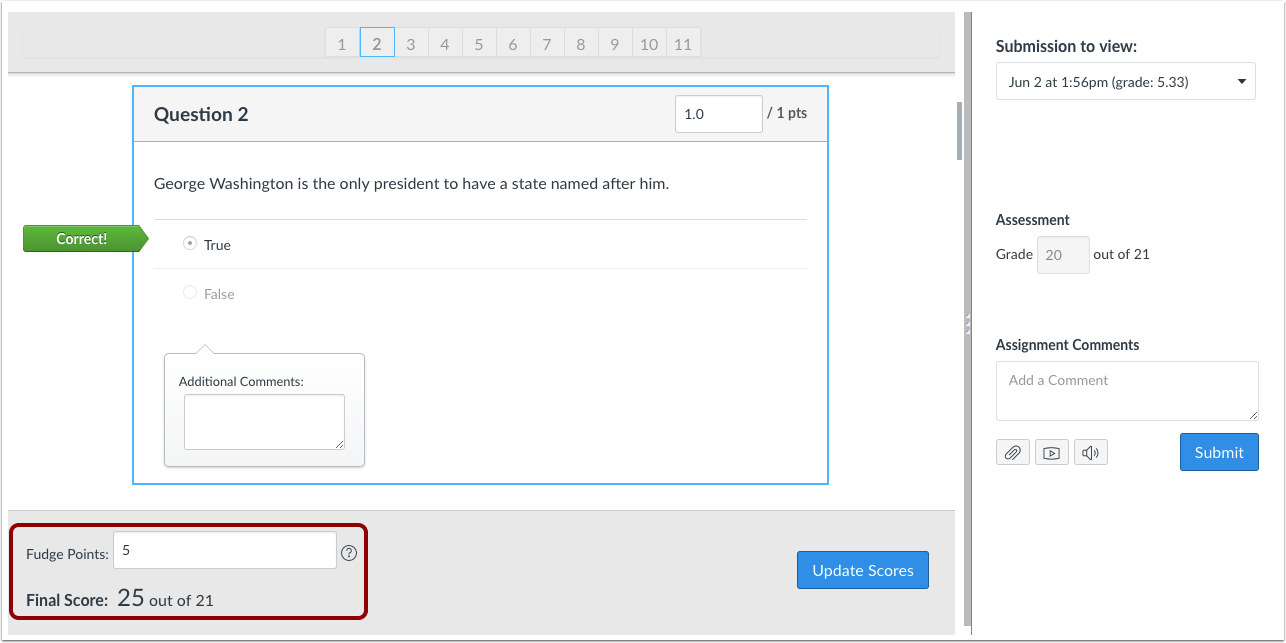
00:53: You can use Fudge points within speed grader to add points to a quiz.
00:57: Fudge points allow you to manually adjust an overall quiz score.
01:02: Add an additional Criterion to a Rubric for extra credit.
01:05: Make sure you make the rubric worth more than the assignment
01:08: and you can give students extra points or not without affecting the actual assignment points.
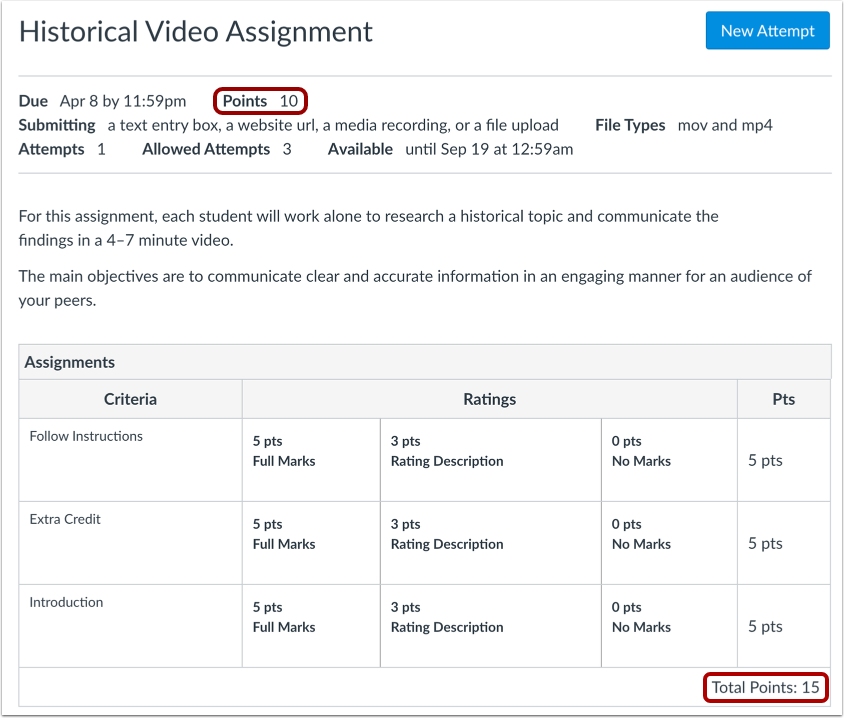
01:14: You can add extra credit using a rubric in SpeedGrader. Enter a
01:18: point value that is greater than the points possible for a criterion.
01:23: The Total Points calculation will reflect any extra points
01:26: awarded for each Criterion.
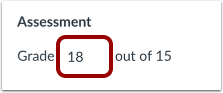
01:29: You can manually add extra points by editing the grade shown in the Grade field
01:33: in SpeedGrader.
01:36: You can give extra credit using assignment groups.
01:38: Assignments must be housed within an assignment group.
01:41: Assignment groups can be unweighted or weighted depending on how you wish
01:45: to grade students within your course,
01:49: When assignment groups are not weighted, you can create extra credit assignments
01:53: in their own assignment group if you wish. You may want to create a separate
01:57: group to help distinguish between the different types of assignments.
02:01: In this example, this entire assignment group has no points possible.
02:05: When the student completes the work required for the extra credit assignments, you
02:10: can manually add points to the Gradebook.
02:13: When assignment groups are weighted, Canvas will not calculate grades for an entire
02:18: group that has no points possible. Therefore, for extra
02:22: credit assignments to calculate correctly in weighted groups,
02:25: they must be housed within an existing assignment group that has at least one
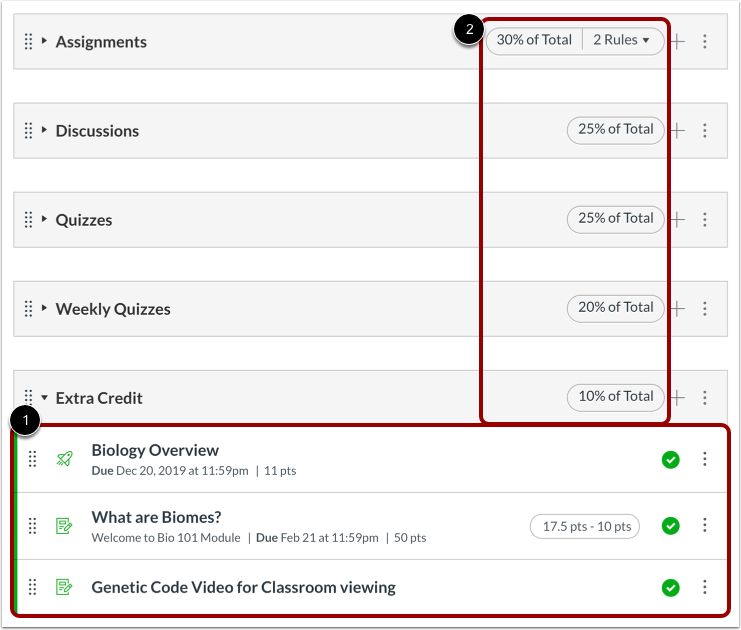
02:29: assignment worth more than 0 points. In this example, the extra credit
02:33: assignment is housed within the Extra Credit assignment group with multiple assignments
02:37: worth more than 0 points.
02:41: Notice that the assignment groups weights total 110%.
02:45: Any assignment placed within the Extra Credit assignment group will have either a positive or
02:49: neutral effect on your students' overall grade.
02:52: Additionally, if a student does not submit the extra credit assignment, their
02:57: grade will not be negatively impacted. When the student completes the work required
03:01: for the extra credit assignments, you can manually add points to the Gradebook.
03:07: If you create your extra credit assignments with 0 points within their own assignment
03:11: group, but you decide to weigh your assignment groups, your extra credit
03:15: assignments will not calculate correctly within Canvas.
03:18: Canvas cannot calculate assignment groups where there are no points possible.
03:22: For example, if the student has 12 points of 0 points
03:26: possible, Canvas can't determine the impact to the overall grade because
03:30: 12 cannot be divided by 0. An error will appear in the Total
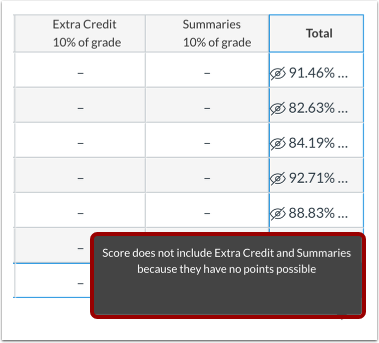
03:34: grade column. In this example, the two extra credit assignments
03:39: (both with zero possible points) have been placed in an
03:43: assignment group called Extra Credit. However, the assignment group
03:47: has been weighted. The warning notification indicates that the score does
03:51: not include extra credit (as an assignment group) because the entire group
03:55: has no points possible, In this situation, the assignments
03:59: will have to be moved to another assignment group or you will need to include an assignment
04:03: within the Extra Credit assignment group that has at least one point possible.
04:09: This guide covered how to give extra credit in a course.
Create New Assignment with Zero Point Value
Create a new assignment with zero points possible [1] and select any submission type [2]. Assignments set to the No Submission type work well for classroom activities, such as in-class discussions or presentations.
After students complete an online submission or complete and submit work offline, you can add and adjust points in the Gradebook.
Notes:
- For a zero-point assignment to factor into a student's grade, you must add a positive point value to at least one additional assignment in any assignment group.
- Extra credit assignments with zero total points cannot be synced to SIS systems like PowerSchool. To ensure a successful grade passback, assign at least 1 point or manually enter extra credit in PowerSchool.
Add extra points to an Assignment you've already created. Manually enter the extra points in the Gradebook.
For example, this assignment is worth 40 points. Adding 5 extra points will bring the assignment total for this student to 45 points. The added points will increase total points calculated in the Gradebook's final grade.
Add Fudge Points to a Quiz
You can use Fudge points within SpeedGrader to add points to a quiz. Fudge points allow you to manually adjust an overall quiz score.
Add an additional Criterion to a Rubric for extra credit. Make sure you make the rubric worth more than the assignment and you can give students extra points or not without affecting the actual assignment points.
You can add extra credit using a rubric in SpeedGrader. Enter a point value that is greater than the points possible for a criterion [1]. The Total Points calculation will reflect any extra points awarded for each Criterion [2].
Notes:
- In Classic Rubrics, for SpeedGrader to automatically update the rubric point value for grading, select the Use this rubric for assignment grading checkbox when adding the Rubric to an assignment. Otherwise, you can update the grade field manually.
- If your institution enables the Enhanced Rubrics feature option, the rubric interface may vary.
You can manually add extra points by editing the grade shown in the Grade field in SpeedGrader.
Create Extra Credit with Assignment Groups
You can give extra credit using assignment groups.
Assignments must be housed within an assignment group. Assignment groups can be unweighted or weighted, depending on how you wish to grade students within your course.
Notes:
- Assignments in the extra credit assignment group should be graded at the end of the course, after all other course assignmentsare graded.
- All other assignment groups in the course should have at least one graded assignment in order for the extra credit assignment group calculation to correctly affect student grades.
Create Extra Credit using Unweighted Assignment Groups
When assignment groups are not weighted, you can create extra credit assignments in their own assignment group if you wish. You may want to create a separate group to help distinguish between the different types of assignments. In this example, this entire assignment group has no points possible [1].
When the student completes the work required for the extra credit assignments, you can manually add points to the Gradebook.
Create Extra Credit using Weighted Assignment Groups
When assignment groups are weighted, Canvas will not calculate grades for an entire group that has no points possible. Therefore, for extra credit assignments to calculate correctly in weighted groups, they must be housed within an existing assignment group that has at least one assignment worth more than zero points.
In this example, the extra credit assignment is housed within the Extra Credit assignment group with multiple assignments worth more than zero points [1]. Notice that the assignment groups weights total 110% [2]. Any assignment placed within the Extra Credit assignment group will have either a positive or neutral effect on your students' overall grade. Additionally, if a student does not submit the extra credit assignment, their grade will not be negatively impacted.
When the student completes the work required for the extra credit assignments, you can manually add points to the Gradebook.
Errors with Weighted Assignment Group
If you create your extra credit assignments with zero points within their own assignment group, but you decide to weigh your assignment groups, your extra credit assignments will not calculate correctly within Canvas. Canvas cannot calculate assignment groups where there are no points possible. For example, if the student has 12 points of 0 points possible, Canvas can't determine the impact to the overall grade because 12 cannot be divided by 0.
An error will appear in the total grade column. In this example, the two extra credit assignments (both with zero possible points) have been placed in an assignment group called Extra Credit. However, the assignment group has been weighted. The warning notification indicates that the score does not include Extra Credit (as an assignment group) because the entire group has no points possible. In this situation, the assignments will have to be moved to another assignment group, or you will need to include an assignment within the Extra Credit assignment group that has at least one point possible.