00:07: How do I share an item bank in New Quizzes?
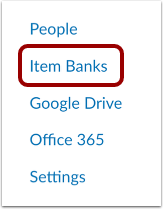
00:10: In Course Navigation, click the Item Banks link.
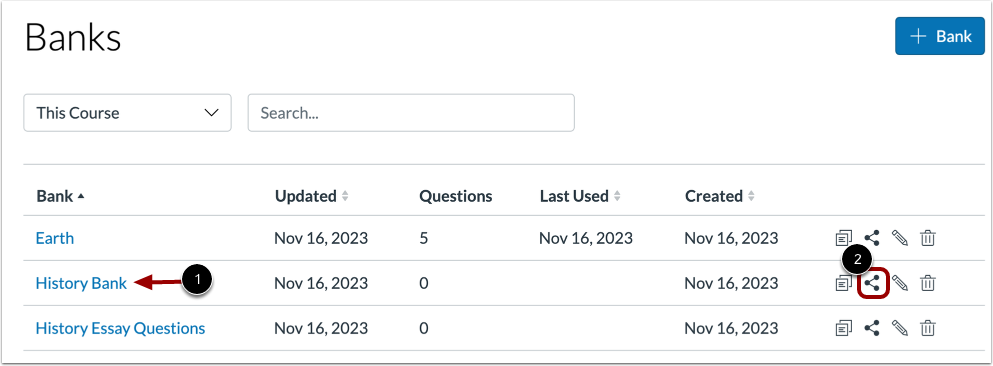
00:14: Locate the item bank you want to share, then click the Share icon.
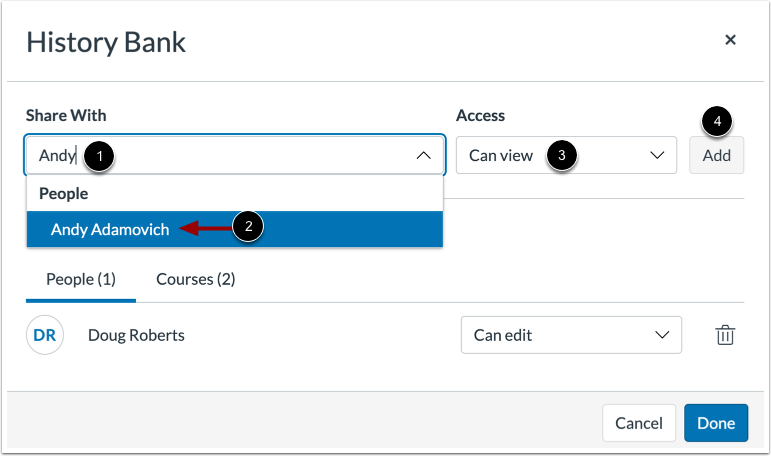
00:19: Enter the name of the user. You want to share the item, banquet in the share with field,
00:23: then click the name of the user. You can add multiple users in
00:27: the share with field.
00:29: To set access rights for the item bank,
00:31: click the Access drop-down menu. You can share the item bank with view access,
00:36: which only allows the user you share with to view the item bank, or edit
00:40: access, which allows the user you share with to view and edit the item
00:44: bank.
00:45: To share the item bank with the selected course, click the Add button.
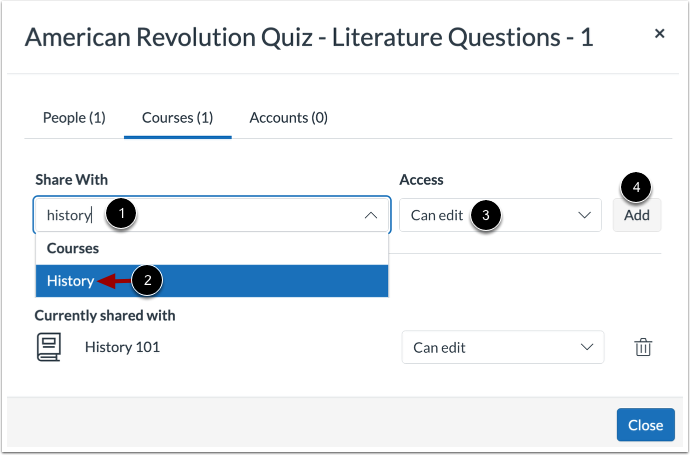
00:50: Enter the name of the course. You want to share the item, banquet in the share with
00:55: field. Then click the name of the course.
00:57: You can add multiple courses in the share with field.
01:01: To set access rights for the item bank,
01:04: click the Access drop-down menu. You can share the item bank with view
01:08: access, which only allows the course you share with to view the item bank, or edit
01:12: access, which allows the course you share with to view and edit the item bank.
01:17: To share the item bank with the selected course, click the Add button.
01:22: If given the permission by your institution, you can share item banks with
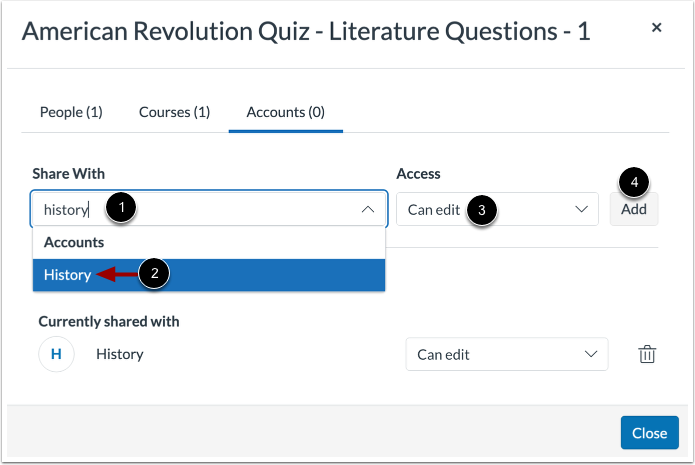
01:26: sub-accounts enter the name of the course.
01:29: You want to share the item, banquet in the share with field.
01:32: Then click the name of the sub account.
01:34: You can add multiple sub accounts in the share with field.
01:39: To set access rights for the item bank,
01:41: click the Access drop-down menu. You can share the item bank with view
01:45: access, which only allows the sub-account you share with to view the item bank,
01:49: or edit access, which allows the sub-account you share with to view and
01:53: edit the item bank.
01:56: To share the item bank with the selected sub-account, click the Add button.
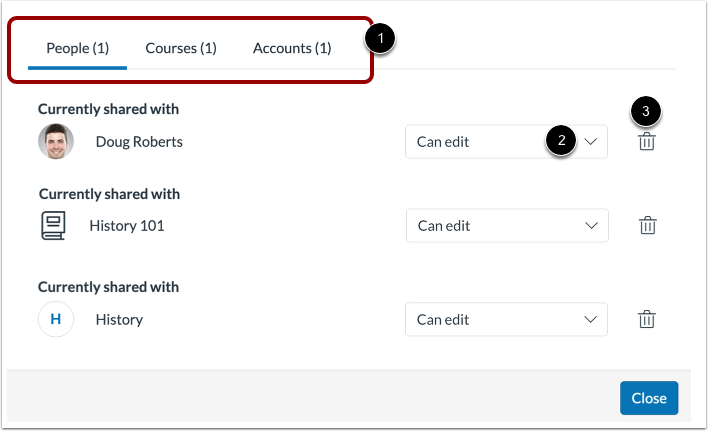
02:01: View the users, courses, and accounts who can view or manage the item bank.
02:06: To edit the item bank access, click the Access drop-down
02:11: To remove a user's access from the item bank,
02:14: click the Remove icon.
02:17: This guide covered how to share an item bank in New Quizzes