00:07: How do I create self sign-up groups in a group set?
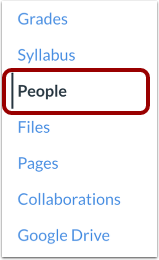
00:10: In Course Navigation, click the People link.
00:14: Click the Add Group Set button.
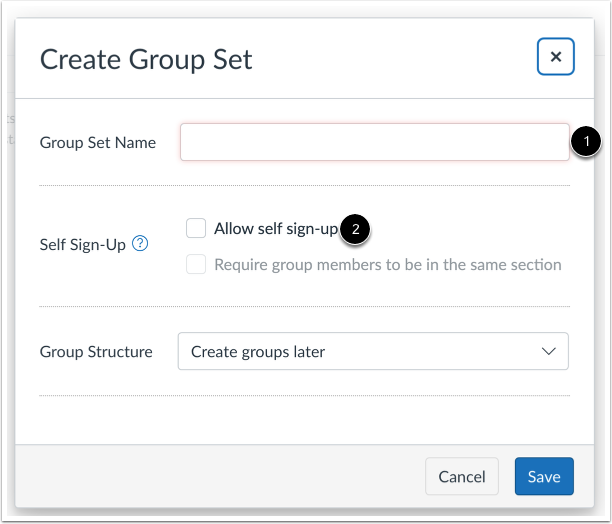
00:17: Create a name for the group set in the group set name, text field, click the
00:21: allow self sign up checkbox.
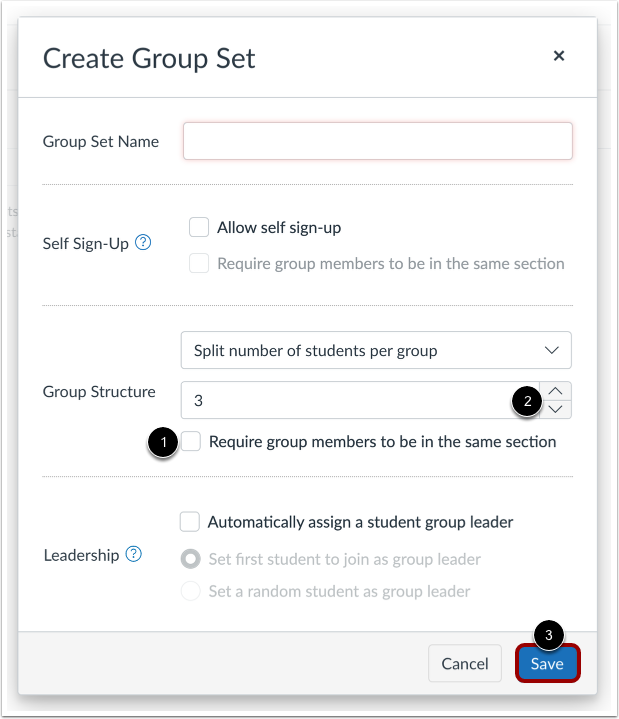
00:24: If you want to require group members to be in the same section, click the required
00:29: group members to be in the same section checkbox.
00:31: When the required group members to be in the same section, checkbox, is
00:36: selected. A tooltip displays the message.
00:38: Students, who are enrolled in multiple sections will be put in a group
00:42: by themselves.
00:44: Next to the group structure, heading and enter.
00:47: The number of groups you would like to create. You can create more groups at
00:51: a later time. If necessary, you can also use the arrows in the number
00:55: field to increase or decrease the number, click the save button.
01:00: Click the Save button.
01:02: View your new groups in your group set. Verify your self sign-up group
01:07: underneath the group title and group settings.
01:10: To manage a group, click the group Options menu. To edit the name of the
01:14: group, click the Edit link.
01:17: To delete the group, click the Delete link.
01:20: This guide covered how to create self sign-up groups in a group set