Canvas includes an accessibility tool that detects common accessibility errors within the course. The Accessibility Checker scans Pages and Assignments. You can use the Accessibility Checker to design the course while considering accessibility attributes.
The Accessibility checker tests against a curated selection of WCAG 2.1 Level A, AA, and AAA success criteria. Rather than a checklist for total level-specific compliance, it focuses on the high-impact rules that most frequently affect users.
The accessibility checks do not cover all issues that may occur in complex or interactive content created outside the Rich Content Editor. This includes items such as color contrast errors in internal or external CSS, embedded third-party tools (like LTI tools or external learning apps), custom JavaScript or interactive widgets, iframes and externally hosted content, and interactive elements such as simulations, quizzes, or drag-and-drop activities.
The Accessibility Checker checks for the following common accessibility issues in the Rich Content Editor:
- Missing image alt text: An image does not include descriptive alt text.
- Alt text length: Image alt text exceeds 200 characters.
- Image filename used as alt text: The alt text matches the image filename instead of describing the image.
- Tables without headers: A table does not include at least one header.
- Table header scope: A table header does not define appropriate scope.
- Tables without captions: A table does not include a descriptive caption.
- Duplicate or broken links: Multiple links point to the same URL, or spaces break a single link into multiple links.
- Misformated lists: Content appears to be a list but is not formatted using list structure.
- Skipped heading levels: Heading levels are not sequential (for example, H2 followed by H4).
- Note that the tool does not check if the first header starts with H2 or whether the headings are sequential with the rest of the content in the page.
- Heading length: A heading exceeds 120 characters.
- Heading 1 in content: An H1 heading is used within the page content.
- Small text contrast: Small text does not meet WCAG 2.1 Level AA color contrast requirements (inline CSS).
- Large text contrast: Large text does not meet WCAG 2.1 Level AA color contrast requirements (inline CSS).
Notes:
- The Accessibility Checker feature option must be enabled at the account level.
- An Account-level accessibility dashboard is available in the account navigation for admins.
- If the Accessibility link is not visible in your course, it is disabled by your institution. Contact your institution's administrator for assistance.
- When the IgniteAI Accessibility Remediation for Courses feature option is disabled, the Accessibility Checker does not use AI.
- The course Accessibility Checker cannot scan courses with more than 1000 pages and assignments in total.
- Once a course has been scanned, the tool automatically scans new and edited resources.
- If you roll your page back to a previous version in the version history, the remediation progress will be lost.
- Content with an HTML body larger than 125 KB cannot be scanned.
Open Accessibility
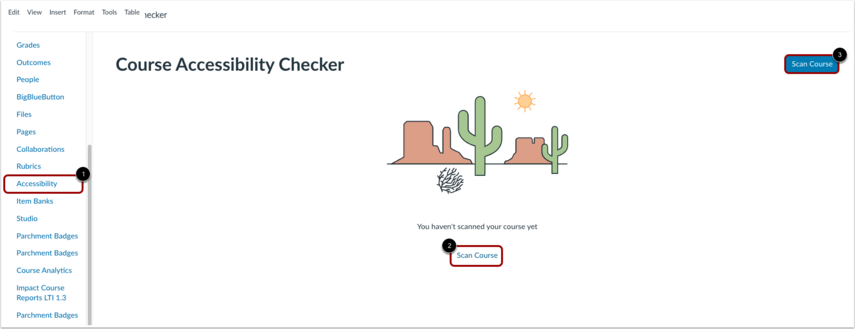
In Course Navigation, click the Accessibility link [1]. Then, click the Scan Course link [2] or the Scan Course button [3].
Note: The scan can take anything from a few seconds to a few minutes depending on the size of the course.
Search Resource
You can search by resource titles.
Manage Filter Resources
In the drop-down menu, you can also filter resources by Last edited [1], Resource type [2], State [3] or With issues of [4]. Then, click the Apply filters button [5].
View Issues
The central interface displays high-level information, including the total number of active issues on the course, and a bar chart illustrating their distribution by issue type [1]. It also lists the scanned resources, showing the number of issues found on each of them [2].
Fix Issues
Instructors can see the number of issues for each resource [1]. To launch the radiation wizard for viewing and resolving issues on a resource, click the Fix button [2]. A tray then displays one issue at a time, showing the problem area and issue description [3]. Select a remediation option [4]. To correct the issue, apply the change [5].
Generate Alt Text
If the IgniteAI Accessibility Remediation for Courses feature option is enabled for your account, you can use AI to generate alt text for the image.
To skip the image for screen readers, click the This image is decorative checkbox [1].
To describe the image for screen readers, enter your text in the Alt Text field [2].
To generate alt text using IgniteAI, click the Generate alt text button [3].
Generate Table Caption
If the IgniteAI Accessibility Remediation for Courses feature option is enabled for your account, you can use AI to generate a caption for your table.
To generate a caption, click the Fix button [1], and then click the Generate caption button [2].
To regenerate another caption, click the Regenerate caption button [1]. Once you are satisfied, click the Add caption button [2].
Apply Fix
Once reformatted, the problem area is updated with the preview of the change [1]. To revert the change, click the Undo link [2]. To apply the changes and proceed to the next issue, click the Save & Next button [3].
To dismiss or exclude issues and resources you do not wish to remediate, click the Close remediation button.
You can also exclude issues by clicking the Options icon [1], and clicking the Close remediation button [2].