If you have added a rubric to a discussion, you can view the rubric in discussions.
Note: When the Enhanced Rubrics feature option is enabled, discussions display the enhanced rubric experience instead of the classic rubric interface. If your rubric interface looks different from the images in this lesson, the Enhanced Rubrics feature option may not be enabled for your institution.
View the video transcript
00:07: How do I view a rubric for a discussion as an instructor?
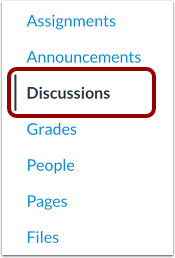
00:11: In Course Navigation, click the Discussions link.
00:15: Click the name of the discussion.
00:18: Click the Options icon and select the Show Rubric link.
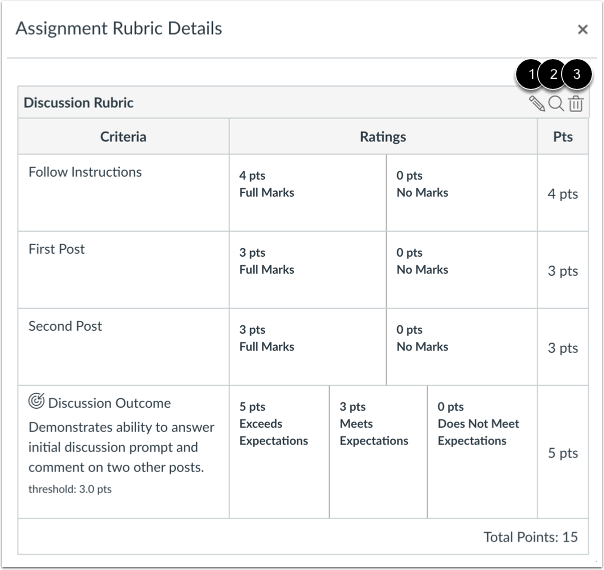
00:22: Vew the rubric.
00:24: To edit the rubric, click the Edit icon.
00:28: To find an existing rubric to replace the current rubric, click the Find icon.
00:34: To remove the rubric from the discussion, click the Delete icon.
00:39: This guide covered how to view a rubric for a discussion as an instructor.
Open Discussions
In Course Navigation, click the Discussions link.
Open Discussion
Click the name of the discussion.
Show Rubric
Click the Options icon [1] and select the Show Rubric link [2].
Note: If a rubric has not been added to a discussion, the Options menu includes a Add Rubric link.
View Rubric
View the rubric.
To edit the rubric, click the Edit icon [1]. To find an existing rubric to replace the current rubric, click the Find icon [2]. To remove the rubric from the discussion, click the Delete icon [3].