As an instructor, you can add and organize evidence in your own portfolio to showcase your work, learning, and accomplishments. Evidence can include assignments, projects, extracurricular activities, or professional experiences. You can also add skills, reflections, tags, and attachments to provide context and highlight key achievements.
Notes:
- If you do not see the Portfolio link in User Navigation, your institution may not have enabled this feature.
- You can organize evidence into sections to make portfolios easier to navigate.
- Individual attachments uploaded to a Portfolio can be up to 25 MB each. The total combined size of all attachments in a users Portfolios can be up to 1 GB. This storage is separate from your main Canvas account quota.
00:07: How do I add evidence in a Showcase Portfolio as an instructor?
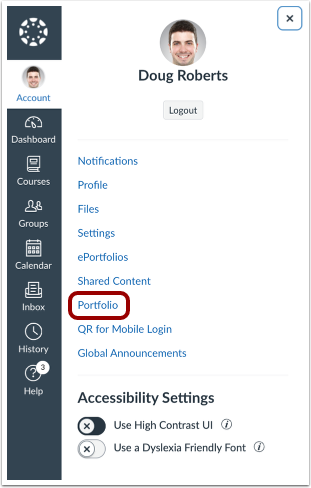
00:11: In the User Navigation menu, click the Account link, then click the Portfolio link.
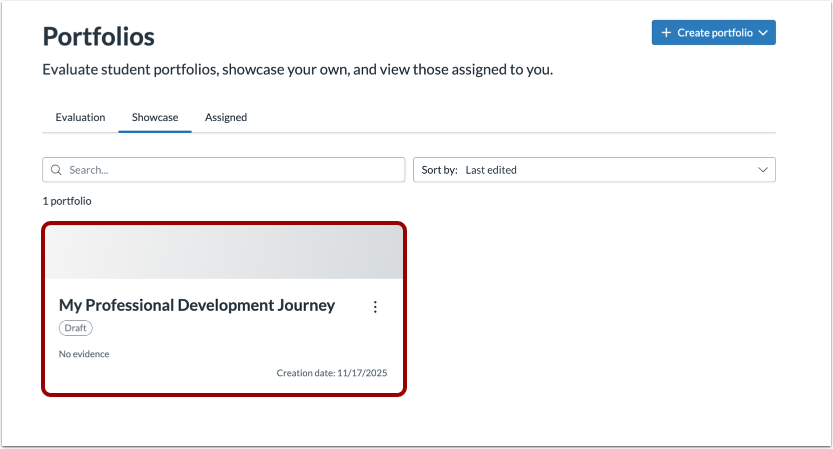
00:18: Select the portfolio where you want to add evidence.
00:21: Click the Edit button.
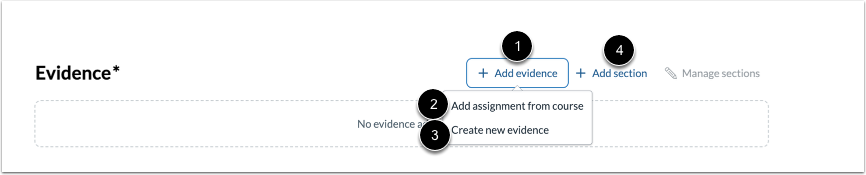
00:23: To include evidence in a portfolio, click the Add evidence link.
00:28: You can either add an assignment from course or create a new evidence.
00:33: To organize evidence content, click the Add section link.
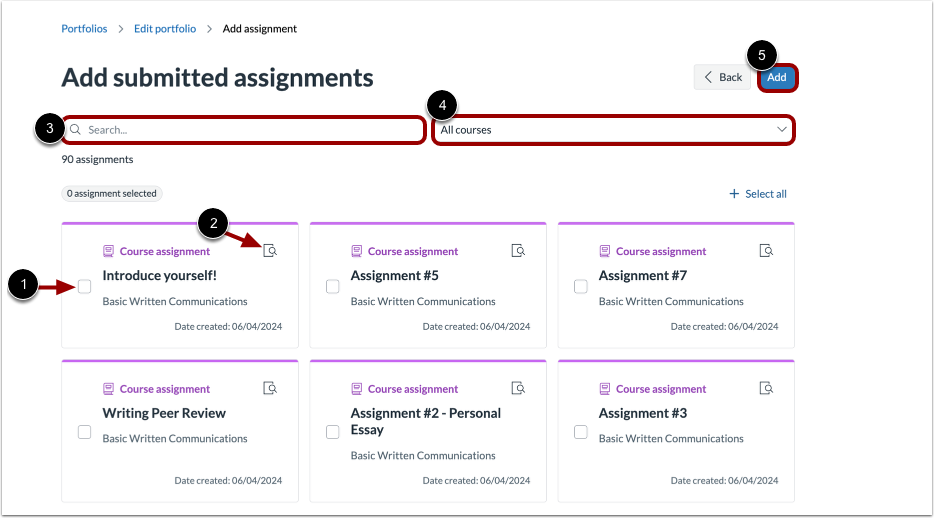
00:38: To select an assignment to add as evidence, click the add assignment checkbox.
00:44: To view assignment details, click the Review icon.
00:48: You can find assignments by typing keywords into the Search field.
00:52: To filter assignments, select a course from the drop-down menu.
00:57: After selecting all assignments, click Add button.
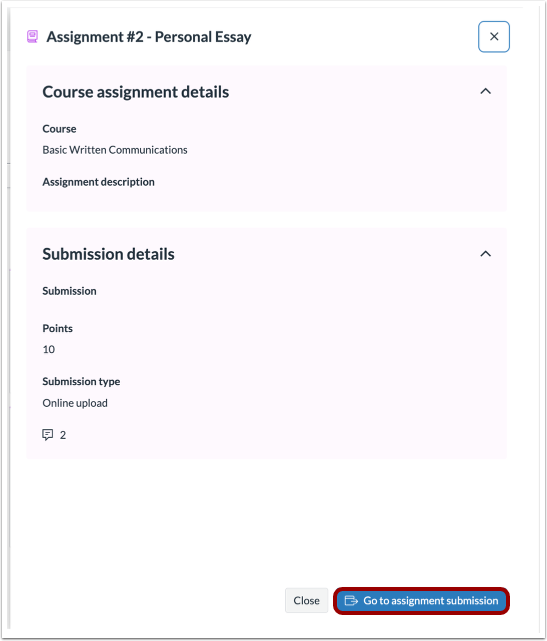
01:01: In a portfolio, assignment details open in a modal. To view the assignment in the course, click the Go to assignment submission button.
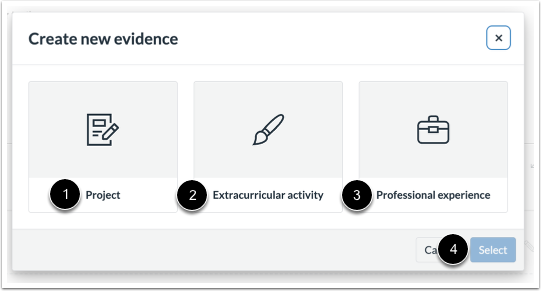
01:10: To create new evidence, select between a Project, Extracurricular activity or Professional experience.
01:17: Then, click the Select button.
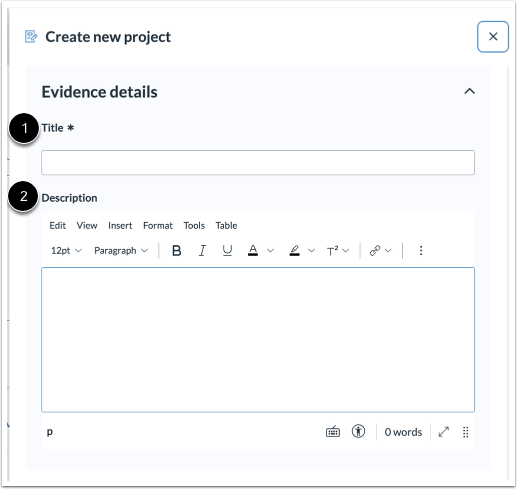
01:21: Add a title and an optional description.
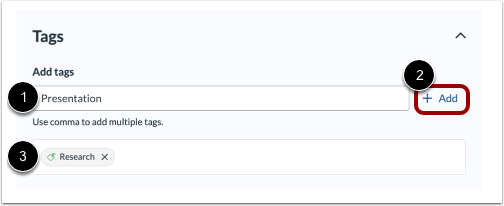
01:24: Add optional tags, then click the Add link.
01:28: Added tags display as pills.
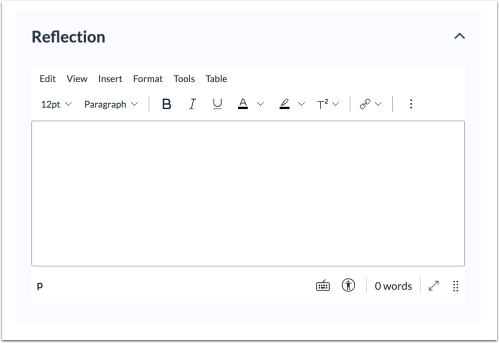
01:32: Add an optional reflection.
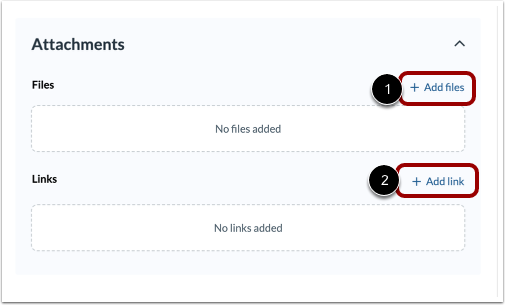
01:35: To upload files, click the Add files link.
01:38: To add a URL, click the Add link link.
01:42: Click the Create button.
01:45: This guide covered how to add evidence in a Showcase Portfolio as an instructor
Open Portfolio
In the User Navigation, click the Portfolio link.
Select Portfolio
Select the portfolio where you want to add evidence.
Edit Portfolio
Click the Edit button.
Add Evidence
To include evidence in a portfolio, click the Add evidence link [1]. You can either add an assignment from course [1] or create a new evidence [2].
To organize evidence content, click the Add section link [4].
Add Assignment
To select an assignment to add as evidence, click the add assignment checkbox [1].
To view assignment details, click the Review icon [2].
You can find assignments by typing keywords into the Search field [3].
To filter assignments, select a course from the drop-down menu [4].
After selecting all assignments, click the Add button [5].
View Assignment
In a portfolio, assignment details open in a modal. To view the assignment in the course, click the Go to assignment submission button.
Create New Evidence
To create new evidence, select between a Project. [2], Extracurricular activity [2] or Professional experience [3]. Then, click the Select button [4].
Add Evidence Details
Add a title [1] and an optional description [2].
Add optional tags [1], then click the Add link [2]. Added tags display as pills [3].
Add Reflection
Add an optional reflection.
Add Attachments
To upload files, click the Add files link [1]. To add a URL, click the Add link link [2].
Create
Click the Create button.