00:07: How do I view course content offline as an HTML file as an instructor?
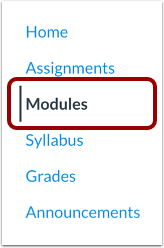
00:12: In Course Navigation, click the Modules link.
00:16: Click the Export Course Content button.
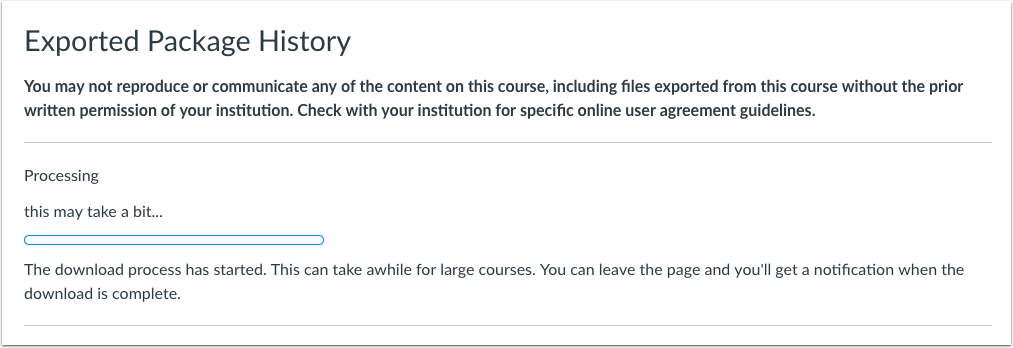
00:19: The course will download to your computer as a ZIP file. If you remain in the page
00:23: until the download is complete, the file will download directly to your computer.
00:28: If you leave the page, you'll receive an email notification when the course download is complete.
00:33: You can use a link in the email to download the file.
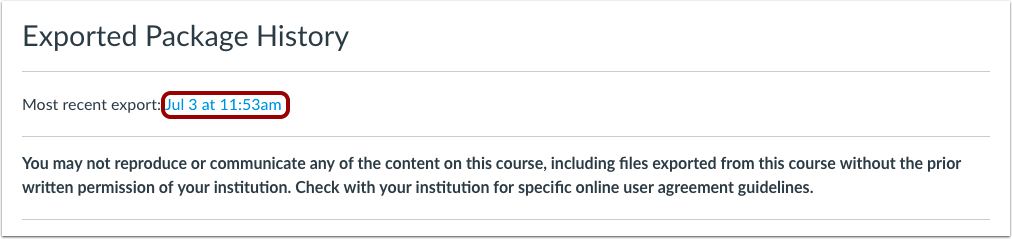
00:37: When the export is complete, the Exported Package History page shows the
00:41: most recent export. To download the export again, click the date
00:45: of the export. If you export the course again at a
00:49: later date, the most recent export will always display in the page, along
00:53: with previous exports.
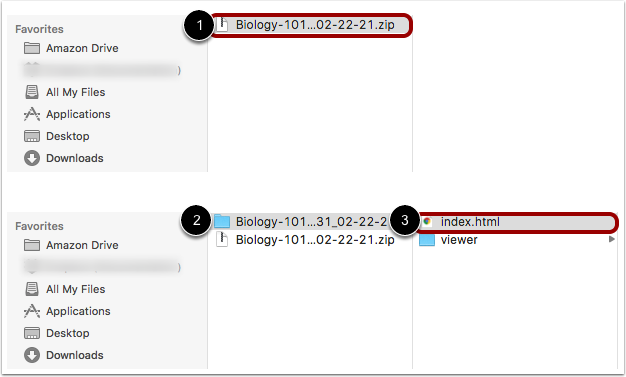
00:56: Once the file has been downloaded, locate, the zip file on your computer for
01:00: Mac users, double click the file to open it for PC users, right?
01:05: Click the file and select extract. All
01:08: When the file expands, open the course folder.
01:12: And open the index.html file.
01:15: The HTML file will open in your default browser.
01:19: Offline downloads include all content from the course at the time of the download. You
01:23: will need to download the course each time you want to view updated course content.
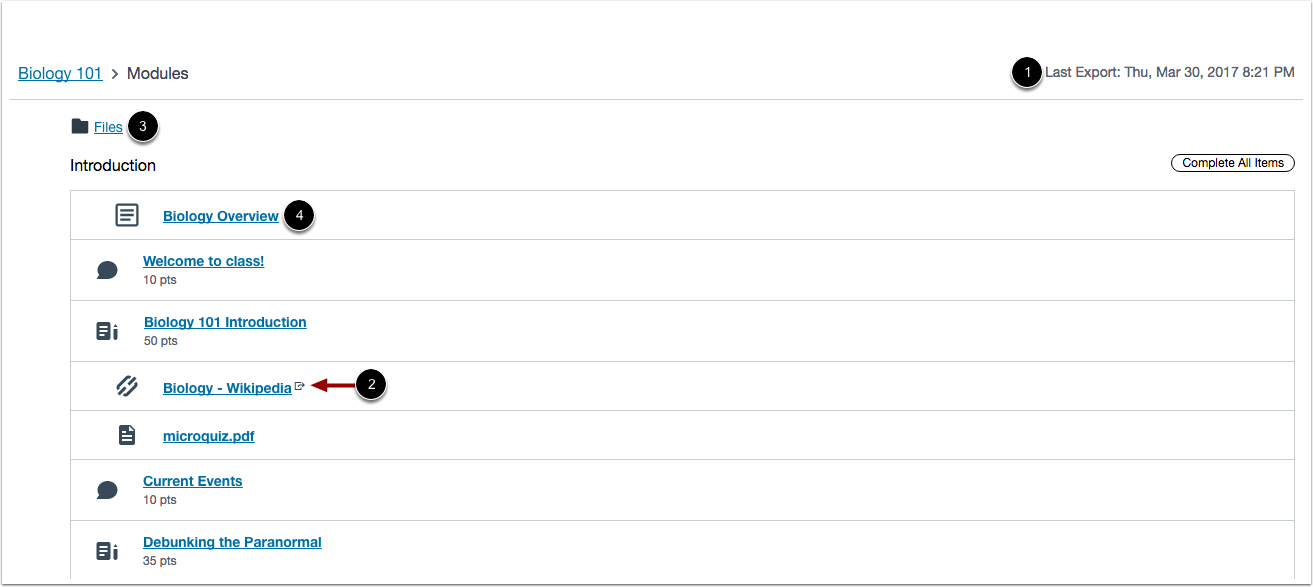
01:28: If any content can only be accessed online, the content link
01:32: includes an external icon identifying the content as online only.
01:38: To view course files, click the Files link.
01:42: To open course content, click the name of the content.
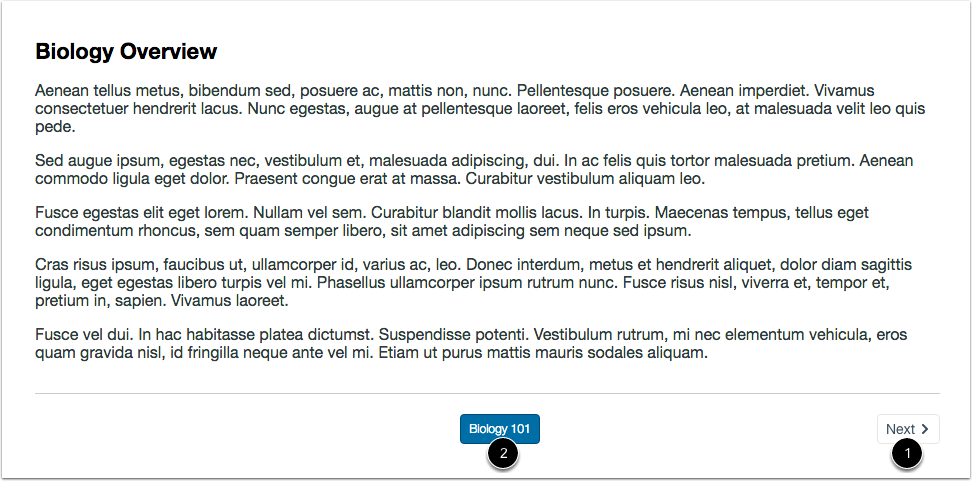
01:46: View the content in the course file.
01:49: To view the next content item in the module, click the Next button.
01:54: To return to the main Modules page, click the name of the course in the page footer.
01:59: This guide covered how to view course content offline as an HTML file
02:03: as an instructor.