00:07: How do I view my instructor groups in Canvas?
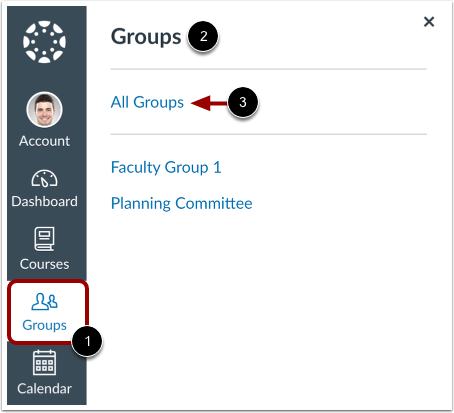
00:11: In Global Navigation, click the Groups link, then view your groups.
00:16: To view all your groups, click the All Groups link.
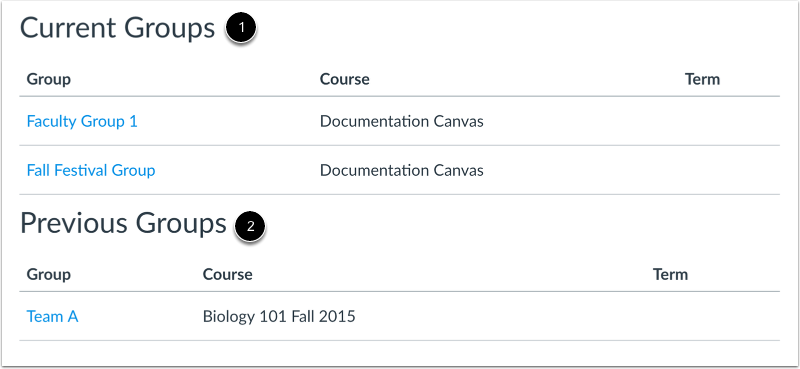
00:20: Groups are organized into Current Groups and Previous Groups.
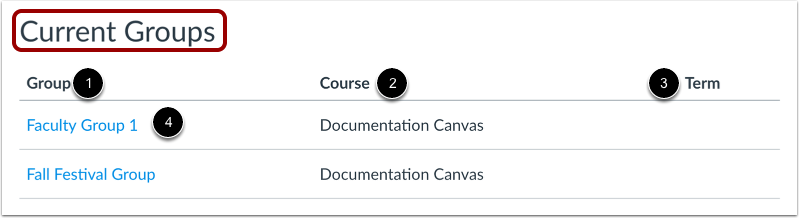
00:25: Current Groups are groups in courses that are part of the current semester or term.
00:29: You can view the name of the group and the course name for the group.
00:33: If a course includes a term date, the term date displays next
00:37: to the course name. Depending on access settings
00:40: for a course, Current Groups can also display groups in courses that have been
00:44: published but have not yet started.
00:47: Groups that are available to you are listed in blue text.
00:50: These groups are associated with current courses. To open a
00:54: group, click the name of the group.
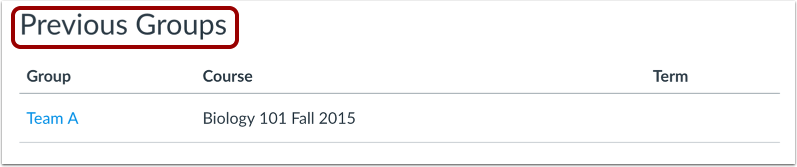
00:57: Groups under the previous groups heading are groups that are part of courses
01:01: that have concluded. If the group includes a link, the group is still available
01:05: as a read only archived group.
01:07: Prior users can view group material but cannot participate in
01:11: the group.
01:12: This guide covered how to view my instructor groups in Canvas.