00:07: How do I move or reorder a module item?
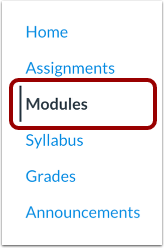
00:10: In Course Navigation, click the Modules link.
00:14: You can use the drag and drop option to reorder module items.
00:17: Click the drag handle next to the module item name.
00:20: Drop the module item in the desired location by releasing the mouse.
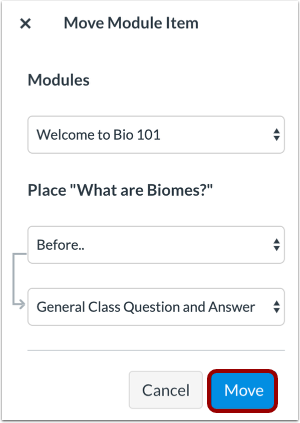
00:25: You can also use the Move To option to reorder a module item. Click
00:30: the Options icon and select the Move to... link.
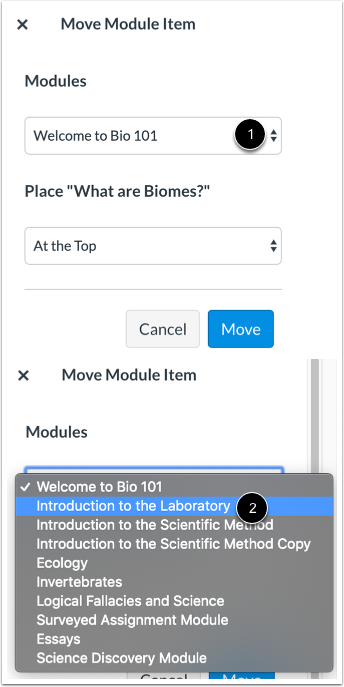
00:35: In the Move Module Item sidebar, click the Modules drop-down menu.
00:40: Then select a module from the list. If you want to keep the item in the existing
00:44: module, select the existing module name.
00:47: However, if you want to move the item into another module, select
00:52: the new module named,
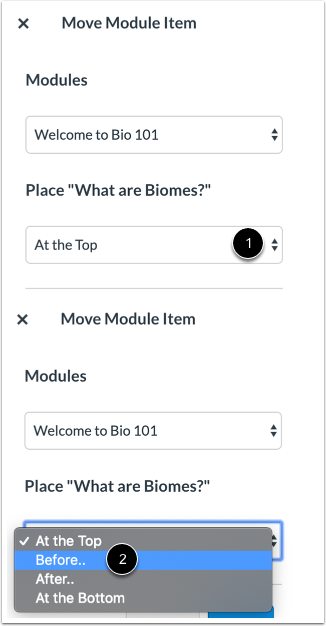
00:54: In the Place drop-down menu, select the placement of the item you are moving.
00:58: You can move the module item so it is the first item module item, before
01:02: a specific item, after a specific item, or the last module item.
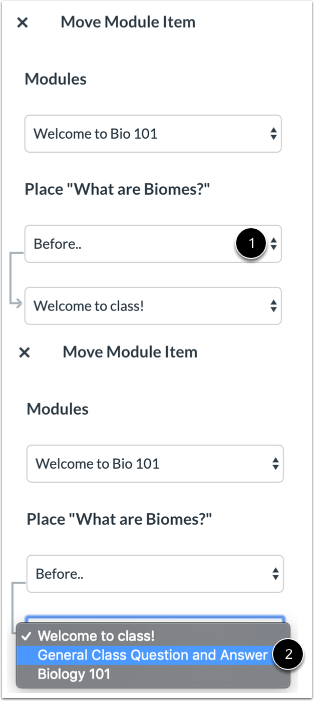
01:07: If you selected the Before or After option, click the third drop-down menu.
01:13: Select the module item that should be before or after the module item
01:17: you are moving, as indicated by the option selected in the previous menu.
01:23: If you want to move the module item to another location, change the sidebar
01:27: placement options again.
01:29: Click the Move button.
01:32: This guide covered how to move or reorder a module item.