00:07: How do I change the start and end dates for a course?
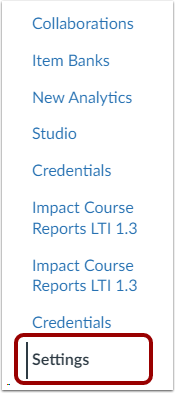
00:10: In Course Navigation, click the Settings link.
00:14: Click the Course Details tab.
00:17: Courses may be assigned to the default term or a specific term by
00:21: default courses are set to follow the term start and end dates set
00:25: for your entire institution. If the term option is selected in the participation
00:30: drop-down menu, you can view the term start and end dates term
00:35: dates can only be modified by a canvas admin if no dates
00:39: have been created for the term such as when the default term is used the start and
00:43: end Fields will display as empty. Take note that If the
00:47: course is a sign to the default term and participation dates are set to follow term
00:51: dates. Students can participate in the course indefinitely when
00:55: setting a start and end date for a course, instructors can view local
00:59: and course time zones set for the course and the local time for the user.
01:04: To set different participation start and end dates for your course,
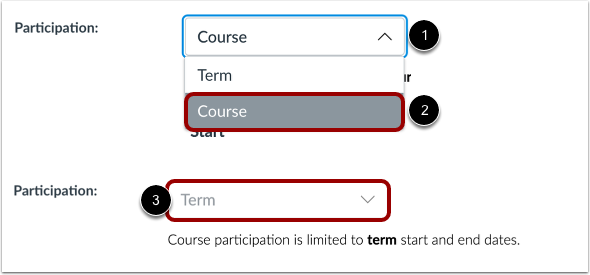
01:07: click the Participation drop-down menu and select the Course option.
01:12: If you cannot change what is displayed in the Participation drop-down menu, your
01:17: institution has restricted instructors from modifying course availability dates. Take
01:22: note that course dates are cleared when participation dates are set to Term dates.
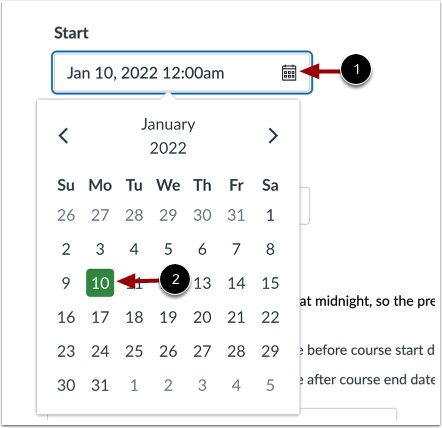
01:27: To select the start date, click the Start calendar icon. Then
01:31: select a new start date for the course.
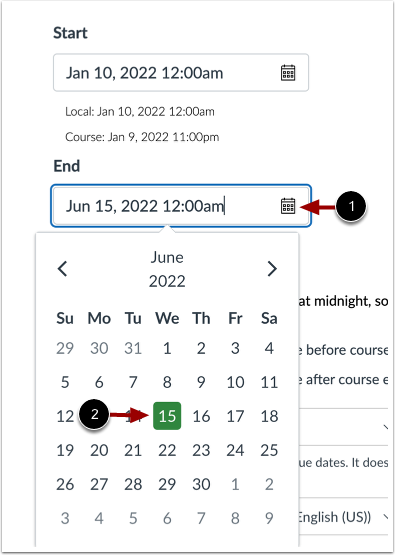
01:34: To select the end date, click the End calendar icon. Then
01:38: select a new end date for the course.
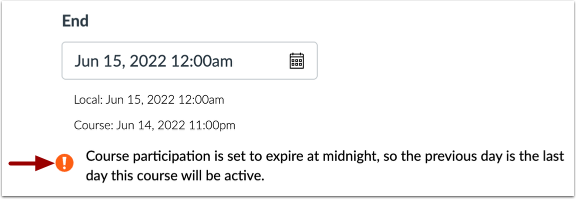
01:42: If your end date time is midnight, a warning message displays notifying you.
01:46: That the date prior to the set, end date will be the last participation day in the course.
01:50: For instance, if the course were set to end January 13th, the
01:54: last full participation date for the course, would be January 12th.
01:59: Take note that students can only participate in the course between the course States.
02:03: And the course, will be in a read only state outside the core States.
02:08: Course participation dates only affect student and observer roles all
02:12: other roles default to term access States. And dates occur
02:16: at precisely the minute they are set for example, a course with an end
02:21: time at 11:59 p.m. will end at 11 hours and 59
02:25: minutes. Students will not receive notifications for course,
02:29: announcements. Prior to the course. Start date.
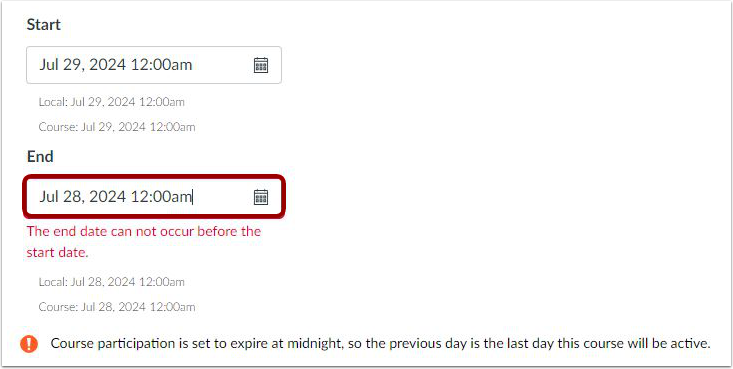
02:32: If the selected date for the End date occurs before the Start date, a
02:36: warning message displays.
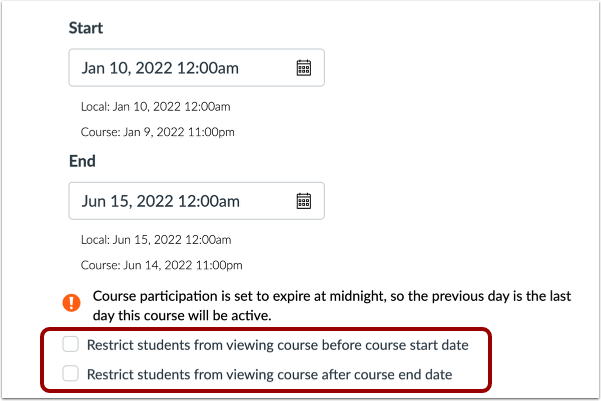
02:38: You may also be able to change student access settings to allow or restrict students
02:43: from viewing your course before the start or end date. When selected, the course
02:47: is inaccessible outside course dates.
02:49: If course dates are blank, students can participate in the course indefinitely.
02:53: If you cannot manage the settings to restrict students from viewing course content,
02:57: your institution has not enabled this feature.
03:01: Click the Update Course Details button.
03:05: This guide covered how to change the start and end dates for a course.