00:07: How do I add conditional content to a Mastery Path source item?
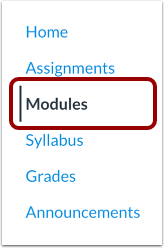
00:12: In Course Navigation, click the Modules link.
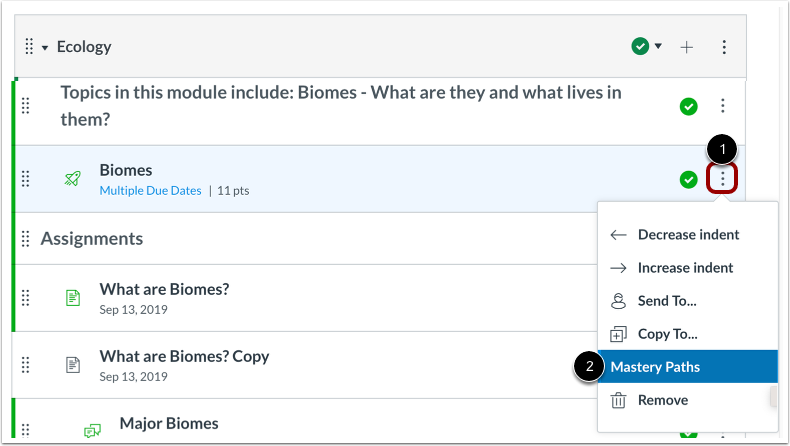
00:15: Locate the item where you want to add a Mastery Path and click the Options icon.
00:19: Click the Mastery Paths option.
00:23: The assignment grade display and point value are shown at the top of the Mastery
00:27: Path page.
00:29: The Mastery paths tab, displays three ranges for conditional content, the
00:33: ranges match, the grade display set for the assignment such as points, percentage,
00:38: letter, grade or GPA, the range is default to 70%
00:42: 40 percent and 0% of the assignments point value.
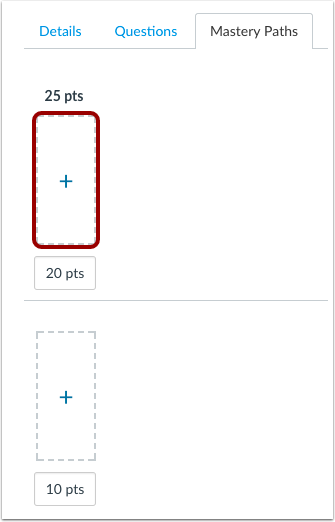
00:46: Rounded up respectively, for instance, an assignment worth 25
00:50: points, defaults to ranges of 25 to 18 points.
00:53: 18 to 10 points and 10 to 0 points.
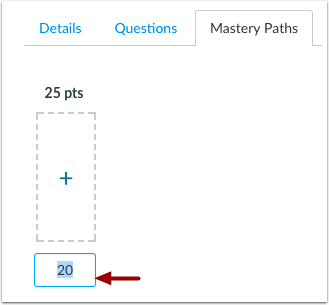
00:58: Each range can be customized to a range outside
01:00: the default values. To adjust a range,
01:03: click the value and enter the new conditional range.
01:07: Select the range where you want to add conditional content items and click the Add
01:11: button.
01:13: Any existing course item that can be used in a Mastery
01:16: Path can be added as conditional content.
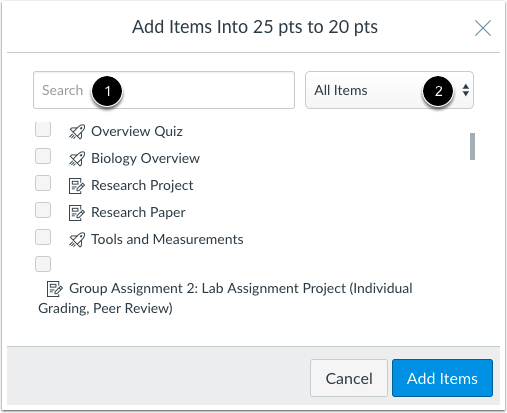
01:19: In the content window, you can search for content by name in the Search field.
01:24: Oh, filter items by type using the All Items.
01:27: Drop down menu.
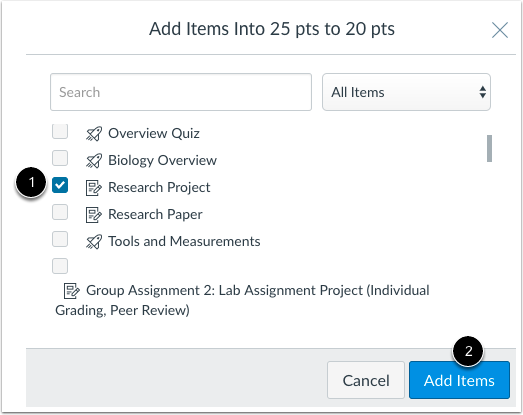
01:29: To add a content item, select the checkbox next to the item.
01:33: You can select multiple items at one time.
01:37: Click the Add Items button
01:39: Select another range and add the appropriate content items.
01:43: Swipe C.
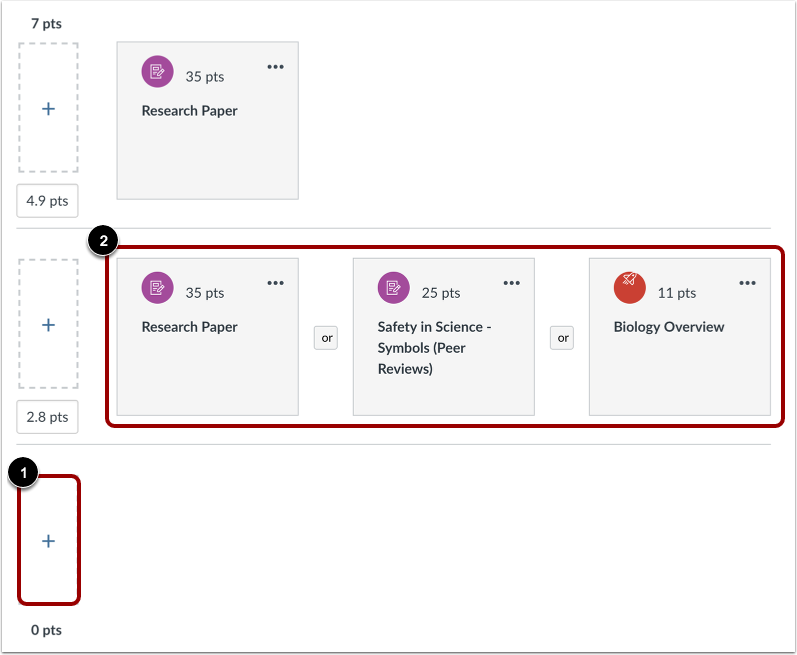
01:45: You can add up to three item groups to each range using existing items in
01:49: a course as conditional items. Conditional items may be added in the form of
01:53: individual item requirements for a student to choose from, or as a group of items
01:57: a student must complete.
02:00: Multiple conditional items within a range can be mixed and matched as
02:04: individual items, grouped items, or both. Items can
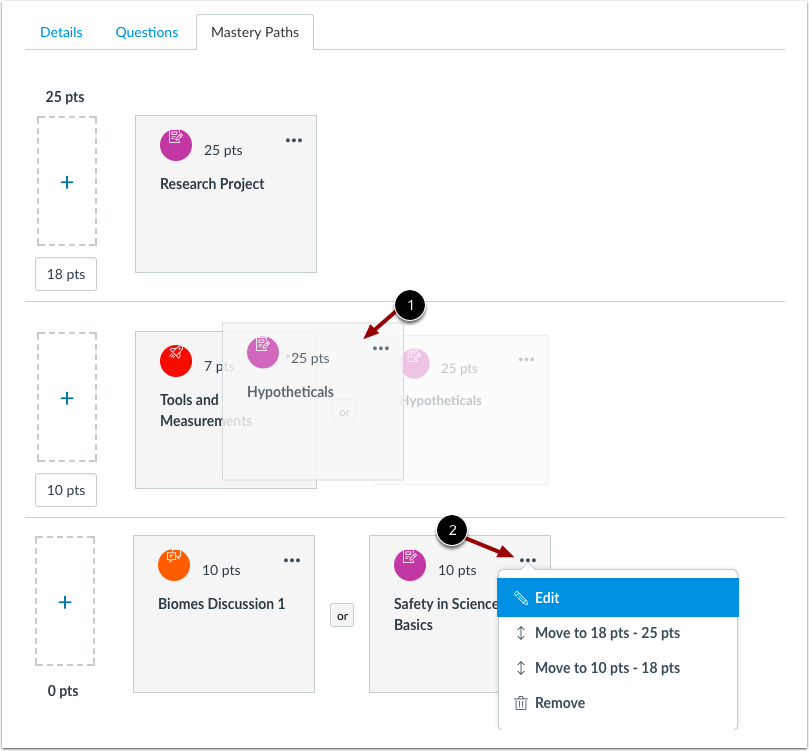
02:08: also be reordered within the range by dragging and dropping in the preferred order.
02:13: You can also edit an item, move an item, or delete an item from
02:17: the item's options menu.
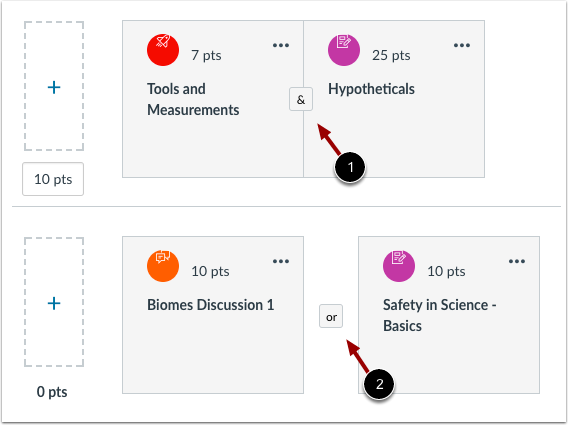
02:20: When more than one conditional item is added to the same range.
02:23: The items default to be completed together as indicated by the and
02:27: or Ampersand button students, who complete the assignment and score
02:31: and arranged with joined assignments. Must complete all the assignments in
02:35: the conditional path. If you want to give students a choice between
02:39: assignments and a path arranges items, can be set to complete only one
02:44: item or group in the path.
02:46: To create a path option, click the And button.
02:49: The items will separate and the And will change to an Or
02:53: button. Students who complete the assignment and score in a range
02:57: with an Or designation can select which items to complete as part
03:01: of the conditional path. To help select
03:04: an assignment path, students will be able to view the descriptions of each assignment.
03:09: When you are finished adding conditional items, click the Save button.
03:14: This guide covered how to add conditional content to a Mastery Path source
03:18: item.