You can record or upload video and audio files as part of your Inbox messages.
For more information about supported media types, please see the Canvas Media Files lesson.
Notes:
- Attachments appear in your user files in the Conversation Attachments folder and count against the files limit for your account.
- You can also learn how to attach files to messages.
View the video transcript
00:07: How do I attach immediate comment to a message?
00:10: In global navigation click the inbox link
00:14: Click the compose icon.
00:17: To attach a media comment or file click the media icon.
00:22: A pop-up window will appear in your browser. If you see a message from instructure.com
00:26: requesting access click the allow button.
00:30: Click the record tab.
00:33: Select your preferred media method record with microphone or record
00:37: with webcam. When you're ready to record click the start recording
00:41: button.
00:43: The timer with the dot indicates you are recording your media comment as well as the
00:47: length of the comment. Once you are finished recording click the Finish
00:51: button.
00:53: Before you attach the media comment, you have the chance to review it.
00:57: In the file name field enter a name for your media comment.
01:02: If you want to re-record the recording click the start over button.
01:06: If you are happy with the results, click the save media button.
01:11: If you have a previously recorded media file, you can upload it as part of your
01:15: message. Click the computer tab, click or drag and drop a
01:19: media file to Media uploader to upload a file from your computer.
01:24: To insert your uploaded media. Click the submit button.
01:28: Your media comment displays in your message.
01:30: If you want to remove the comment click the remove icon to remove it
01:34: from the message.
01:36: When you are finished click the send button.
01:39: The media comment displays below the message.
01:42: This guide covered how to attach immediate comment to a message.
Open Inbox
In Global Navigation, click the Inbox link.
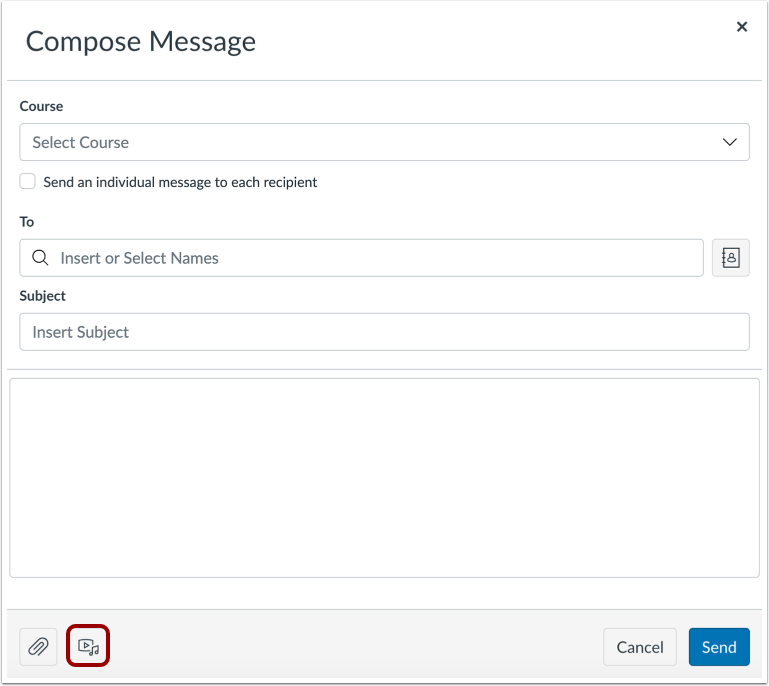
Compose Message
To start a new message, click the Compose icon.
Note: The toolbar may appear different if your admin has enabled settings for auto-response or signature. For more information, visit How do I manage my Inbox settings?
To record or upload a media comment or file, click the Media icon.
A pop-up window appears in your browser. If you see a message from instructure.com requesting access, click the Allow button.
Click the Record tab [1]. Select your preferred media method: record with microphone [2] or record with webcam [3].
When you're ready to record, click the Start Recording button [4].
Create Recording
The timer with the dot indicates you are recording your media comment, as well as the length of the comment [1]. Once you are finished recording, click the Finish button [2].
Save Recording
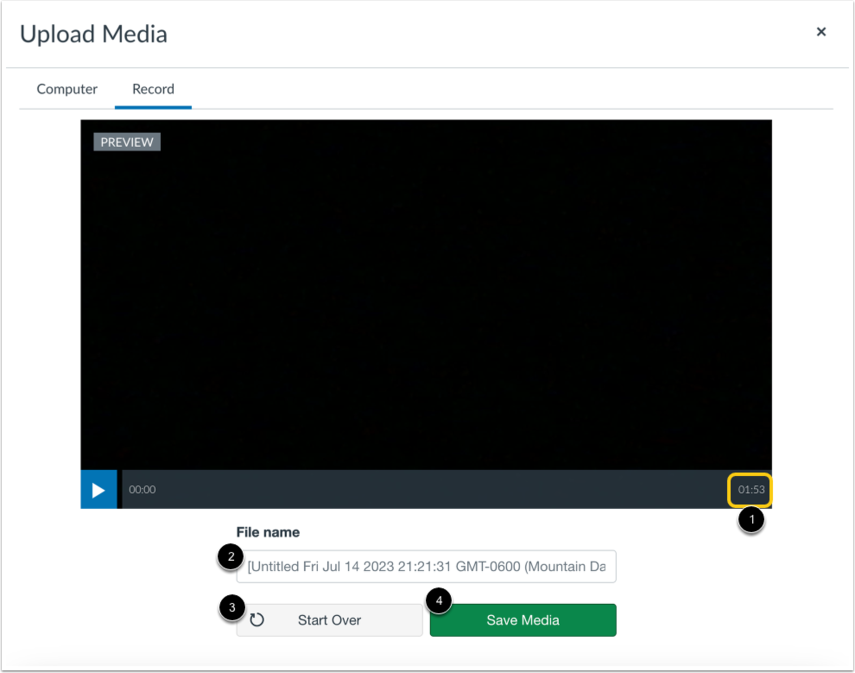
Before you attach the media comment, you have the chance to review it. The length of your recording displays [1].
In the File name field, enter a name for your media comment [2].
If you want to re-record the recording, click the Start Over button [3]. If you are happy with the result, click the Save Media button [4].
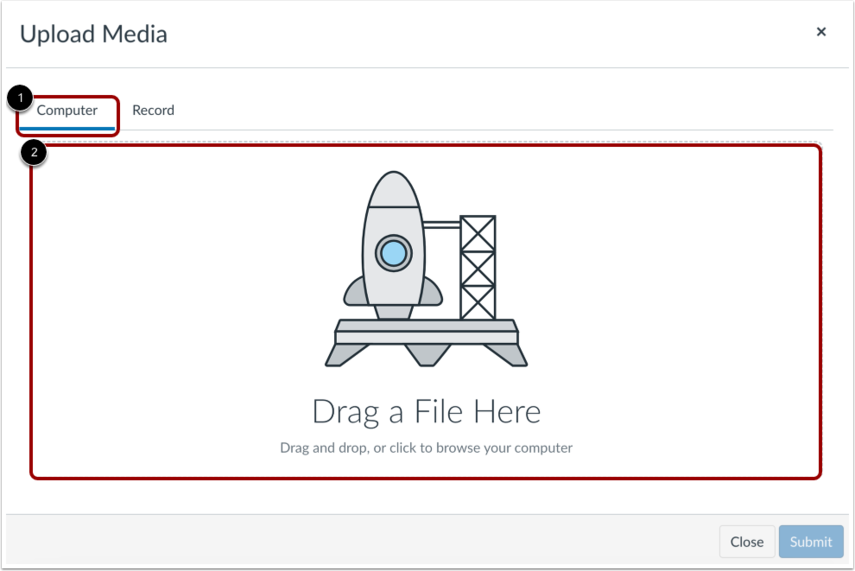
If you have a previously recorded media file, you can upload it as part of your message. Click the Computer tab [1]. Click or drag and drop a media file to media uploader to upload a file from your computer [2].
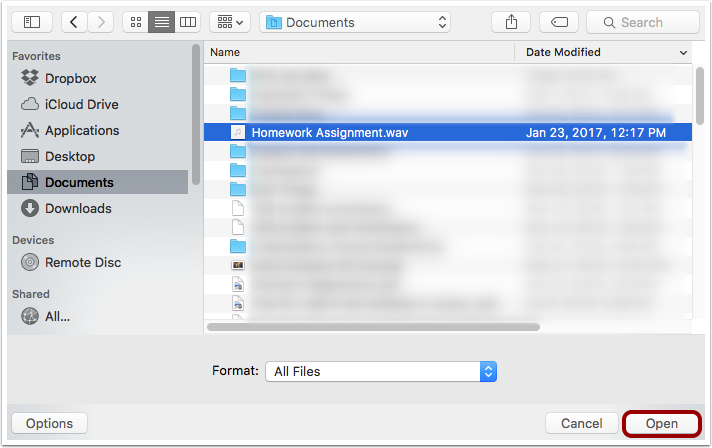
Locate the media file on your computer. Click the Open button.
Send Message
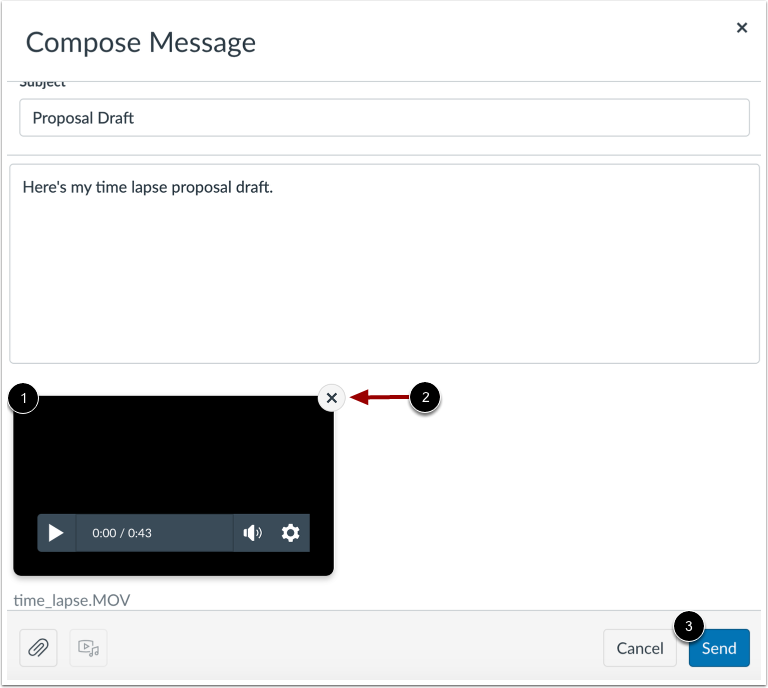
Your media comment displays in your message [1]. If you want to remove the comment, click the Remove icon [2] to remove it from the message. When you are finished, click the Send button [3].
The media comment displays below the message.