00:07: How do I create a Hot Spot question in New Quizzes?
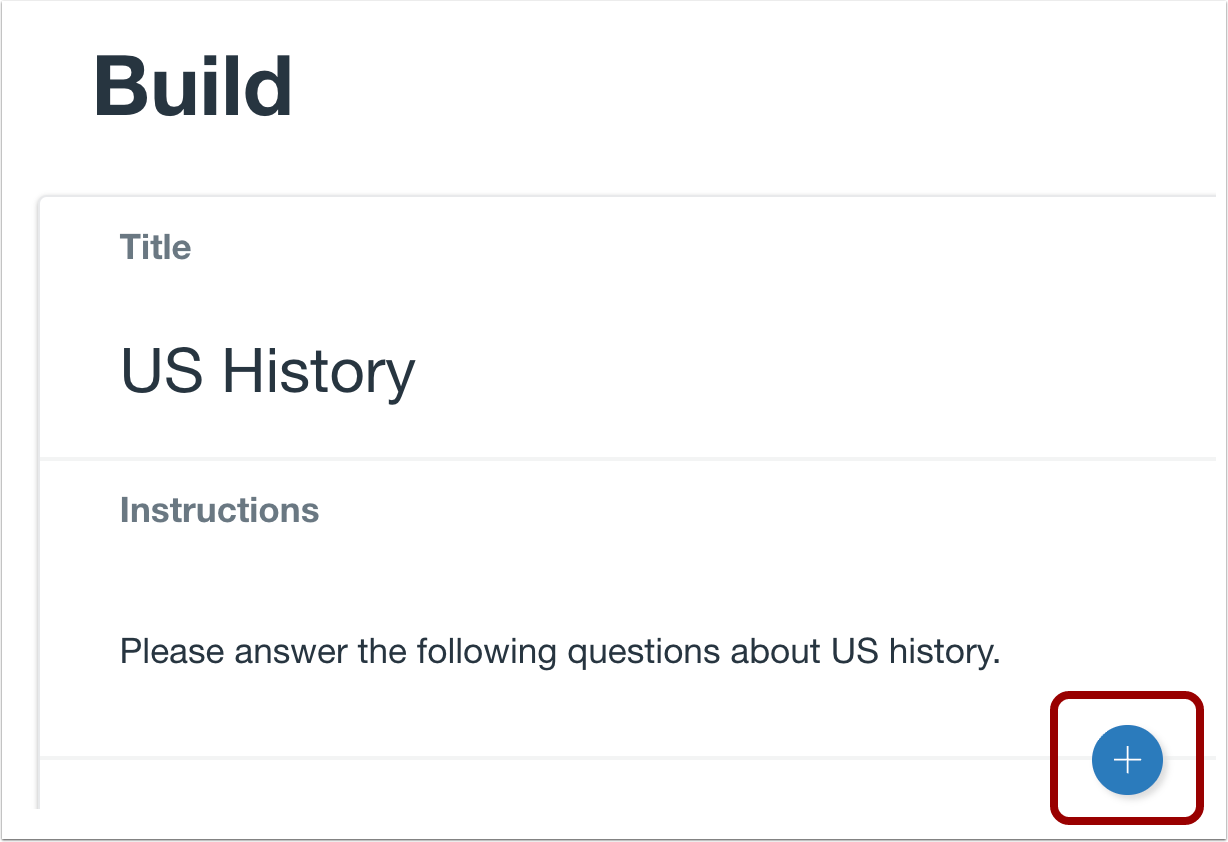
00:10: To create a question, click the Add button anywhere in the quiz.
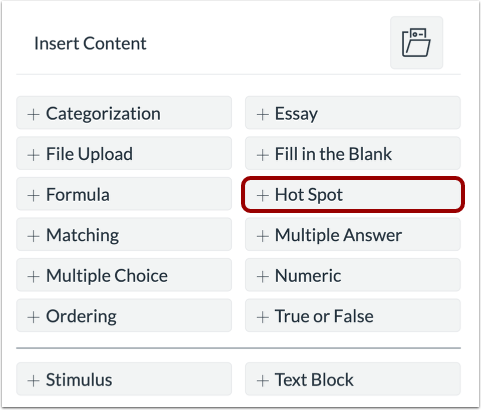
00:15: Add Hot Spot Question.
00:18: In the Question Title field, add a question title. Question titles
00:22: are optional and are not visible to students.
00:26: In the Question Stem field, add the question stem. The question
00:30: stem contains the question and, if necessary, additional instructions and
00:34: information. You can use the Rich Content Editor or the HTML
00:38: view to format and add content to your question stem.
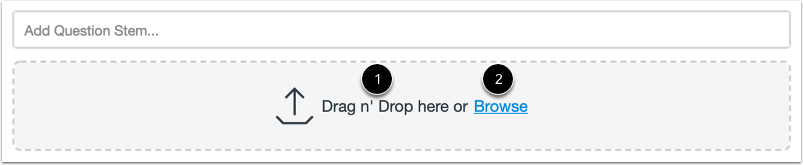
00:42: To upload an image for the hotspot question, drag and drop the image.
00:46: You can also select a file by clicking the browse link or pressing
00:50: the b key.
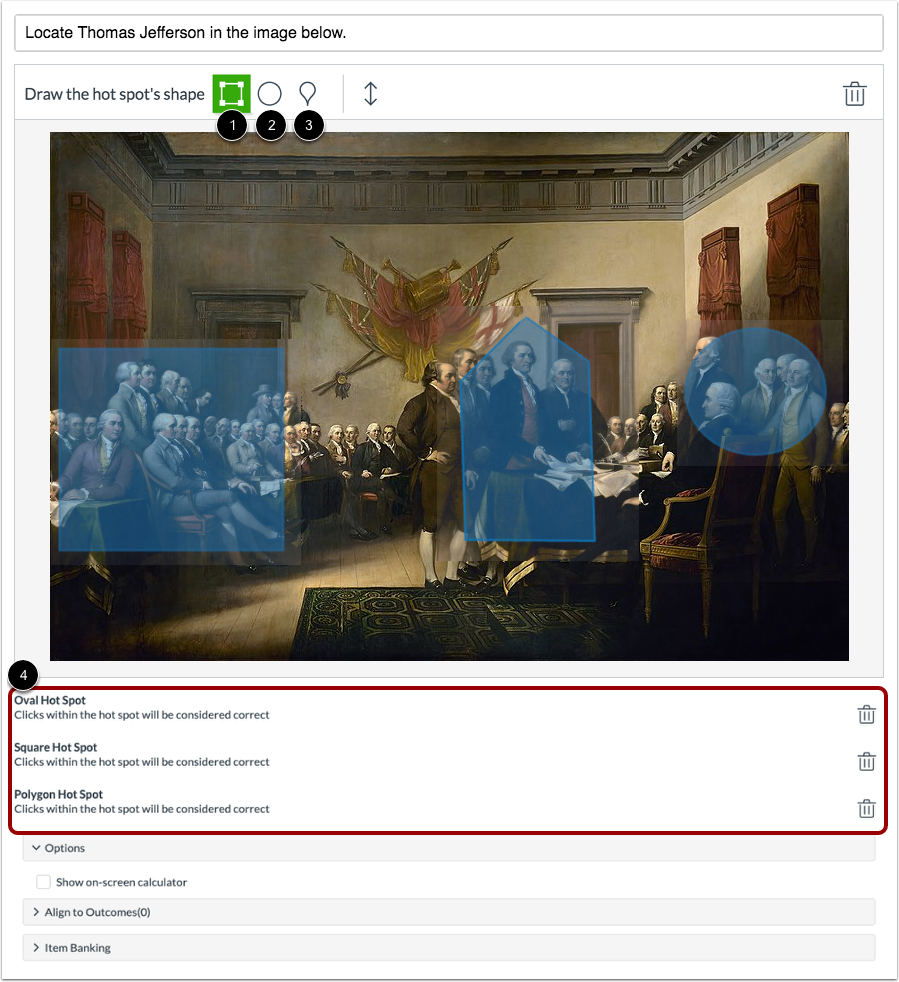
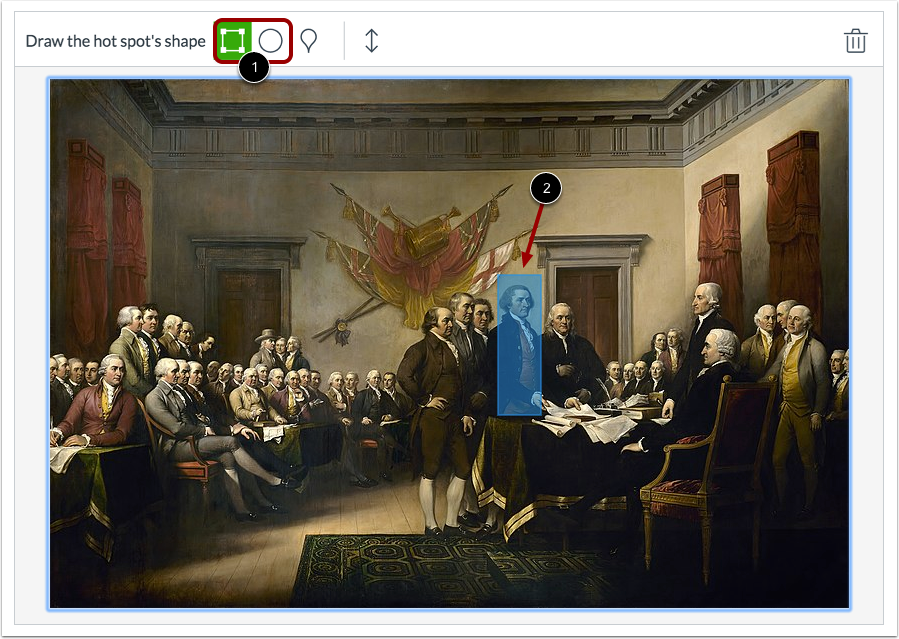
00:52: You can use one of three shapes to draw the hotspot square, circle and
00:56: polygon.
00:58: Additionally you can Define multiple correct hotspot areas and select multiple
01:03: areas for Hotspot quiz questions created before this change,
01:07: can also be edited to support multiple hotspots to delete a
01:11: hotspot and create a new one. Click a shape tool or the image, you can
01:15: also press the backspace or delete key, then create a new hotspot.
01:20: To create a square or Circle, hotspot, click the shape, then, drag the shape
01:25: over the hotspot, to complete the shape, click your mouse.
01:28: Alternatively, you can press the r key square or o,
01:32: key oval Circle, and use the following hotspot controls to move the hotspot.
01:36: Use the arrow keys to resize.
01:38: The hotspot press shift, and use the arrow keys to shrink the hotspot.
01:43: Press shift + alt on a PC keyboard or alt + option on
01:47: a Mac keyboard and use the arrow keys.
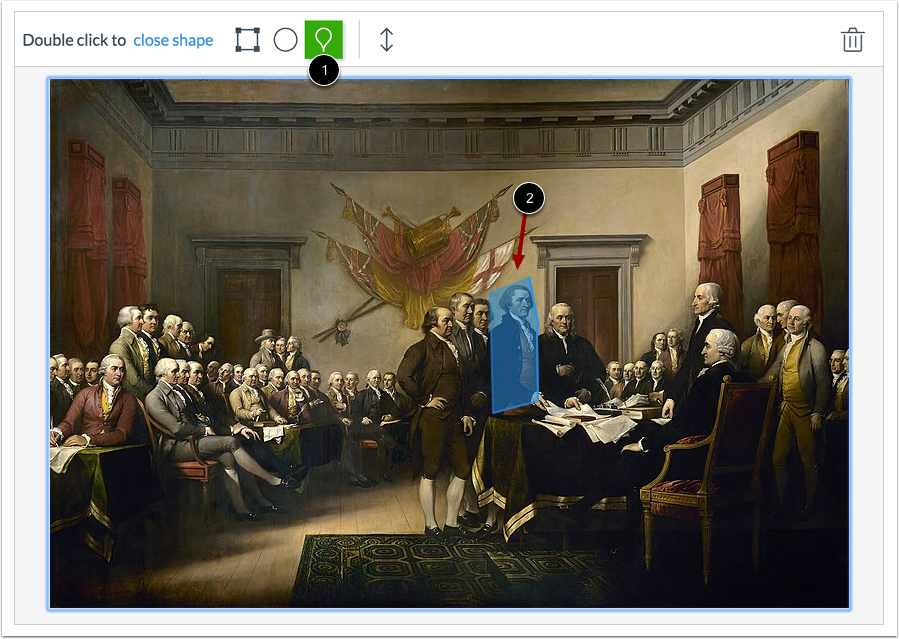
01:49: To create a polygon? Hotspot, click the polygon shape.
01:53: Click the image, then drag the tool around the image to create each side of the
01:57: polygon to end. One side of the polygon, click your mouse to
02:02: close the hotspot area. Double click your mouse.
02:04: At any time, you can also use the following keyboard shortcuts to
02:09: draw a polygon. Hotspot, press the P key to add a polygon
02:13: Point, press the enter key to close the polygon.
02:16: Hotspot, press the E key to move, resize or Shrink
02:20: the polygon use the following hotspot controls move, use the arrow keys,
02:25: resize press shift, and use the arrow keys.
02:28: Shrink press shift, alt on a PC keyboard or alt + option
02:32: on a Mac keyboard and use the arrow keys.
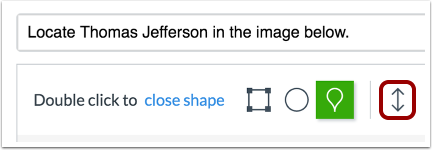
02:36: To expand the image. When creating a hotspot, click the expand icon
02:40: or press the F key.
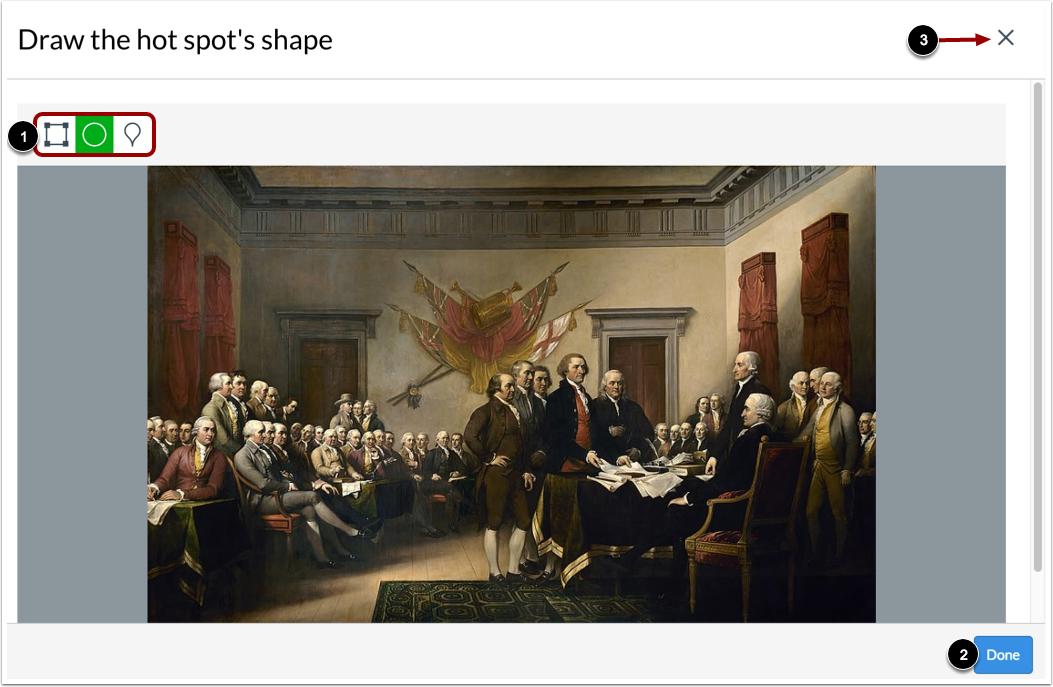
02:43: From the expanded view, you can use any shape to create a hotspot to
02:47: save the hotspot, click the done button to return to the quiz.
02:51: Question, click the close icon.
02:54: To return to the quiz question, click the Close icon.
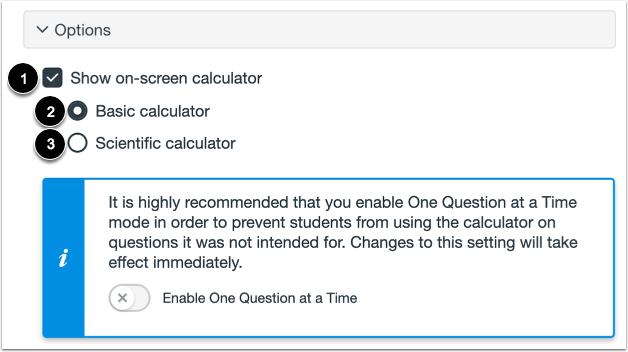
02:58: To allow students to use an on-screen calculator for this question.
03:01: Click the show on screen calculator, checkbox?
03:05: If you select this option, you can enable a basic calculator or scientific
03:10: calculator. The basic calculator displays numbers and basic
03:14: math functions (add, subtract, multiply, divide). The
03:18: scientific calculator displays more options for advanced calculations.
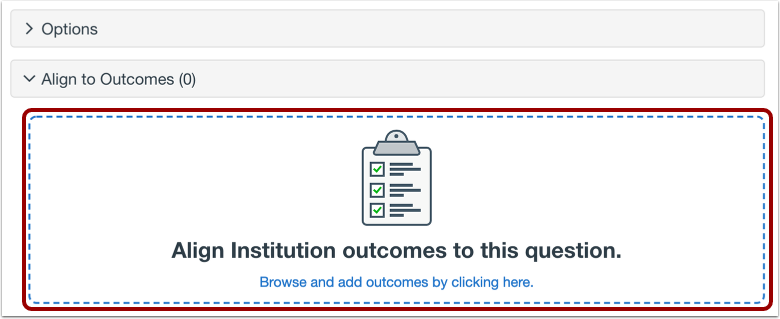
03:24: To align the question to an outcome, click anywhere in the Align to Outcomes
03:29: section.
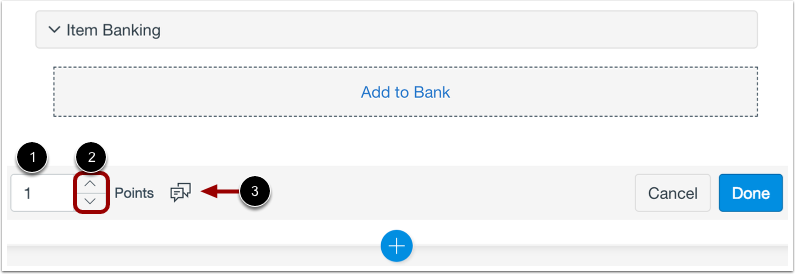
03:30: If you want to save a question to use in other quizzes, you can add it to an item
03:35: bank. To add the question to an item bank,
03:38: click the Add to Bank link.
03:41: To customize the point value for the question, type the point value in the Points field
03:45: or use the arrows to increase or decrease the point value.
03:49: To leave feedback for students, click the Feedback icon.
03:54: To save the question, click the Done button.
03:57: This guide covered how to create a Hot Spot question in New Quizzes.