00:07: How do I delay posting a discussion until a specified date in a
00:11: course?
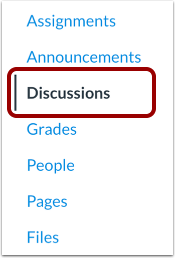
00:12: In Course Navigation, click the Discussions link.
00:17: To create a new discussion, click the Add Discussion button.
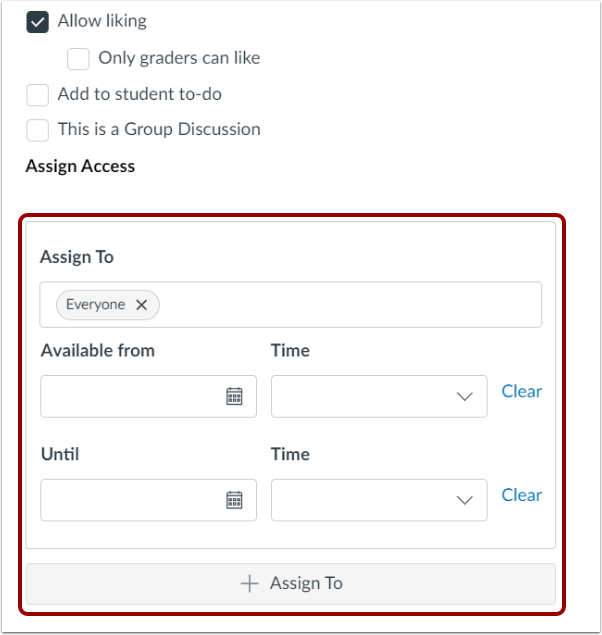
00:21: Create the discussion and go to the Assign Access section.
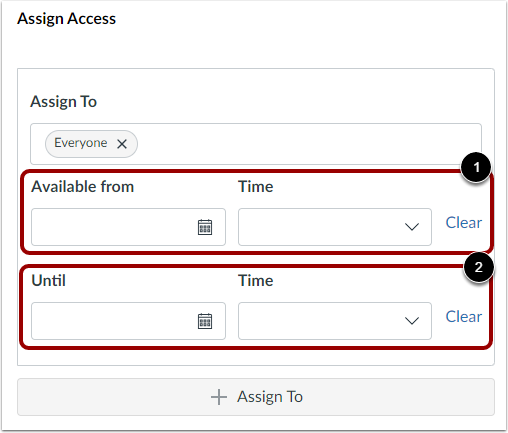
00:26: To make your discussion available in the future, on a specific date, or during a
00:30: specific date range, enter the dates and times in the Available from and
00:34: Until fields, or click the calendar icons to select dates. To
00:38: delay the posting of your discussion, select a future date for the Available from
00:42: field. You are not required to enter dates in
00:46: both of these fields, so if you want to delay your posting but do want your
00:50: post to appear indefinitely, you can leave the Until field blank.
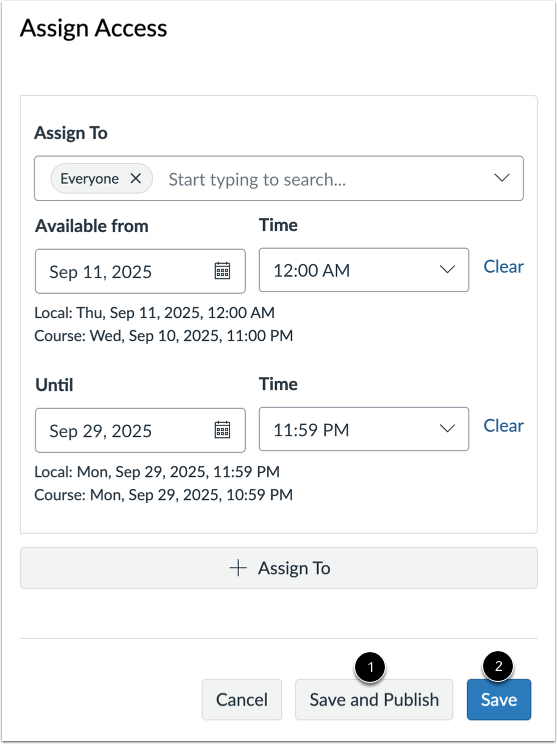
00:55: If you are ready to publish your discussion, click the Save and Publish button.
01:01: If you want to create a draft of your discussion and publish it later, click the
01:05: Save button.
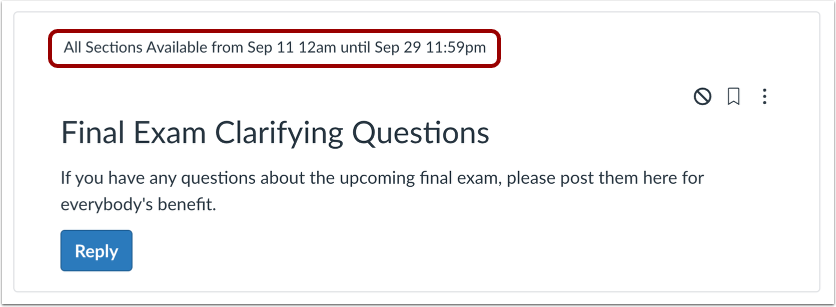
01:07: Assignment details display in the Discussion topic.
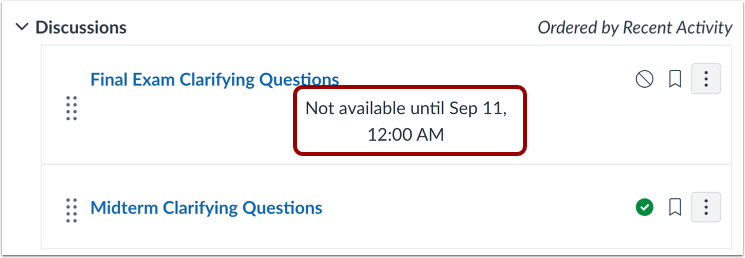
01:11: On the Discussions Index page, a message indicates that a delayed discussion
01:15: is "not available until" the availability start date.
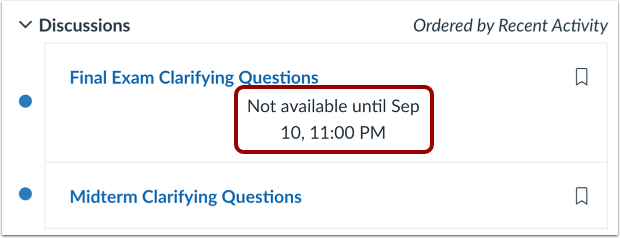
01:19: Students can open published discussions, but they do not have access to them until
01:24: the availability dates. If they open a delayed discussion, a
01:28: message indicates that the "not available until" the availability start date.
01:33: This guide covered how to delay posting a discussion until a specified date
01:37: in a course.