00:07: How do I view and sort discussion replies as an instructor?
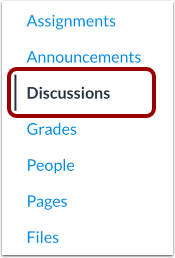
00:11: In Course Navigation, click the Discussions link.
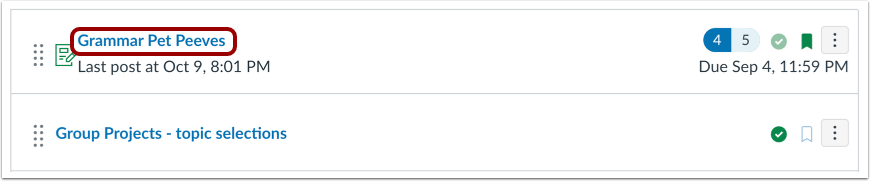
00:15: Click the name of the discussion.
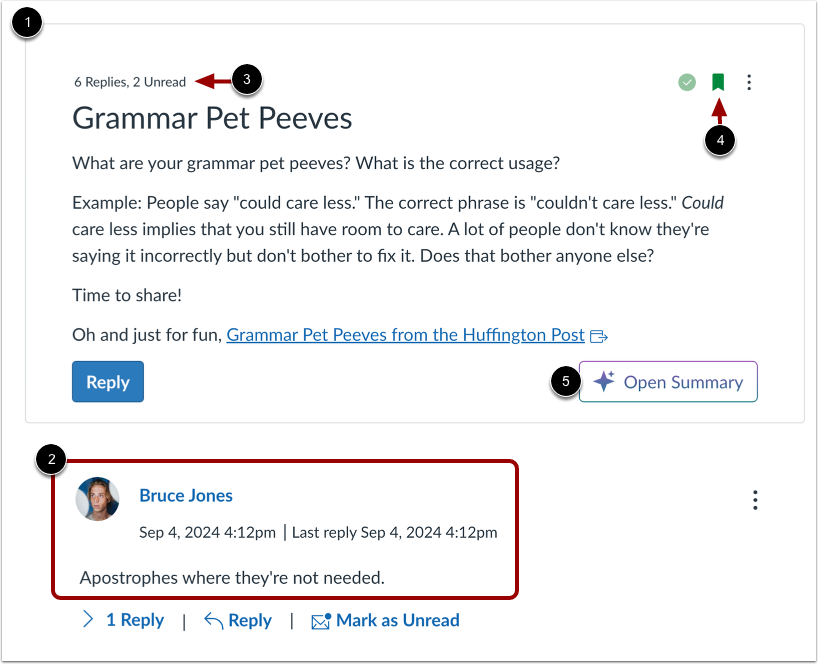
00:18: Discussions include a discussion topic and discussion replies.
00:23: In the topic field, you can view the total number of replies and unread
00:27: replies in the discussion.
00:29: You can also receive notifications for discussion activity by subscribing
00:34: to the discussion. To subscribe to a discussion, click the Subscribe
00:38: icon. You are automatically subscribed to any discussions
00:42: you create or reply to.
00:44: To unsubscribe, click the Unsubscribe icon.
00:48: If the discussion summaries feature is enabled for your institution and
00:53: open summary button, displays allowing you to view an AI generated
00:57: summary of the discussion.
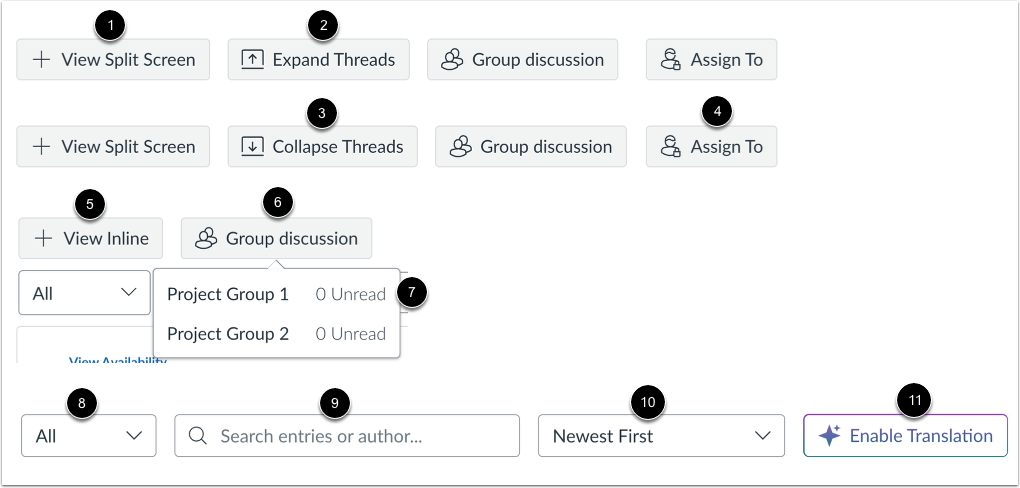
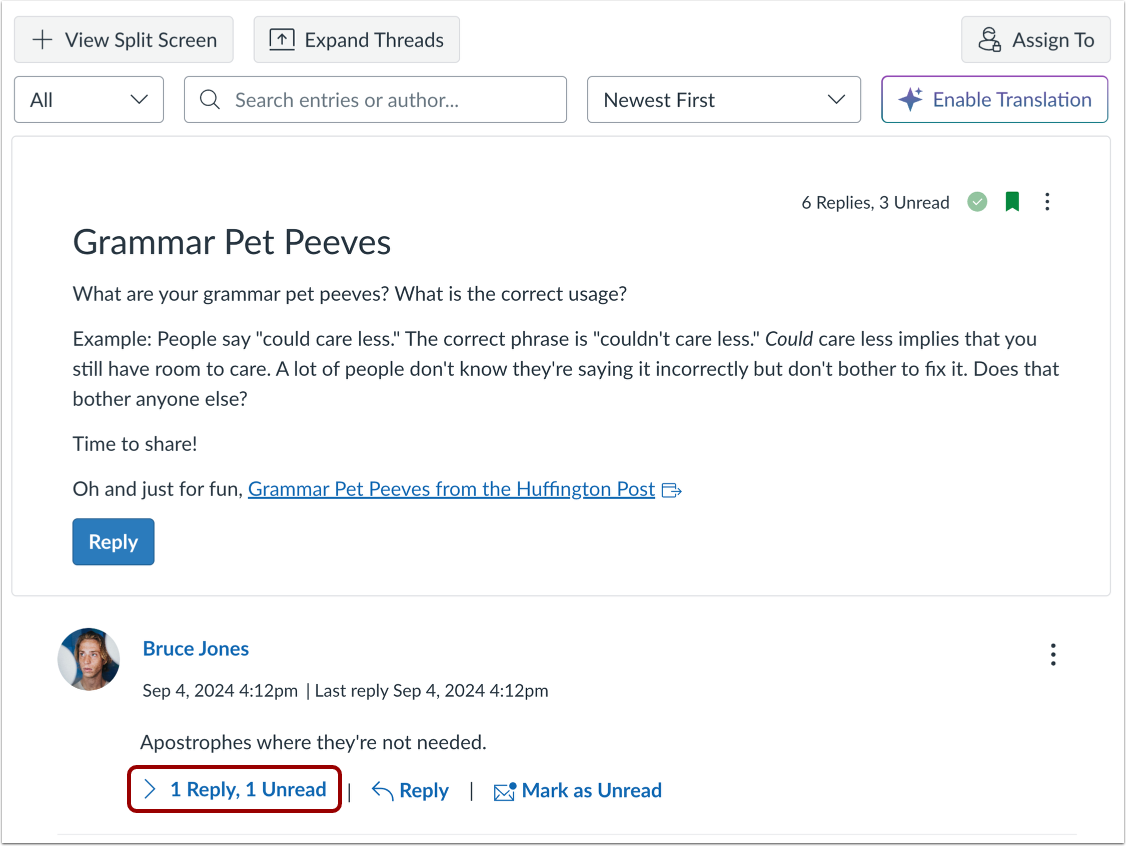
00:59: To view threaded replies in a split screen
01:02: sidebar, click the View Split Screen button.
01:06: To view threaded replies all at once, click the Expand Threads button.
01:11: You can collapse the threaded replies by clicking
01:13: the Collapse Threads button. When you expand or collapse all discussion
01:18: threads, they will automatically be expanded or collapsed
01:20: the next time you view the discussion.
01:23: To assign the discussion to specific sections or students, click the Assign
01:27: To button.
01:29: To view threaded replies in line.
01:31: Click the view inline button.
01:34: To view the count of unread replies for each group discussion, click the Group List
01:38: button. Click the group link to view the group replies.
01:43: To filter replies, click the Filter drop-down menu.
01:45: You can filter by all replies or unread replies.
01:50: To search for applies or specific authors, and enter your terms in the search
01:54: field.
01:56: By default, discussion replies are sorted by date from newest to oldest.
02:00: To reverse the sort order, click the Sort button. The selected
02:04: sort order automatically becomes the new default for the discussion.
02:09: If the anonymous discussion option is enabled for the discussion, a
02:13: message displays noting that student names and profile pictures are hidden,
02:17: however your name and profile picture are visible to all course members.
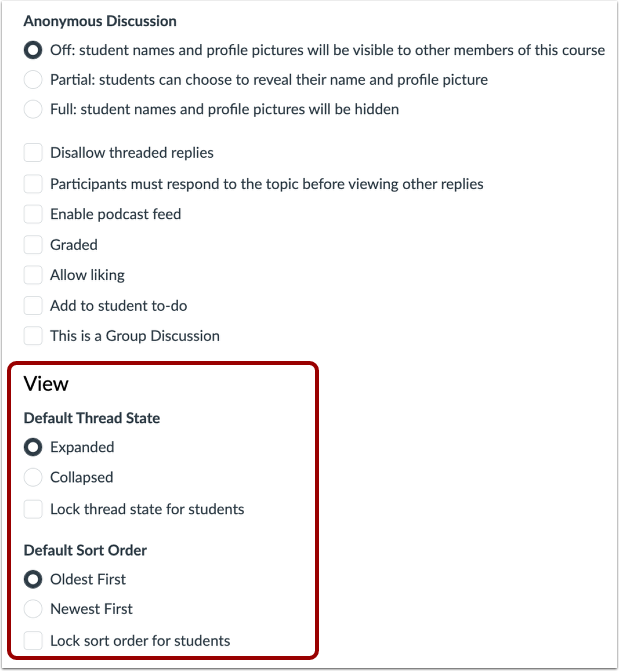
02:23: You can configure the view settings of replies in a discussion, including thread,
02:27: collapse expansion, and sorting options.
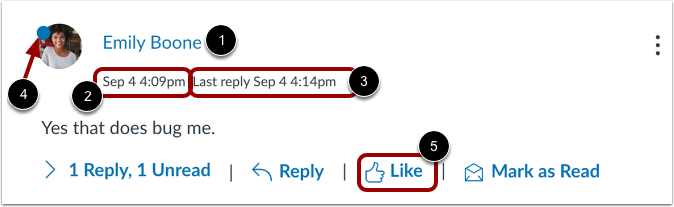
02:31: In discussion replies, you can view the name of the user who posted the
02:35: reply, the date and time their reply was posted, and the date and time
02:39: the last threaded reply was posted.
02:42: Unread replies are indicated by the Unread icon
02:46: If you allow students to like replies in a discussion, a Like icon
02:50: appears next to each reply in the discussion.
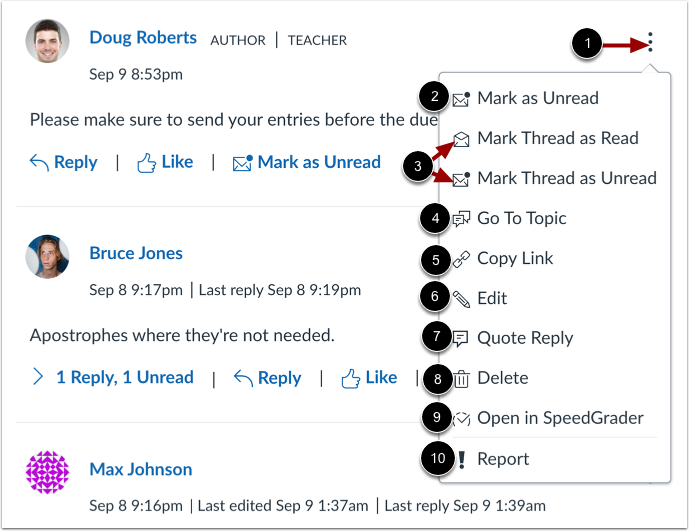
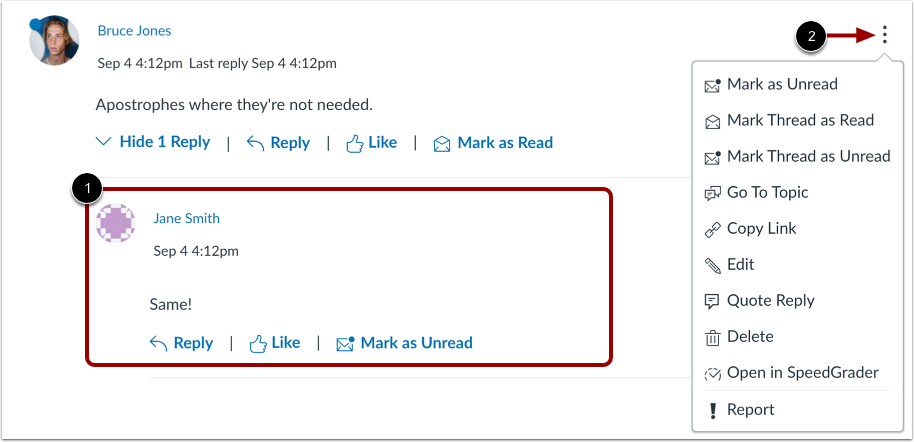
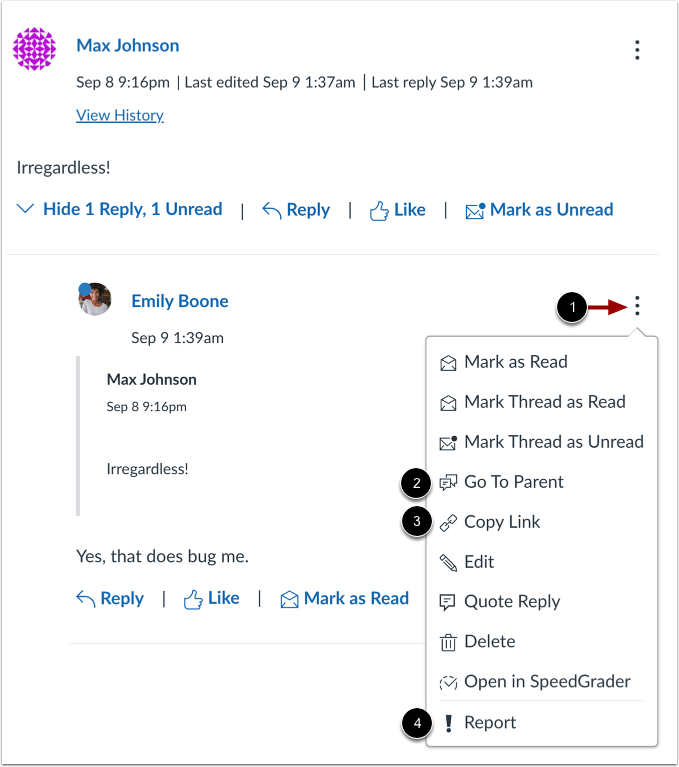
02:54: To view the options, menu for a reply, click the options icon.
02:57: You can Mark replies as read unread, Mark, threaded
03:01: replies as red /, unread, return to the topic copy.
03:05: The permalink, to the specific reply edit the reply, quote, the reply,
03:09: delete the reply open the reply in speed grader or report the reply
03:14: if you enabled the disallow threaded reply setting, the mark
03:18: thread is read, Mark thread is unread and quote, reply options do
03:22: not display.
03:24: You can view the name of the user who deleted a reply and the date and time
03:28: the reply was deleted.
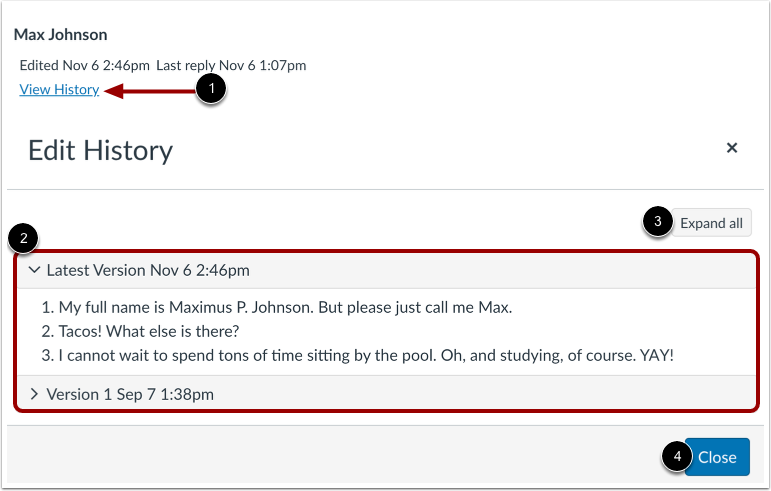
03:30: If you allow students to edit their discussion posts, you can view the edit history
03:35: of their post. To view the history, click the View History
03:39: link.
03:41: In the Edit History window, you can view any version with the date and time
03:45: stamp of the student's post.
03:48: To expand all of the versions, click the Expand all button.
03:52: To return to the discussion, click the Close button.
03:56: When viewing inline discussion thread replies, you can collapse and expand the
04:01: discussion threads by clicking. The expand threads and collapse threads buttons.
04:05: When a discussion thread reply is collapsed.
04:08: You can view the reply, indicators showing the number of unread and total replies
04:12: to expand the discussion thread replies.
04:15: In line, click the number of replies link.
04:18: View the read and unread replies
04:22: To view the options menu for the discussion reply, click the Options icon.
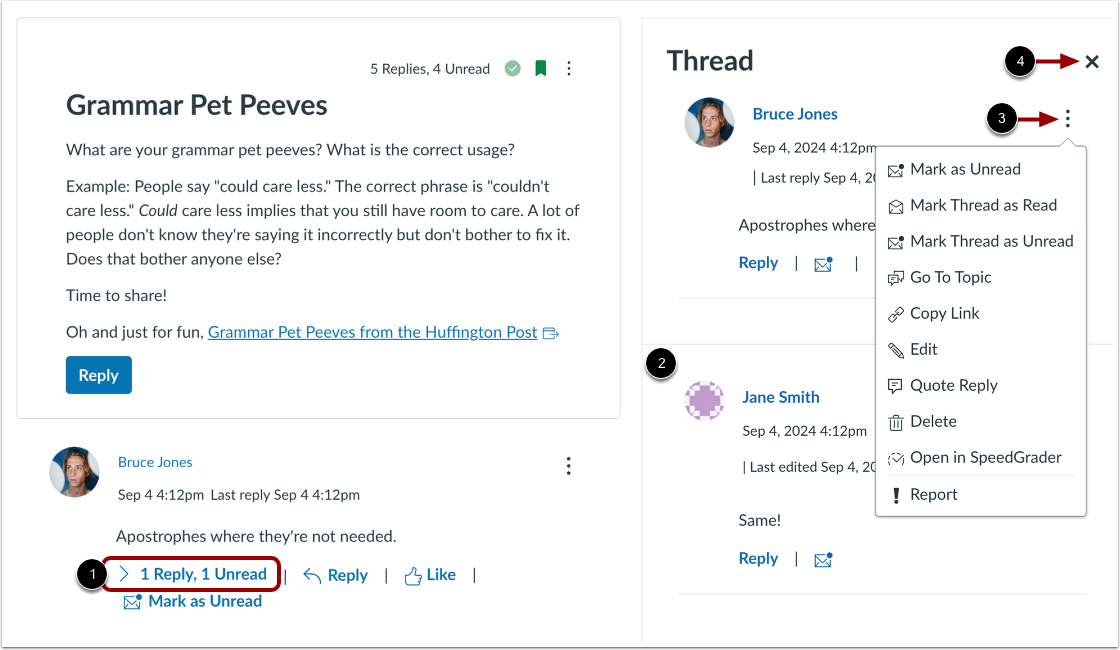
04:27: When viewing split screen discussion thread replies, you can collapse and
04:31: expand the discussion thread replies sidebar. When a discussion
04:35: thread reply is collapsed, you can view the reply indicators showing the
04:39: number of unread and total replies. To expand
04:44: the discussion thread replies sidebar, click the numbe of replies link.
04:48: View the read and unread replies
04:51: To view threaded replies options, click the Options icon.
04:56: To collapse the discussion thread replies sidebar, click the Close icon.
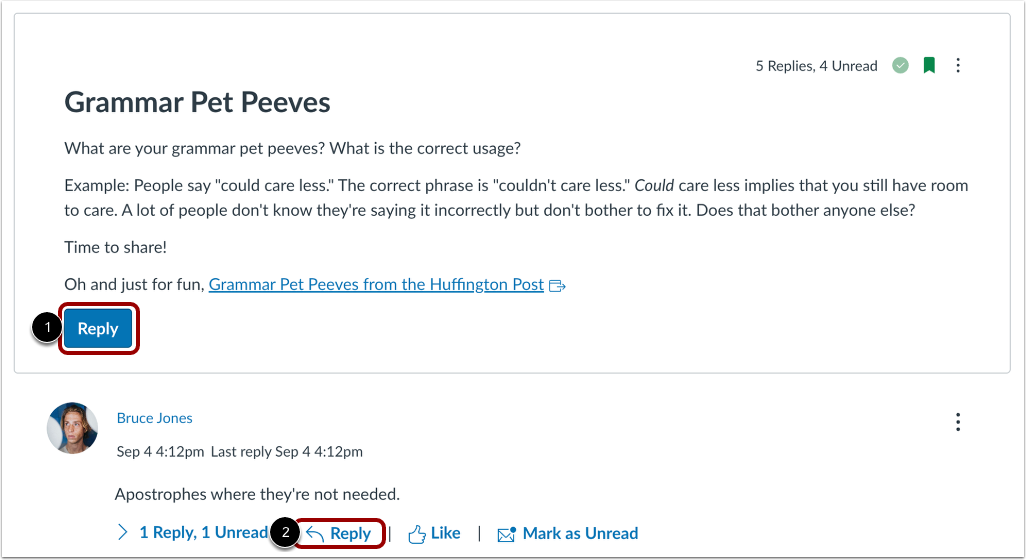
05:01: To reply to the discussion topic,
05:04: click the Reply button.
05:06: To reply to a discussion reply, click the Reply link.
05:10: To view the Options menu for a threaded reply, click the Options icon. In
05:15: threaded discussions, if you are viewing a reply within a reply, return to the original
05:20: reply by clicking the Go To Parent option. To copy a permalink
05:24: to a specific reply, click the Copy Link option. To report
05:28: a reply, click the Report option.
05:31: This guide covered how to view and sort discussion replies as an instructor.