00:07: How do I view a context card for a student in a course?
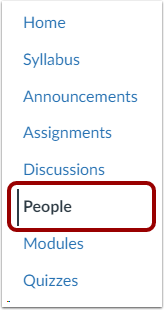
00:11: In Course Navigation, click the People link.
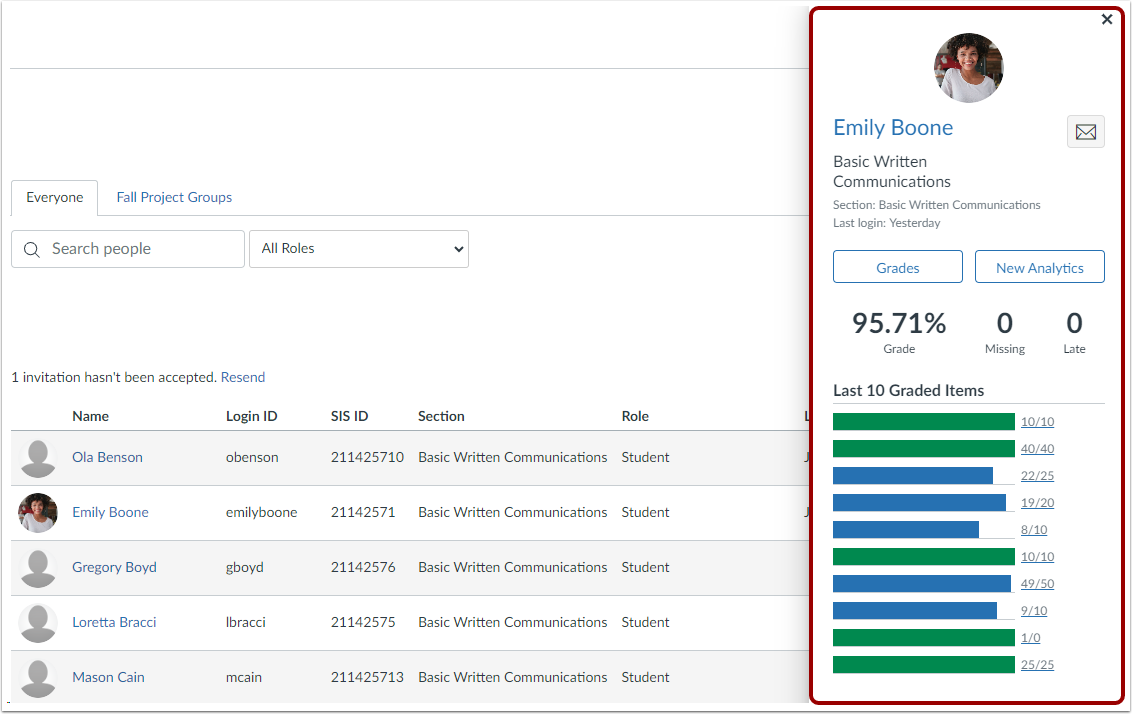
00:14: In the search field, search for the name of the student.
00:17: You can also filter users by student role in the Roles drop-down
00:21: menu.
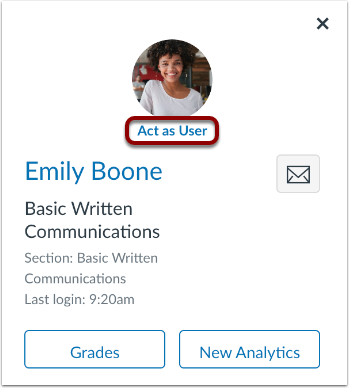
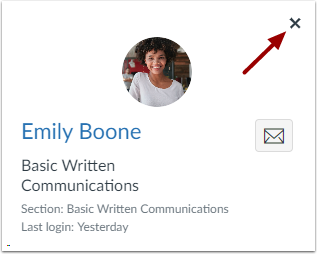
00:22: The context card displays in a separate window within the page.
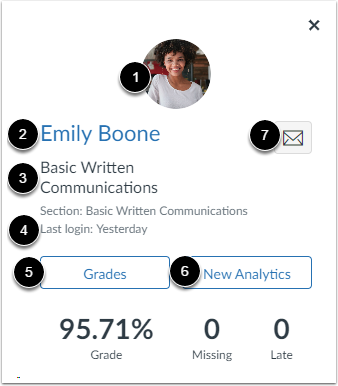
00:27: At the top of the card, you can view overview information about the student:
00:31: Profile picture, Student name or email, Course
00:35: name and section, Last login, Grades button, New
00:40: Analytics button and Mail icon.
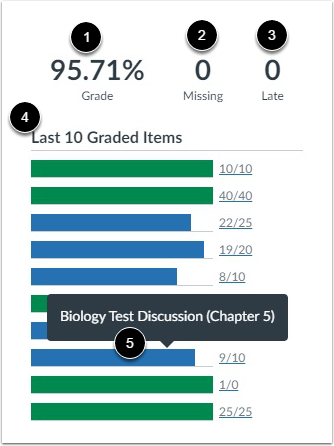
00:43: The grading section gives an overview of the student's course
00:46: grade. The student's current posted grade displays as shown in the Gradebook
00:51: according to grading scheme. The card also shows the number of missing assignments
00:55: and late assignment.
00:57: In the last graded item section, you can view a maximum of the students
01:02: last 10 recently. Graded assignments, along with the assignments grade
01:06: shown, according to grading scheme, if the grading scheme does not fit in the window,
01:10: the grades default to points to view the name of an assignment, hover
01:15: over a graded, item to view submission details for the assignment.
01:18: Click the graded item,
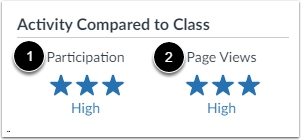
01:21: The activity section provides an overview of the student's participation compared
01:25: to other students in the course. It is not meant to be an exact comparison and
01:29: is based on the standard deviation of the student's participation and page
01:33: views in the course. The activity level is indicated by
01:38: stars that represent no participation, low participation, moderate
01:42: participation, and high participation. Students with no page views
01:46: receive zero stars. Students whose participation falls in
01:50: the lowest quartile of course activity receive one star. Students whose
01:54: participation falls in the middle two quartiles receive two stars. Students
01:59: whose participation falls in the top quartile receive three stars.
02:04: To close the context card, click the Close icon.
02:08: This guide covered how to view context card for a student in a course