00:07: How do I automatically assign peer reviews for a discussion?
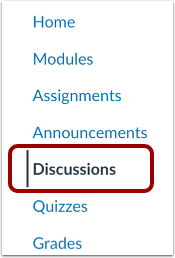
00:10: In Course Navigation, click the Discussions link.
00:14: Click the title of the discussion.
00:17: Or create a new discussion.
00:19: Click the Options icon and then click the Edit link.
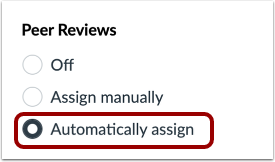
00:23: In the discussion options, click the Automatically assign radio button.
00:28: Enter the number of reviews each student must have in the Reviews Per Student field.
00:33: In the Assign Reviews field, use the calendar icon to select a
00:37: date or manually enter a date for when peer reviews will be assigned to students.
00:41: If left blank, Canvas will use the discussion due date.
00:46: To allow intra-group peer reviews, click the Allow intra-group
00:50: peer reviews checkbox.
00:53: Click the Save button.
00:55: Click the Options icon and then click the Peer Reviews link.
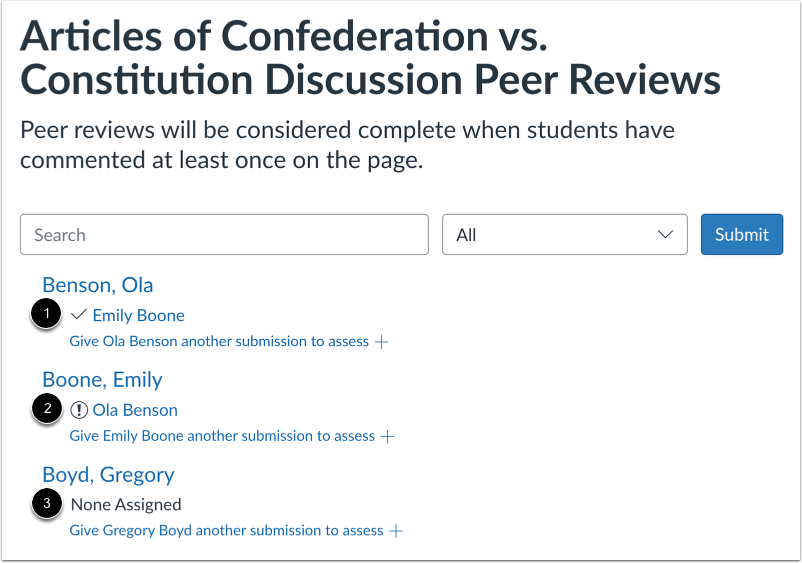
00:59: Canvas will automatically assign a peer-review to the student assigned
01:03: peer reviews appear underneath the student names.
01:06: A checkmark, indicates a peer review has been completed.
01:11: A caution icon indicates a peer review still needs to be completed.
01:15: You can also remind students who still need to complete their assigned
01:19: peer reviews. Peer review reminders are sent as notifications.
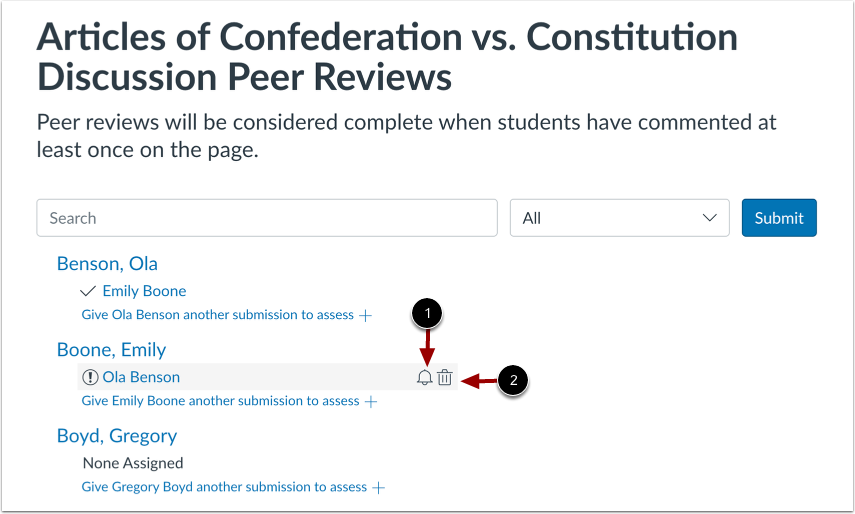
01:24: To send a reminder, hover your mouse over the assigned peer review and click
01:28: the Reminder icon.
01:30: To cancel a peer review, click the Delete icon.
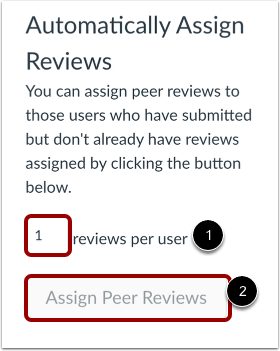
01:34: In the sidebar, you can also assign multiple peer reviews to students
01:38: who have posted to the discussion but don't already have reviews assigned to them. Enter
01:43: the number of reviews per user.
01:45: then click the Assign Peer Reviews button.
01:49: This guide covered how to automatically assign peer reviews for a discussion.