00:05: How do I manage Course Navigation links?
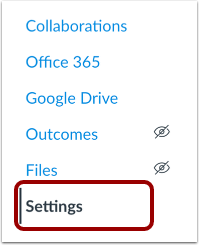
00:08: In Course Navigation, click the Settings link.
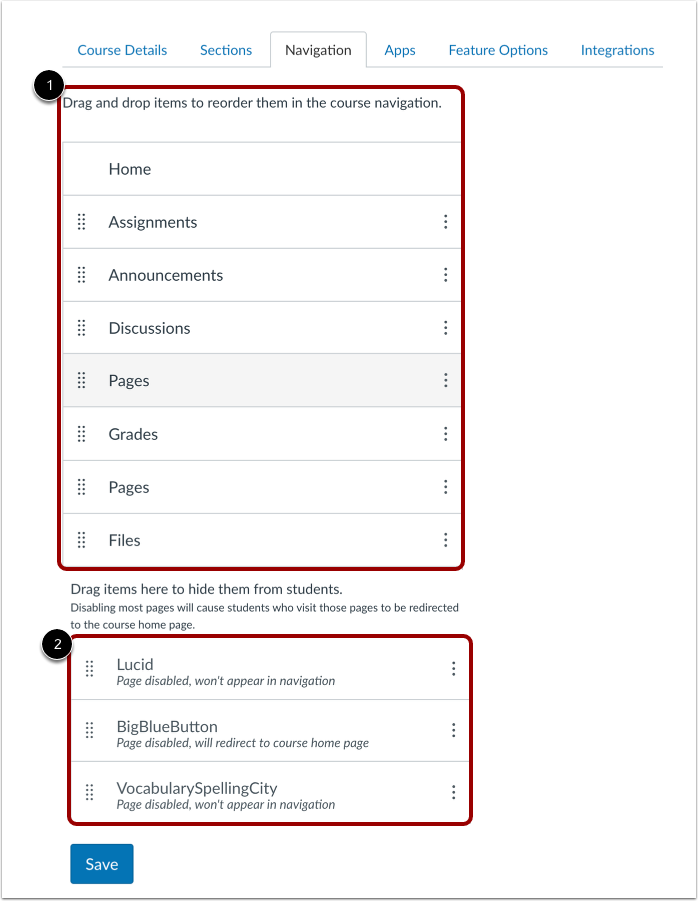
00:12: Click the Navigation tab.
00:14: Navigation links that are visible to all users display in the top of the page.
00:18: The order they display in the list is the order in which they display in
00:22: Course Navigation.
00:24: Navigation links that are hidden from students display in the Drag items here to hide
00:28: them from students section.
00:30: To reorder navigation, links, click the navigation, link. You would like to move drag and drop the navigation link to the desired location. You can also use the keyboard to reorder and navigation link within its current section. Select the item and press space to begin moving it use the up or down, arrow keys to reposition, the item, then press space to drop it in place or press escape to cancel.
00:54: Only one item can be moved at a time and tab or shift tab will not change the selection while moving.
01:01: You can also use the Move option to reorder a navigation link within its current section
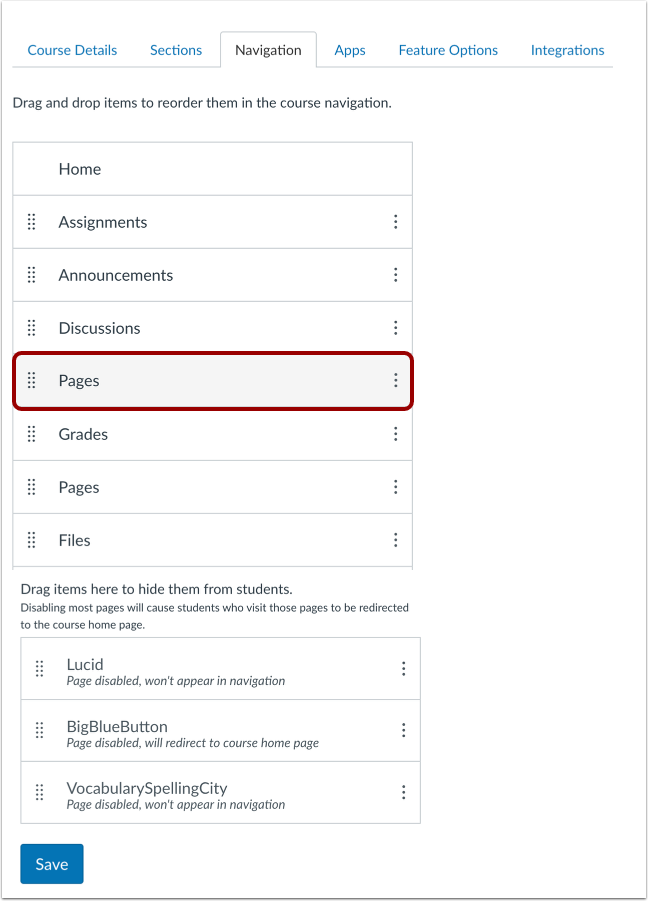
01:05: (either visible or hidden). Click the Options icon.
01:10: And then click the Move link.
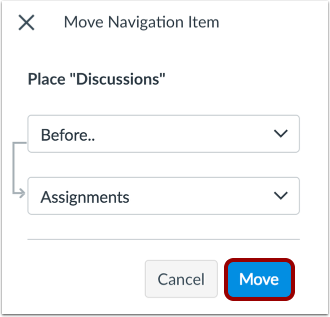
01:12: In the Move Navigation Item sidebar, click the Place drop-down menu.
01:18: Select the placement of the navigation link
01:20: you are moving. You can move the link so it is located at the top of the list, before
01:24: a specific navigation link, after a specific navigation link, or
01:28: at the bottom of the list.
01:31: If you selected the Before or After option, click the second drop-down menu
01:37: Select the navigation link that should be before or after the link
01:41: you are moving, as indicated by the option selected in the previous menu.
01:46: If you want to move the navigation link to another location,
01:48: change the sidebar placement options as needed.
01:53: Click the Move button.
01:56: To hide a navigation link from students, click the link Options icon.
02:00: And then select the Disable option. The navigation link moves to the Drag
02:05: items here to hide them from students section. You can also drag and drop the
02:09: link to the Drag items here to hide them from students section.
02:13: To enable a link in the hidden section, click the Options icon.
02:17: And then select the Enable option. You can also drag and
02:21: drop the link out of the hidden section.
02:24: If enabled at your institution, you can add custom links by clicking the Add a Link
02:29: button.
02:31: Click the Save button.
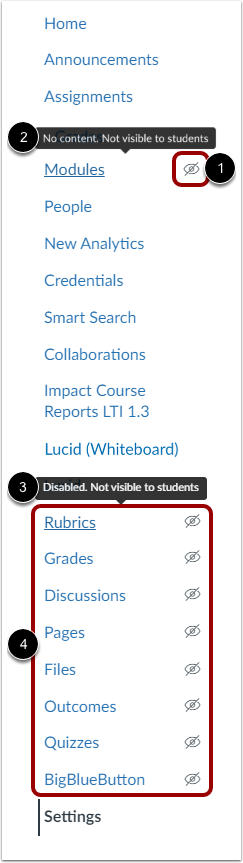
02:33: View the Course Navigation Menu. Navigation links display in
02:37: the same order that you have designated in Course Settings.
02:41: Any Course Navigation link that is hidden from students displays the Visibility icon.
02:46: A link may be hidden to students because the feature area has no content.
02:52: Or because the link is disabled.
02:54: Links that are manually disabled by a course instructor display at the bottom
02:58: of the Course Navigation Menu above the Settings link. If you disable
03:02: or hide a Course Navigation link to an external tool,
03:05: its link does not display in Course Navigation and is hidden to
03:09: all course users, including instructors.
03:13: This guide covered how to manage Course Navigation Links.