00:07: How do I create an Ordering question in New Quizzes?
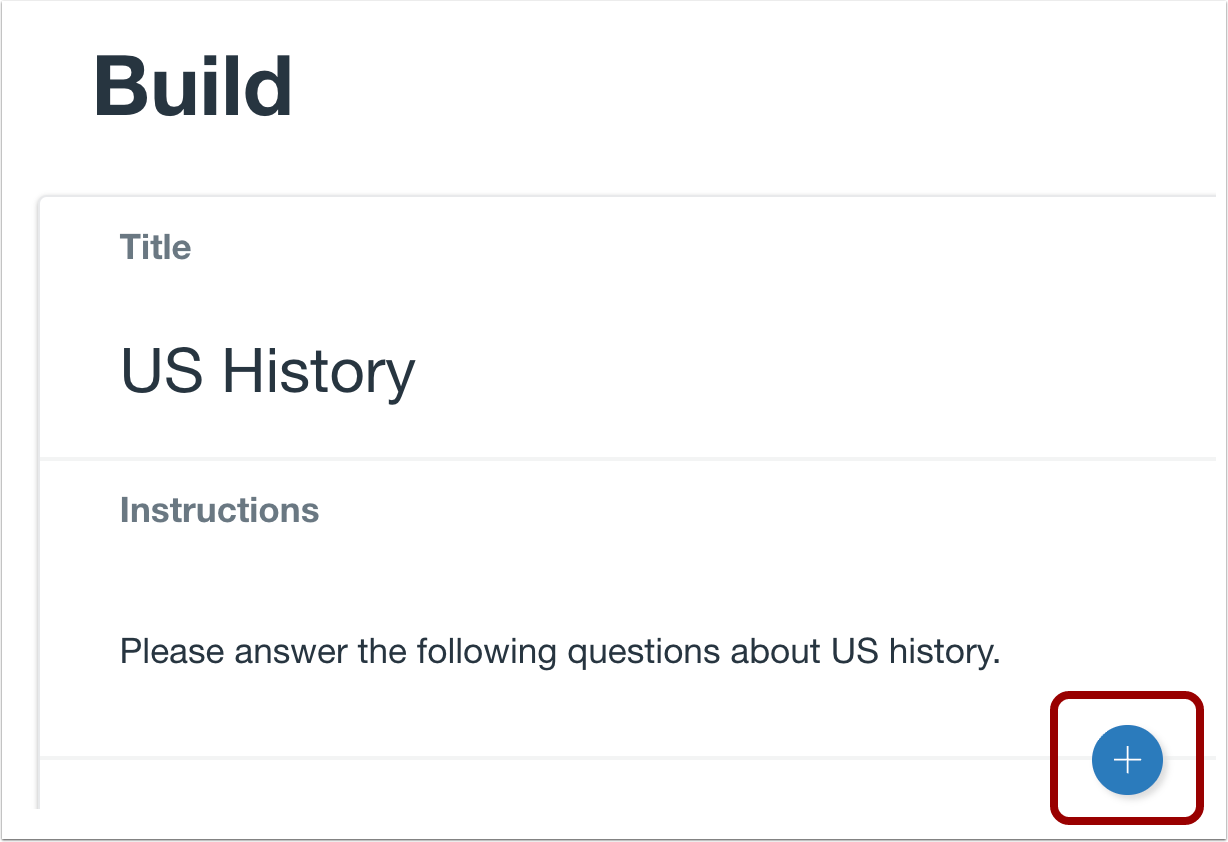
00:11: To create a question, click the Add button anywhere in the quiz.
00:15: Click the Add Ordering button.
00:18: In the Question Title field, add a question title. Question titles
00:22: are optional and are not visible to students.
00:26: In the Question Stem field, add the question stem. The question stem contains
00:30: the question and, if necessary, additional instructions and
00:34: information. You can use the Rich Content Editor or the HTML
00:39: view to format and add content to your question stem.
00:43: By default, Ordering questions will include a top label and a
00:47: bottom label. To name the labels, type the names in the Label fields.
00:53: To remove labels from the question,
00:55: click the Include Labels checkbox.
00:59: To add answers to the ordering question.
01:01: Type the answers in the answer Fields, one to add additional
01:05: answers. Click the add answer link.
01:08: To add additional answers, click the Add Answer link.
01:13: To delete an answer, click the Delete icon.
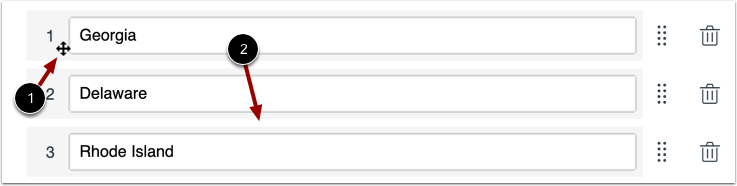
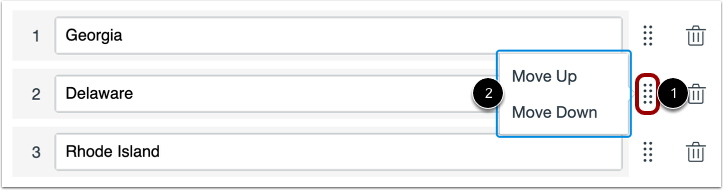
01:16: You can move an answer in an Ordering question by dragging and dropping or using
01:21: the Move icon. To drag and drop an answer, hover
01:25: over the answer until the Move cursor
01:27: appears. Then drag and drop the answer to its new location.
01:33: To move an answer using the Move icon, click the Move icon and select
01:37: the Move Up or Move Down option.
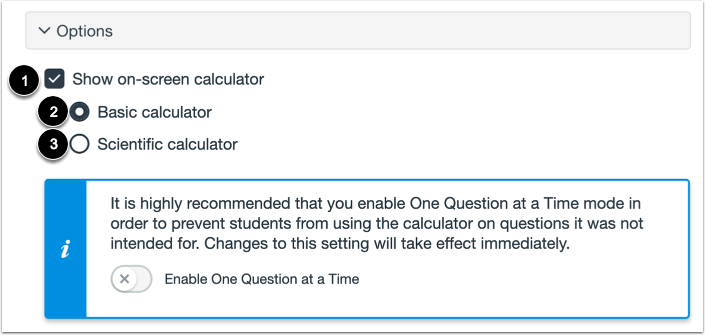
01:41: To allow students to use an on-screen calculator for this question.
01:44: Click the show on screen calculator, checkbox.
01:47: If you select this option, you can choose either a basic calculator or scientific
01:51: calculator. The basic calculator displays numbers and basic
01:55: math functions, such as add subtract multiply divide, the
02:00: scientific calculator, displays more options for advanced calculations.
02:05: To align the question to an outcome, click anywhere in the Align to Outcomes
02:09: section.
02:11: To add the question to an item bank,
02:13: click the Add to Bank link.
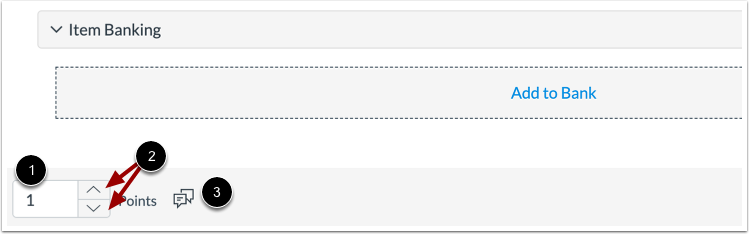
02:16: To customize the point value for the question, type the point value in the Points
02:20: field or use the arrows to increase or decrease the point value.
02:26: To leave feedback for students, click the Feedback icon
02:30: To save the question, click the Done button.
02:33: This guide covered How to create an Ordering question in New Quizzes?