00:07: How do I attach a file to a discussion reply as an instructor?
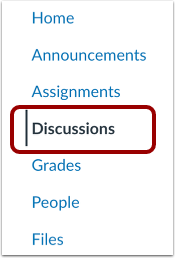
00:11: In Course Navigation, click the Discussions link.
00:16: Click the name of the discussion you want to participate in.
00:20: Click the Reply button.
00:22: After adding content using the Rich Content Editor to the discussion reply,
00:27: click the Attach link.
00:29: In the file window, locate and click the name of the file.
00:32: Click the Choose or Open button.
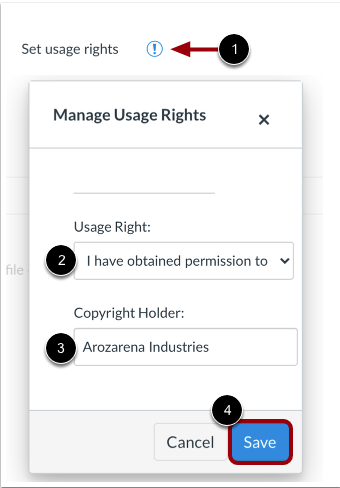
00:36: If required by your institution, you will need to select usage right settings
00:40: for your attachment to manage usage.
00:42: Write settings, click the set usage rights icon in
00:46: the usage. Right drop-down menu, select one of five usage rights,
00:51: I hold the copyright. If you created the original content, I
00:55: have obtained permission to use the file.
00:57: If you obtain permission from the author, the material is in the public
01:01: domain. If explicitly assigned to public domain cannot be copyrighted
01:05: or is no longer protected by copyright, the material is subject
01:10: to an exception. Example, fair, use the right to quote, or others
01:14: under applicable copyright laws. If it is an excerpt or summary used
01:18: for commentary, news, reporting research or analysis and education
01:23: or the material is licensed under Creative.
01:26: Commons, which also require setting a specific Creative.
01:30: Commons license. If you are an instructor and are not sure which
01:34: usage rate applies to your file, Please consult your institutional admin
01:38: for guidance. If known enter the copyright holder information in the
01:42: copyright holder field to save your usage.
01:45: Right settings, click the save button, you can edit usage right settings
01:49: by clicking the set usage rights icon
01:53: Click the Reply button.
01:55: Your discussion reply. Your attached file displays under the
01:59: text.
02:00: This guide covered how to attach a file to a discussion reply as an instructor.