00:00: How do I edit or remove a course outcome in Improved Outcomes Management?
00:06: How do I edit or remove a course outcome in Improved Outcomes Management?
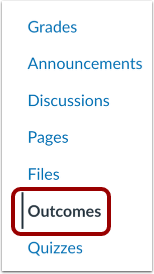
00:11: In Course Navigation, click the Outcomes link.
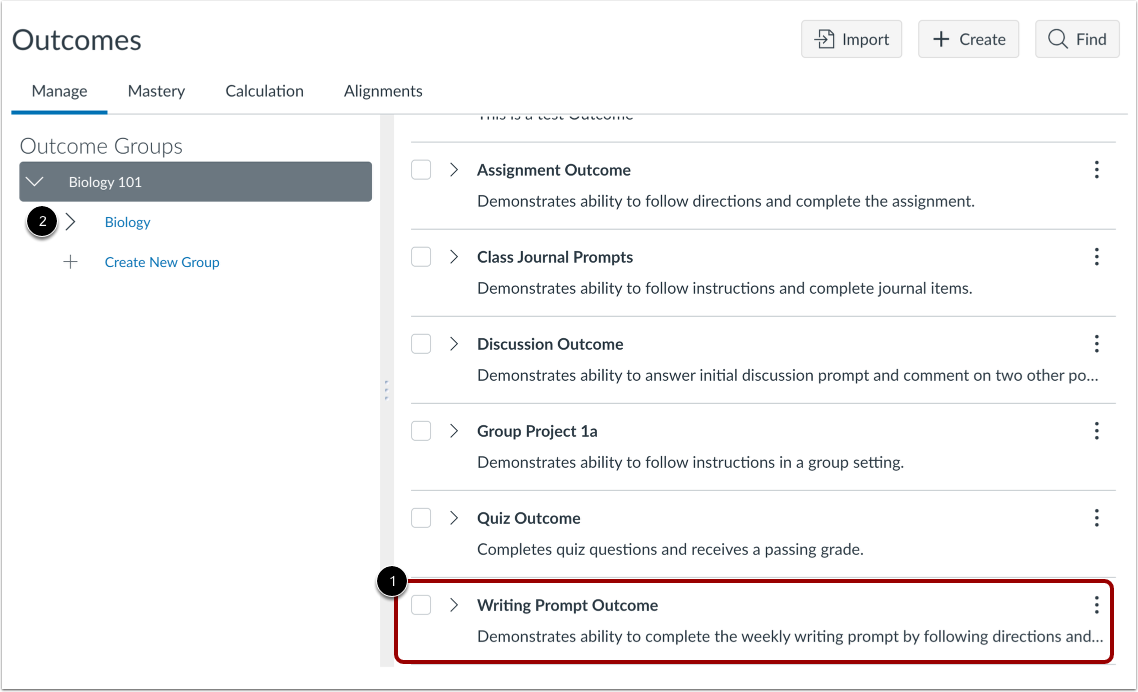
00:15: Locate the outcome you want to modify. In order to view your outcome,
00:19: you may first need to click the outcome group.
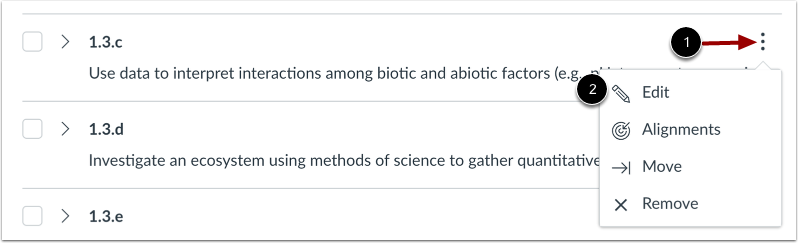
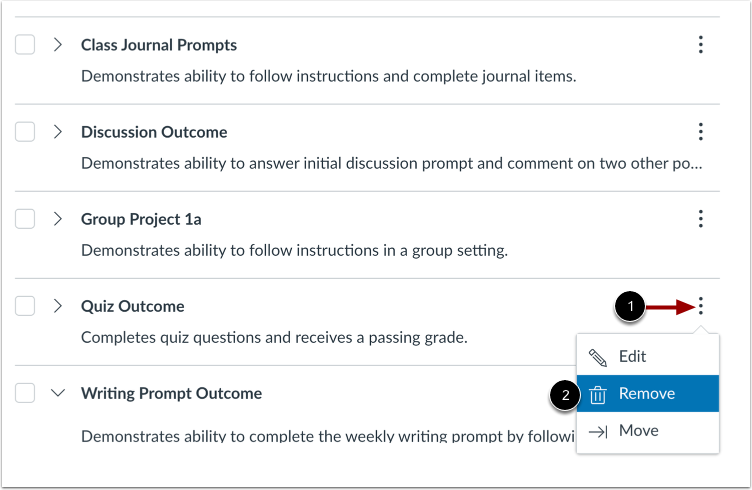
00:23: To edit an outcome, click the Options icon. Then click the
00:27: Edit link. Take note that if you cannot use the Edit link for an
00:31: outcome, it may be an account level outcome or an imported
00:35: outcome.
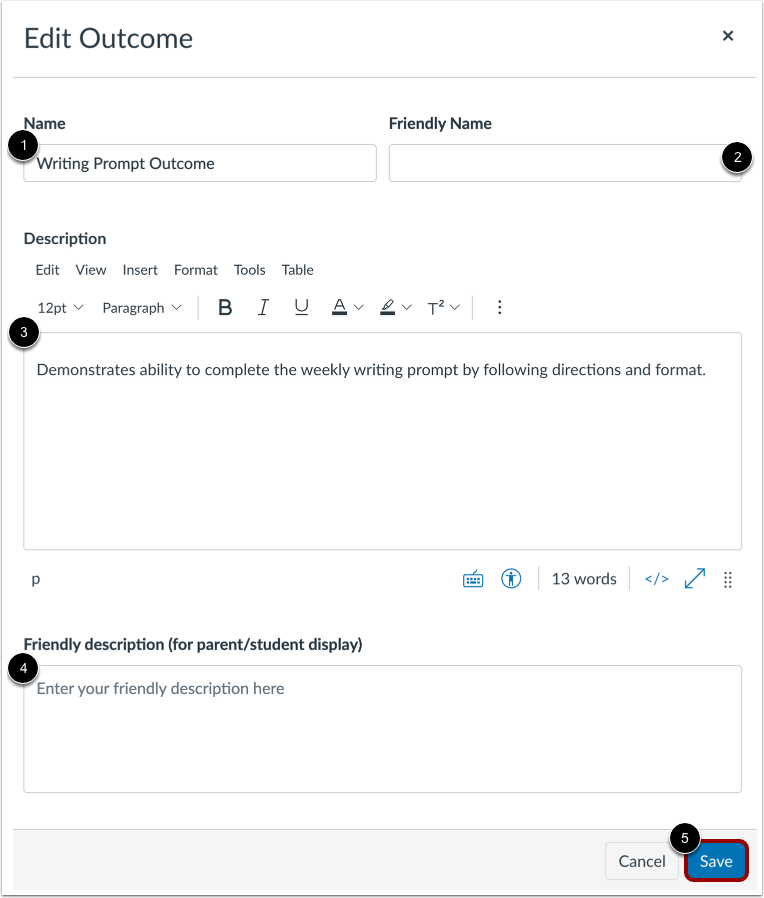
00:37: You can edit the outcome's name, friendly name, description, and
00:41: friendly description. Click the Save button.
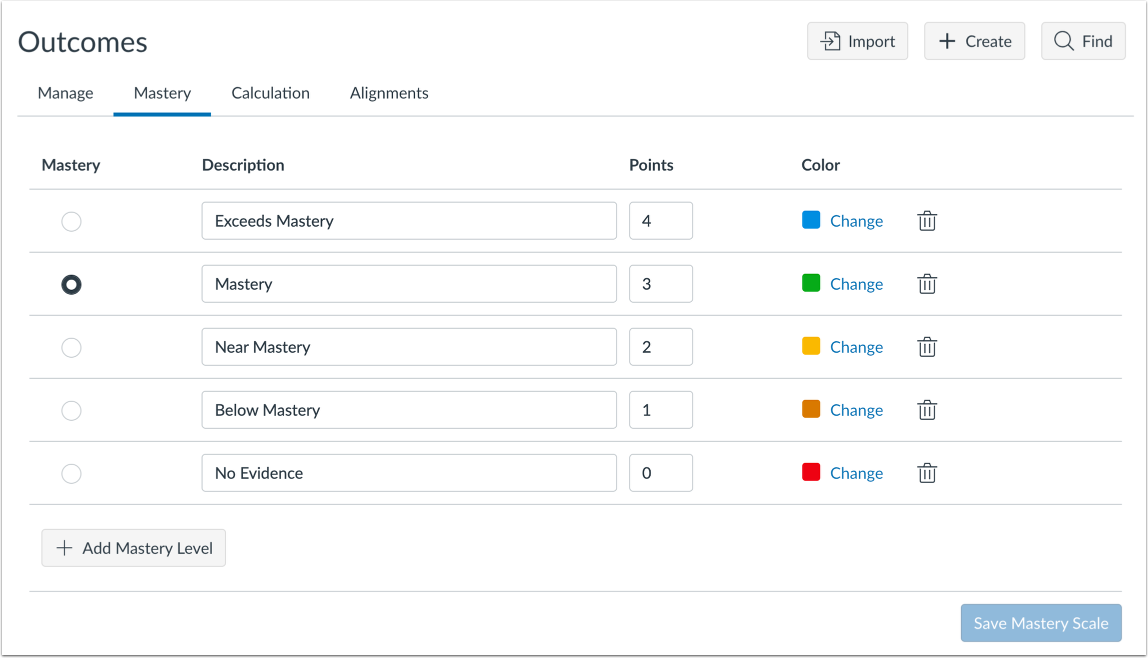
00:46: If you have the permission to edit mastery scales, you can make changes to the
00:50: default mastery scale in the Mastery tab.
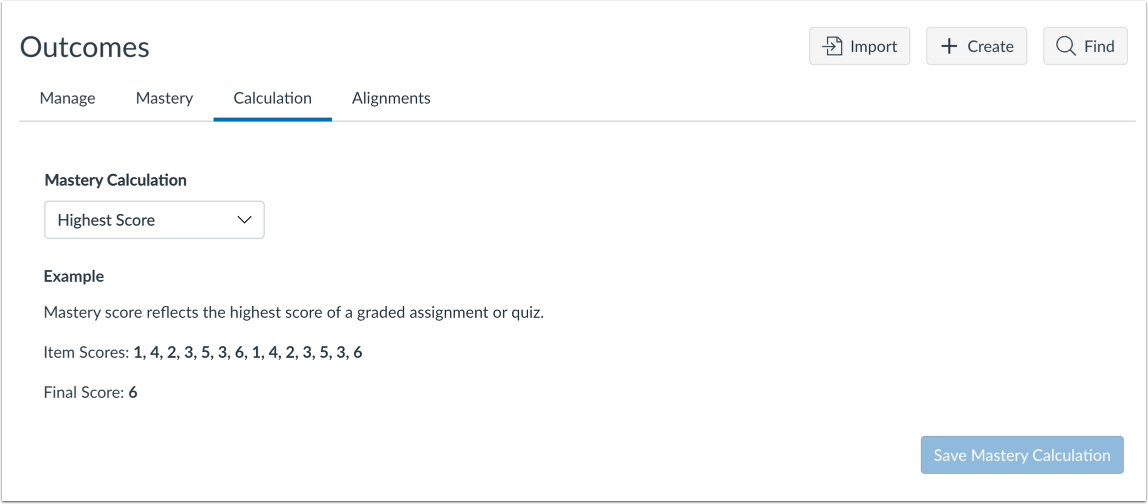
00:53: If you have the permission to edit outcome proficiency calculations, you can
00:58: make changes to calculation methods in the Calculation tab.
01:02: To remove an outcome from your course, click the options icon and click the remove
01:06: link. Take note that if you cannot use the remove
01:10: link for an outcome, it may be an account level outcome and import it
01:14: outcome, or an outcome, aligned with an assignment or question Bank.
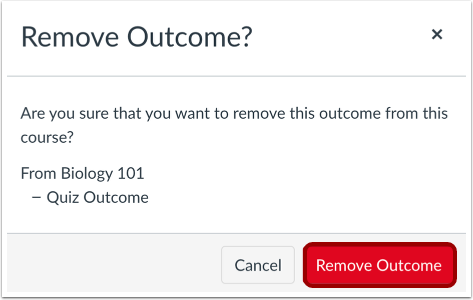
01:19: To confirm you want to remove the outcome, click the Remove Outcome button.
01:24: This guide covered how to edit or remove a course outcome in Improved Outcomes
01:28: Management