00:00: How do I create a Fill in the Blank question in New Quizzes?
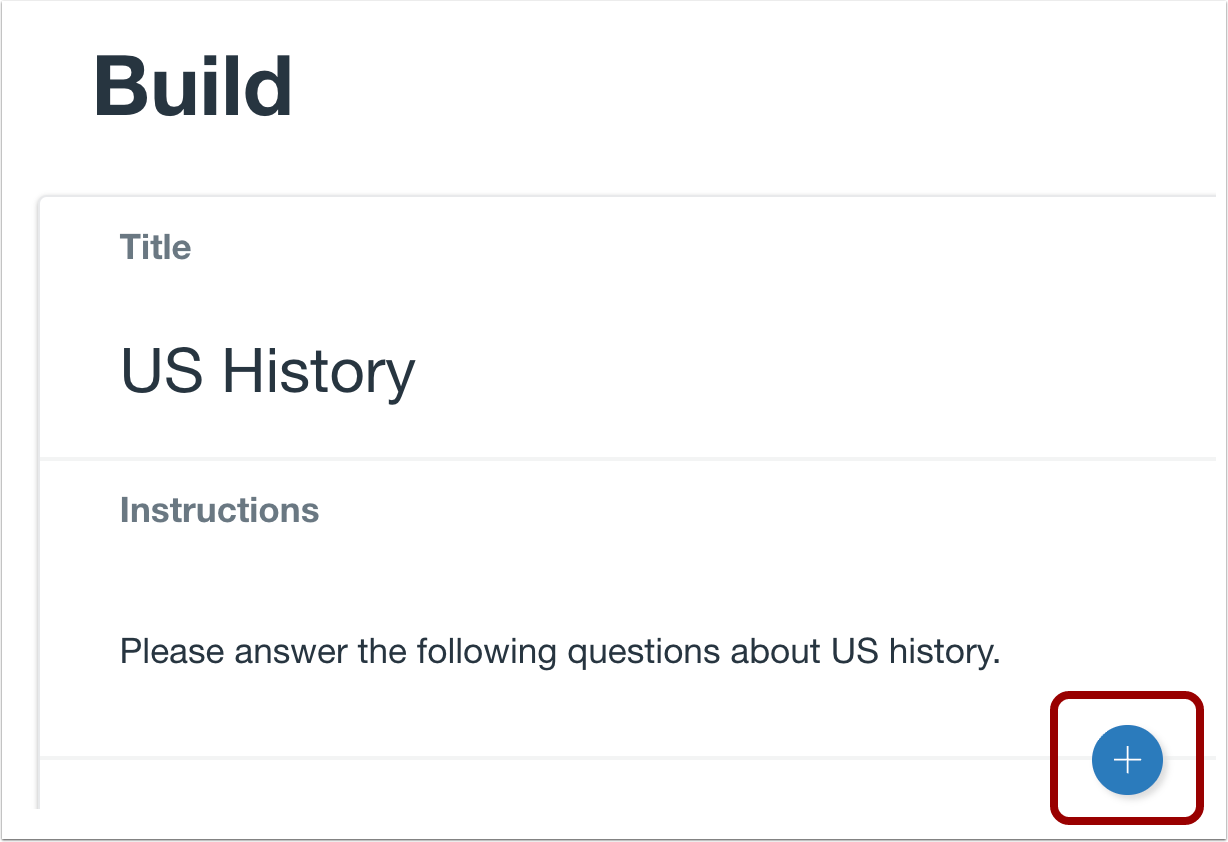
00:04: To create a question, click the Add button anywhere in the quiz.
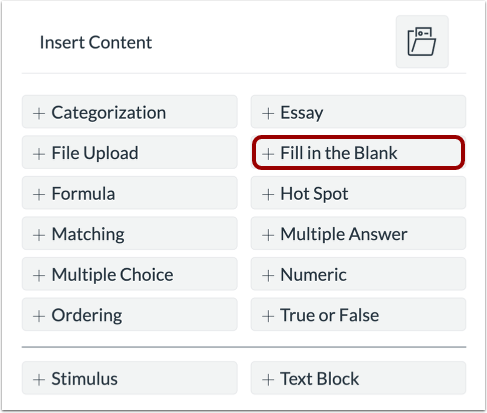
00:09: Click the Add Fill in the Blank button.
00:12: In the Question Title field, add a question title. Question titles
00:16: are optional and are not visible to students.
00:20: In the Question Stem field, add the question stem.
00:23: The question stem contains additional instructions and information for
00:27: your Fill in the Blank question.
00:29: Enter a statement and surround a word with backticks to indicate where a user will
00:34: fill in the answer (e.g., "Roses are `red`,
00:36: violets are `blue`"). You can use the Rich Content Editor or the HTML
00:41: view to format and add content to your question stem.
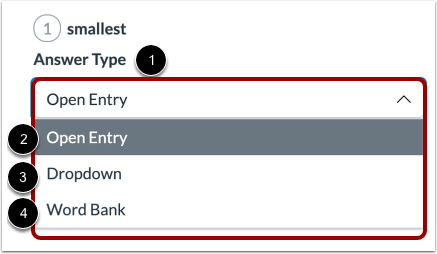
00:45: And the answer type menu, select the answer type to use for a blank space.
00:49: Fill in the blank answer types are open entry drop
00:53: down or word Bank.
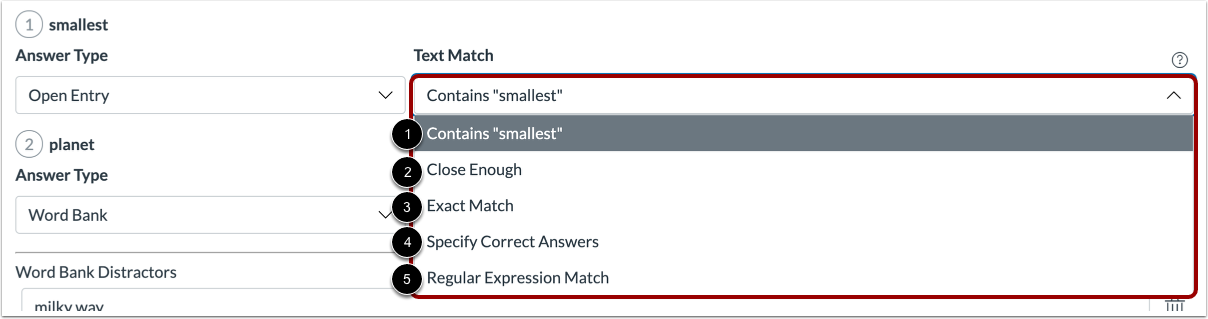
00:55: For Open Entry answer types, you will need to select a Text Match
01:00: option from the Text Match menu. The following options are available:
01:05: Contains: Allows for the text to exist anywhere in student responses.
01:09: However, student answers must match the specified spelling
01:13: and case. For example, if the blank is "panda", an answer of "It's
01:17: a panda" will be marked correct, while an answer of "Panda" will be marked incorrect.
01:22: Close enough uses levenshtein distance to determine if the response is close
01:27: enough to the correct answer levenshtein distance is the number of Single
01:31: Character edits needed to change one word to another.
01:34: You can choose to ignore case.
01:38: Exact Match: Requires case and spelling to match
01:41: exactly.
01:43: Specify Correct Answers: Allows for multiple correct answers to
01:47: be specified. For example, if the response is "panda"
01:51: and the correct answers specified are "panda" and "Panda", an
01:55: answer of "panda" or "Panda" will be marked correct,
01:57: while an answer of "PANDA" will be marked incorrect.
02:01: Regular Expression Match: Requires using specialized text strings
02:05: that describe search patterns. The following step includes a few examples
02:09: of basic concepts used in regular expressions.
02:13: Regular expressions are not recommended for beginners and cannot
02:17: be explained in full in this guide. To begin learning more about
02:21: regular expressions, read the Regular Expression Wikipedia entry.
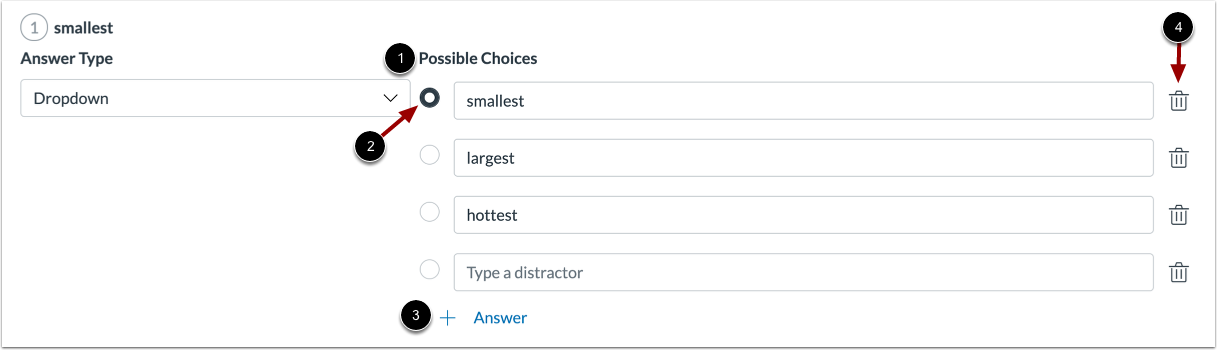
02:26: For Dropdown answer types, enter the answer choices in the Possible Choices
02:31: fields. Click the button next to the correct answer.
02:35: To add additional answers, click the Add Answer link. To delete
02:39: an answer, click the Delete icon.
02:42: To delete an answer, click the Delete icon.
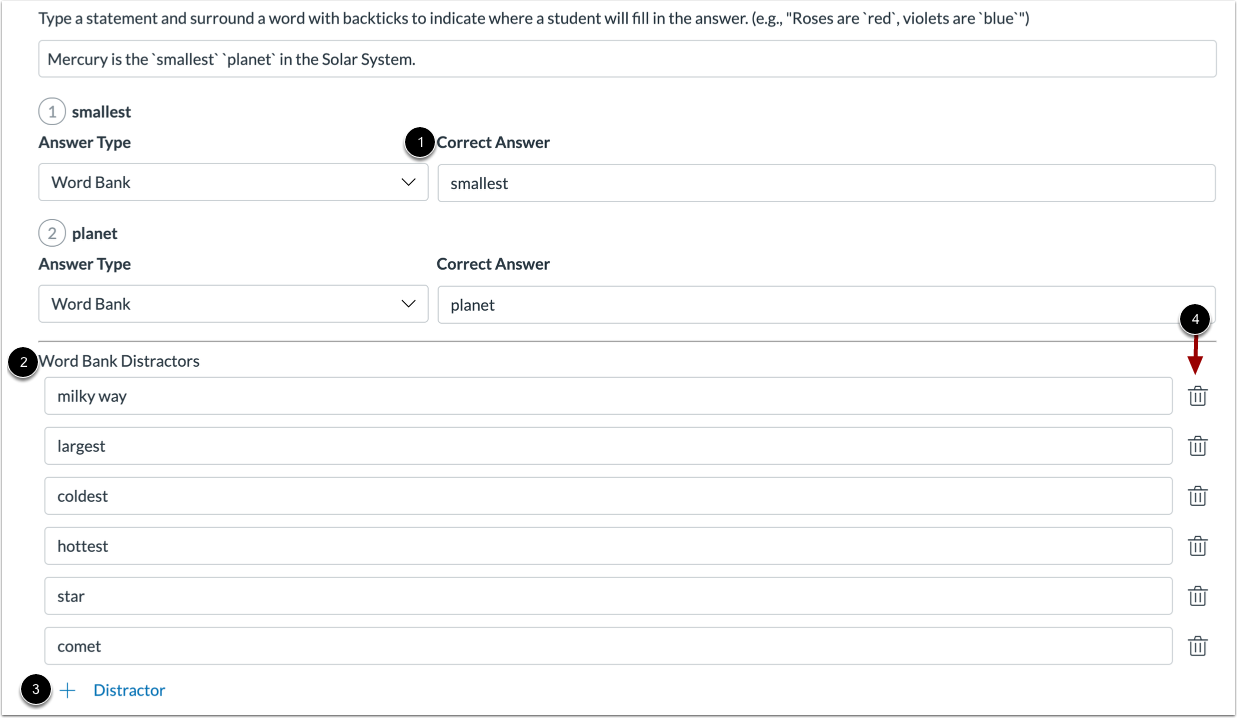
02:46: For wordbank answer types. Enter the answer choices in the correct answer
02:50: Fields. Enter words in the word Bank distractors, section
02:54: 2.
02:56: Enter words in the Word Bank Distractors section.
03:00: To add additional distractor words, click the Add Distractor link.
03:05: To delete a distractor word, click the Delete icon.
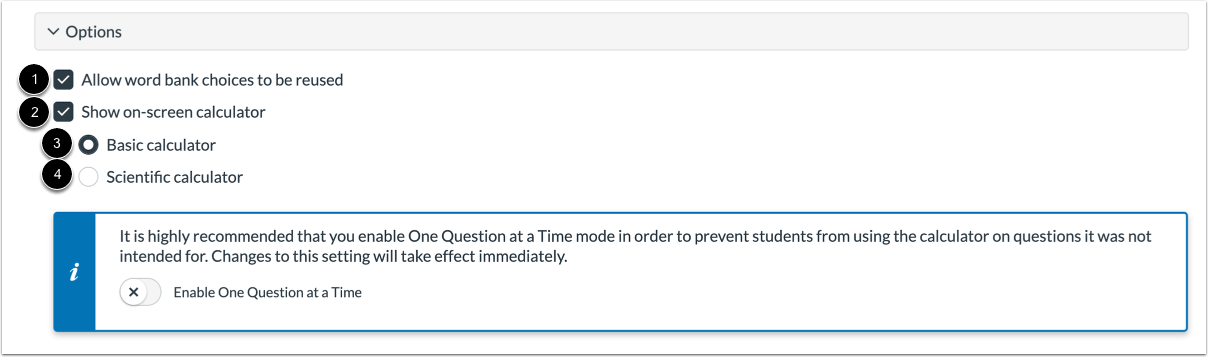
03:10: To reuse wordbank choices. Click the allow wordbank choices to be reused
03:14: checkbox.
03:16: To allow students to use an on-screen calculator for this question.
03:20: Click the show on screen calculator, checkbox? If
03:25: you select this option, you can enable a basic calculator or scientific calculator.
03:29: The basic calculator displays numbers and basic math
03:33: functions. Add subtract multiply divide, the
03:37: scientific calculator, displays more options for advanced calculations.
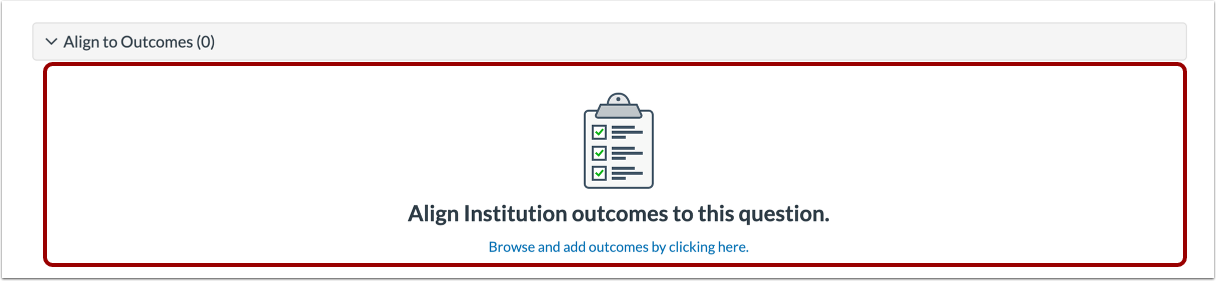
03:43: To align the question to an outcome, click anywhere in the Align to Outcomes
03:47: section.
03:49: If you want to save a question to use in other quizzes, you can add it to an item
03:53: bank. To add the question to an item bank,
03:56: click the Add to Bank link.
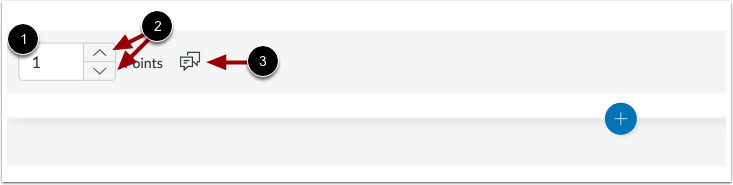
03:59: To customize the point value for the question, type the point value in the Points field
04:03: or use the arrows to increase or decrease the point value.
04:08: To leave feedback for students, click the Feedback icon.
04:12: To save the question, click the Done button.
04:15: This guide covered how to create a fill in the blank question in New Quizzes.